About the Inventory Section
If you have the Supply Plan module, many of your records include an Inventory section depending on the record type.
Inventory Section
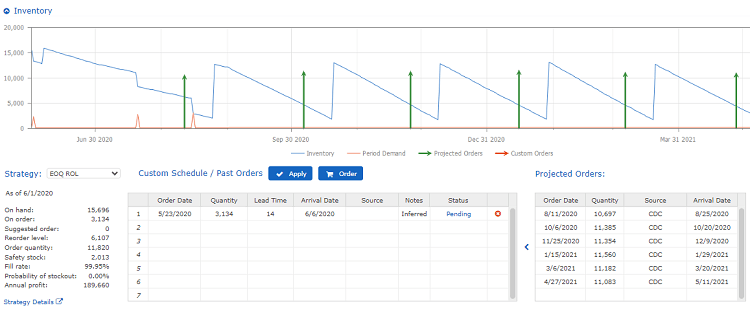
The graph shows the following information pulled from your ERP/MRP database:
- Blue line: Inventory currently on hand
- Red line: Lead time demand for product (typically a constant)
Lead time demand is the total number of units expected to be consumed over the lead time. For example, if your demand is 100 units per month and the lead time is two months, the lead time demand is 200 units. - Green line with arrow: Shows when a projected order should be placed - Red line with arrow: Shows when a custom order is placed so you can see the effect on your inventory
The beginning of the graph may show fluctuations, but after several periods a pattern begins to emerge, which leads to the development of an optimized schedule.
The information in Inventory sections of records is used to produce the Inventory Status report.
See Work with Inventory Status.
About the Strategy Section
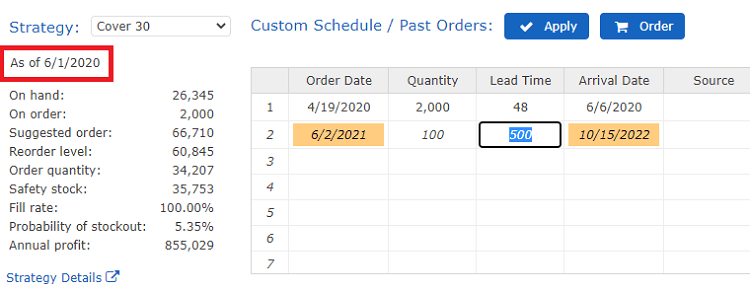
The Strategy section in records shows which strategy is in use for the record in which you are working. The settings in the Strategy section control the calculations used to generate the inventory graph. In the figure below, a Weekly Monday strategy is in use (an order is placed every Monday).
The available Strategy options are determined before implementing CCH Tagetik Supply Chain Planning. You apply the Non Stock strategy when an item is being discontinued (regardless of demand, do not reorder).
Some of the values in the Strategy section are calculated (using the Strategy plan in place), while others are constant values. The following options display in the Strategy section:
Strategy Section Options
| Option | Description |
|---|---|
| On hand | Total number of units in possession. |
| On order | Number of units on order (not yet on hand). |
| Suggested order | System recommendation of number of units to order on the scheduled order date. This number is always 0 until the day on which the order is scheduled. For example, if you have a Weekly Monday strategy in place, then the Suggested order value is 0 on all days except Mondays. |
| Re-order level | Number of units at which your stock reaches the minimum level (time to reorder). |
| Order quantity | Difference between the minimum (reorder level) and the maximum (suggested order). |
| Safety stock | Value is calculated based on the Strategy record in place. Safety stock calculations are dependent on the type of strategy used, and highly dependent on the uncertainty and standard deviations. CCH Tagetik Supply Chain Planning's safety stock calculation is a form of the standard versions of determining safety stock, but with added complexities and nuances. |
| Fill rate | Value may be calculated based on the Strategy record in place. To always have the item in stock, set this to 100%. The fill rate is the percent of orders filled from inventory with no back orders. If the fill rate is less than 100%, you may need to force a stock-out to achieve the desired result. For example, if there was no uncertainty in demand, then a zero safety stock would yield a 100% fill rate. If the fill rate target is 99%, the safety stock must be negative. It may sound strange to plan to stock out, but it delivers a profit-optimized result when there is uncertainty in demand. |
| Probability of stockout: | Likelihood your inventory will go to zero (stockout). |
| Annual profit | Amount of sales minus any costs associated with inventory management of the item. |
The Strategy Details link opens the Strategy record currently in use for the record in which you are working.
See Strategy Record.
Projected Schedule Section
The Projected Schedule section is CCH Tagetik Supply Chain Planning's suggested optimal schedule, which is calculated based on demand, on-hand inventory, on-order inventory, and other strategy details. It takes several periods after CCH Tagetik Supply Chain Planning is implemented to determine an optimized schedule.
Custom Schedule/Past Orders Section
The Custom Schedule/Past Orders section is similar to the Adjustments and Overrides section. You can change any information currently in the Projected Schedule here. For example, if you are contractually obligated to purchase a specific number of items on a specific date, you would adjust the information here. A Notes column lets you type in that cell, which can then be exported to an ERP system. A Status column lets you know if your order has been imported, is pending, or is on hold.
- Imported means the order was imported into the schedule and has been approved.
- Pending means the order needs to be exported and processed.
- On hold means the order is waiting for a decision somewhere in the process.
- On hold - shift means if the order date is before the current date when an inventory order is run, then the order date can be shifted to be the same as the current date.
- On hold - stick means the order date does not change when an inventory order is run.
You may notice Inferred Orders in your Custom Schedule. These are created by CCH Tagetik Supply Chain Planning when an item has an on order quantity but no order schedule.
To adjust items in the Projected Schedule
-
Do one of the following:
-
In the Projected Schedule table:
- Select an entry you need to change.
Any prior entries are included in your selection automatically. - To move the selected items to the Custom Schedule table, click the less-than sign to the left of the Projected Schedule table. - In the Custom Schedule table, click inside any cell and change/add the details.
When you change an option, other entries in the table adjust automatically to fit the pre-set parameters. For example, if you have a lead time of 14 days and you adjust the Order Date, the Arrival Date automatically changes to 14 days later.
If the Arrival Date shown occurs in the past, CCH Tagetik Supply Chain Planning automatically moves it to the As of date plus one. This occurs behind the scenes; the Arrival Date remains the same on-screen. For example, if the Arrival Date is 10/21/2018, and the current (or As of) date is 11/1/2018, the system sets the date behind the scenes to 11/2/2018. This action continues to occur until the item arrives.
If any information in the table is beyond As of date or the Supply Plan Horizon set up by your company, the information in the table highlights to let you know the parameters have been exceeded.
Strategy Section of a Record
 2. To add or remove a table row, in the far right column, select one of the following:
- Ins: Insert a row above the entry you are currently in.
- Del: Delete the row.
- When you are finished making your changes, click Apply.
- To remove all of your changes, click Clear.
Historical items are not removed from the table.
5. To save your changes to the forecast, in the top right of the screen, click Save.
6. To save your changes to the database, on the menu ( ), click Save All Changes.