Adjustment Group Record
You can create Adjustment Group records for customer breakouts. For example, you may have a record for Item 1 sold to Company A and a separate record for the same item (Item 1) sold to Company B. An Adjustment Group record shows you all of the data for Item 1 across all of the companies. This is useful for forecasting with sparse data. If Company A has little historical data for Item 1, you can aggregate all of the historical data for Item 1 across all companies.
Adjustment Group
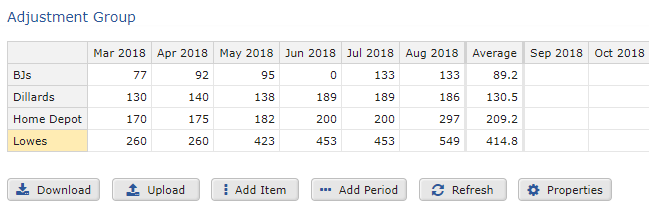
Adjustment Group records typically are used by the sales team to identify large customers.
Adjustment Group records can contain some or all of the following sections:
- Bill of Materials section
See BOM Part Record in Classic Mode, Adjustment Group section.
To configure an Adjustment Group record
- In the record properties section, select Adjustment Group as the Record type, type a Name, and set other properties to match the records you want to include in the adjustment.
When CCH Tagetik Supply Chain Planning is configured, certain properties are assigned as Top-down Filters for use in parent records (examples include Division, Family, or Item properties). Any records that match these properties are automatically included in parent records.
In the Adjustment Group table, the customer breakout for the item with historical data displays as well as the Average. 2. In the Adjustment Group section, select any of the following as needed:
Adjustment Group Setup Options
| Option | Description |
|---|---|
| Download | Download the data table to a comma-separated file. |
| Upload | Upload table data from another program, such as Microsoft Excel® or Access®. |
| Add Item | Add a row to the data table. |
| Add Period | Add a column to the table. |
| Refresh | Refresh the table after making changes. |
| Properties | - Forecast record to adjust - Historical data source record: - Firm - Sales Data - Number of historical periods - Number of forecast periods |
| 3. In the upper-right of the screen, click OK. | |
| 4. To save your changes to the database, on the menu, click Save All Changes. |