View and Navigate Records
You can view and work with records individually or as a selected group using one of the following views on the top toolbar:
Types of Record Views
| View | Description |
|---|---|
| Folder view () | Acts as an organized index of all of the records within the module you have selected (Budget, for example). The folder view displays a subset of the record properties as tree folders in the module in the left pane. You can add, remove, and rearrange folders to create drill-down hierarchies. CCH Tagetik Supply Chain Planning saves your changes and presents the same view when you next log in. Note: The CCH Tagetik Supply Chain Planning Administrator determines which record properties are available for use as folders in the Folder view. See About the Record View. |
| Grid view () | Displays records in the primary view in a table that is expanded so you can read all column values. This view may require horizontal scrolling. See About Record Status. |
To change the order of folders
In the Folder view, click the Group Order icon ( ),
drag-and-drop a folder name up or down to the desired location in the hierarchy and click OK.
),
drag-and-drop a folder name up or down to the desired location in the hierarchy and click OK.
Your changes take effect when the drop-down menu is minimized.
To remove a folder from the hierarchy
In the Folder view, click the Group Order icon (), and do one of the following:
- Drag-and-drop a folder name below Unused Fields.
- Drag-and-drop the Unused Fields header.
To filter a report by record property
To see a subset of you data for a specific customer or division, for example, filter the report by property.
- Select the Filter icon (
 ).
).
Filter Icon
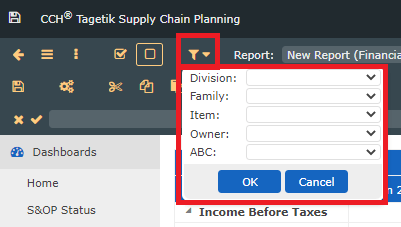 2. Select the field(s) to filter the report by.
Filter Fields
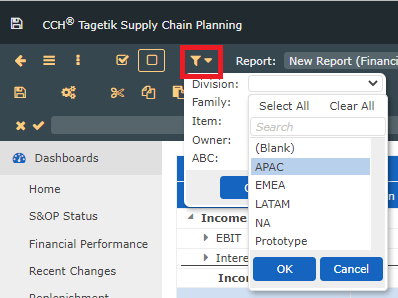
To select more than one field, hold the Ctrl key while selecting the fields.
To customize column headings in the Grid view
- To modify column headings, contact your CCH Tagetik Supply Chain Planning Administrator.
Column headings are the field names of Record Properties. 2. To sort columns, click a column heading.
An arrow next to the column heading indicates the sorting direction. 3. To filter columns, use the column drop-down menus.
To filter using multiple columns, select the item(s) and then click on the next column to display the items you want from that column. 4. To reset the Records List, in the column drop-down list, click Clear All and click OK.