Multiple Sources of Inventory
Adding another source for ordering an item is sometimes needed, for example, if your original source does not have enough to complete your order or another source is having a sale. This feature is available if you have the Inventory module loaded in CCH Tagetik Supply Chain Planning. The source table is located under the Schedule in an item record.
Schedule and Inventory Source Sections
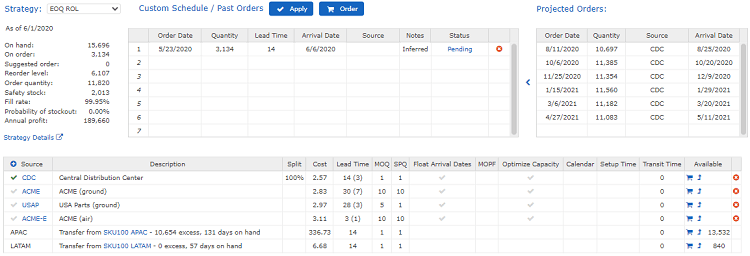
To perform a multi-source calculation for projected orders, the system nets the current demand against all on-hand inventory to schedule the net replenishment needs.
To add a Source
- From an inventory record, in the source table, click the plus sign (
 ) next to Source in the header of
source table.
) next to Source in the header of
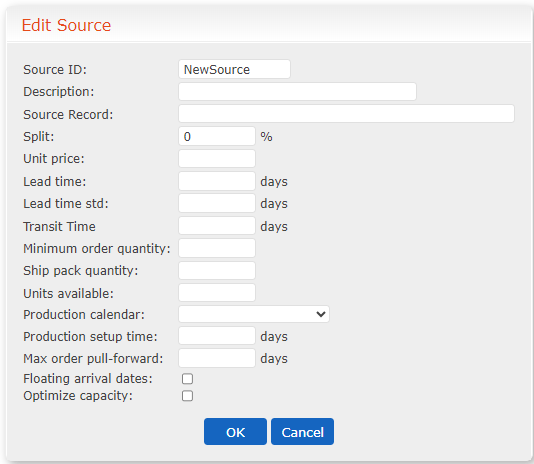
source table. - In the Edit Source screen, fill in the information for the following:
Edit Source Screen Fields
| Field | Description |
|---|---|
| Source ID | Name or ID number for the source |
| Description | A description of the source |
| Source Record | Points to another record. Used in spoke/hub configurations with rollup records |
| Split | Percent split this source has with any other source |
| Unit price | Price per unit of the item |
| Lead time | Number of days needed before order can be met in a rush. Must be more than 0. |
| Lead time std | Standard number of days needed before an order can be met |
| Transit Time | How many days it typically takes to transport an item |
| Minimum order quantity | The minimum number of items to order |
| Ship Pack quantity | Number of items in order |
| Units available | Number of items available from this source |
| Production calendar | Select a calendar set up by your organization |
| Production setup time | How much time it typically takes the factory to set up for a production run |
| Max order pull-forward | The maximum number of items that can be pulled for an order |
| Floating arrival dates | Lets you decide if floating arrival dates are allowed |
| Optimize capacity | Lets you decide if the order should be held to optimize capacity |
Edit Source Screen
 3. Click OK.
4. To change the default source, click the checkmark () at the beginning of the row.
5. To add the source to the schedule, click the shopping cart icon (
3. Click OK.
4. To change the default source, click the checkmark () at the beginning of the row.
5. To add the source to the schedule, click the shopping cart icon ( ) or top-up icon (
 ), make any
changes needed in the Schedule, and click Apply.
), make any
changes needed in the Schedule, and click Apply.
The shopping cart adds the item to the strategy table with the entire quantity available. The top-up arrow adds the item with zero quantity. 6. Click Order to add it to the Purchase Order. 7. Click Save at the top of the screen.