Calendar
The calendar(s) allows you to enter non-working days (holidays and vacation days) that affect your overall schedule or affect a specific item. If you add the calendar to the strategic plan, the calendar applies to all items so we suggest adding your company calendar holidays and company time off (that is, if the company is shut down for a week during Christmas or over the summer) to the strategy section. But, sometimes your inventory arrival is affected by a schedule in another country with a different set of working days and holidays. In this case, you can add a calendar that only affects that one item. You can have multiple custom calendars since products in one region may not be affected by holidays in another regions as long as the calendars are loaded in .csv format.
You can use both these production calendars to make sure you have total control over when inventory is available and make sure you have the people around to build and ship your own products.
To add a calendar as a record
- In the left pane, click Administration > Forecast Database.
- On the menu (
 ), click New
Record.
), click New
Record. - Select Calendar as the Record Type and click OK.
Calendar
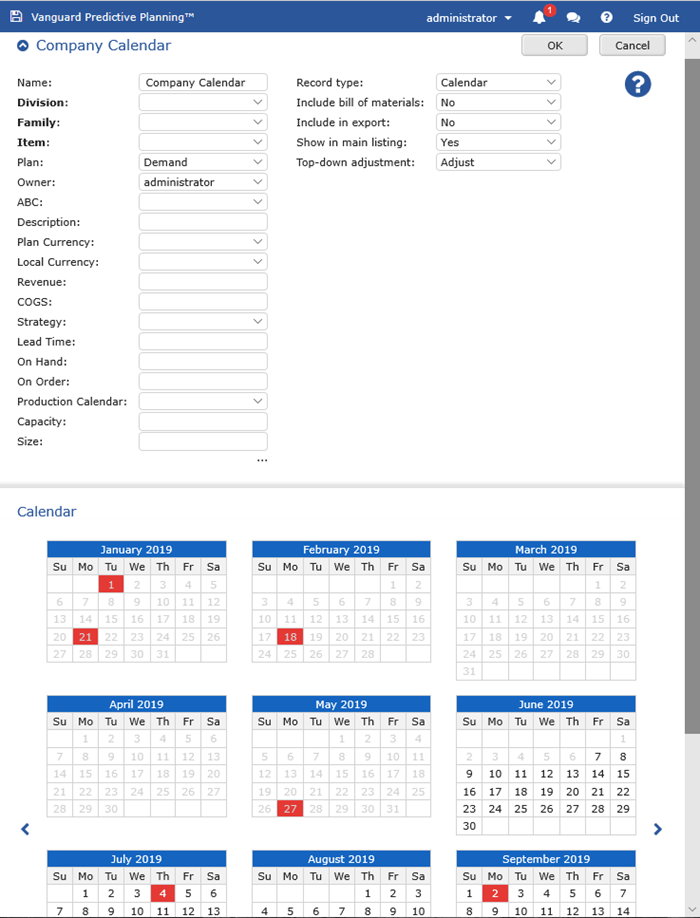 4. Type a Name.
5. Make sure None or Adjust is selected as the top-down
adjustment depending on whether you want the filter applied to the parent record.
4. Type a Name.
5. Make sure None or Adjust is selected as the top-down
adjustment depending on whether you want the filter applied to the parent record.
When CCH Tagetik Supply Chain Planning is configured, certain properties are assigned as Top-down Filters for use in parent records (examples include Division, Family, or Item properties). Any records that match these properties are automatically included in parent records (in this case, a Production Calendar record can be applied). 6. Click on the dates in the Calendar section that are non-working days.
The days turn red as you click each one. If you accidentally click on the wrong day, click it again to un-select it. 7. Click OK.
To add the calendar to the Strategy section
- From the item record, click Strategy Details to view the properties.
Strategy Section to Add a Calendar
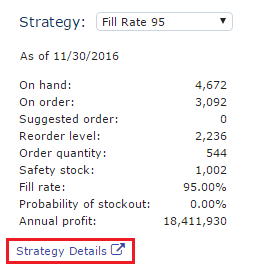 2. Under the Inventory section, select the Production calendar from the list.
Note: The Production Calendar listed in the top section is the schedule specific to the item. The inventory section Production Calendar is the strategy schedule that affects all items. 3. Click Save.
You can now see how the days in the calendar affect your overall schedule.
To add the calendar to an item
- From the item record, expand the item properties.
- Select the Production Calendar from the list.
Production Calendar
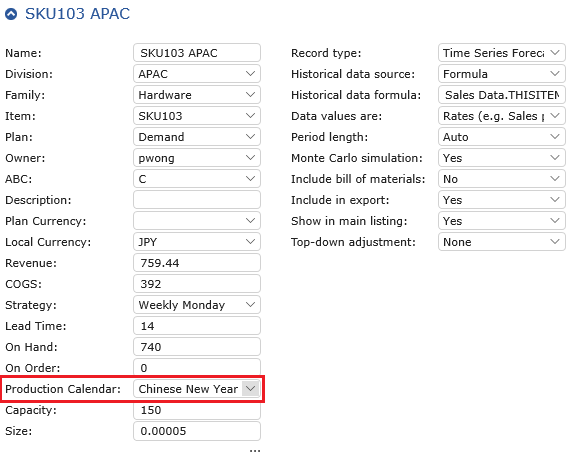 3. Click Save.
The item calendar is now reflected in the Time Series Forecast graph.