View Record Properties
When you select a record, the details or properties of the record display.
The properties that display depend on the record type you open. For example, if you select a Time Series Forecast record, a forecast graph displays with Methods properties. If you open a record for a Promotion, a forecast graph displays with Parameter properties.
See Record Types in CCH Tagetik Supply Chain Planning.
Record properties contain options created by your Administrator. Users can propose and save changes to record properties in their local copy of the database, but only a record's owner or an Administrator can accept proposals and save changes to the Forecast Database.
See Propose Changes to a Record.
Many record types share common properties, while others have properties unique to that record type. There are properties Administrators set (adding properties to records, assigning the names) and system properties.
Record Properties
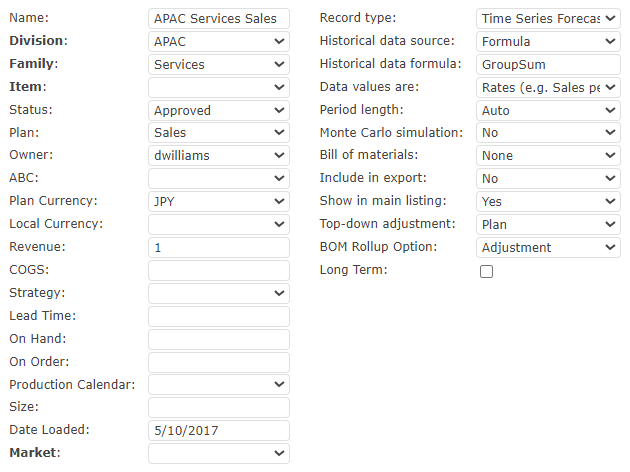
Following are examples of the types of properties an Administrator may set (these properties display on-screen in the left column):
Record Properties
| Property | Description |
|---|---|
| Name (system property) | The name is used to identify the record when it displays in reports and is used as an adjustment in other records. The name must conform to the following guidelines: - Be unique in the Forecast Database - Begin with a letter - Not include symbol characters, such as &, +, -, (,) |
| Division | The upper-most grouping for records related by common characteristics such as geographic regions or departments. |
| Family | The name of a group of records related by common characteristics such as hardware records, services records, or economic records. |
| Item | The identifying name or number of the commodity or service your company sells or manufactures. |
| Status | Shows the status of the record in a pre-configured workflow. To change the status, click the appropriate stage in the workflow. |
| Plan | The module the record is associated with (Sales Plan or Budget, for example). |
| Owner (system property) | The CCH Tagetik Supply Chain Planning user account(s) that can save changes to the record. The Owner field can include a comma‑delimited list of CCH Tagetik Supply Chain Planning user account names and/or group names. See About Record Owners. |
| ABC | This can be used to further break down records into A, B, or C levels. |
| Description | A field that can be used to provide a description of the level or record. Field displays in BOM Part and Inventory records. |
| Plan Currency | The medium of monetary exchange being used for the item in CCH Tagetik Supply Chain Planning. |
| Local Currency | The medium of monetary exchange being used for the item where it is sold. |
| Revenue | The income your company receives. |
| COGS | The value of goods sold during a particular period. |
| Strategy | The inventory stocking strategy. See Strategy Record. |
| Lead Time | Number of days between placing and receiving an order. See Strategy Record. |
| On Hand | The total number of stock-keeping units (SKUs) located in a warehouse at the current time. This is typically pulled from your ERP system. See Strategy Record. |
| On Order | Goods that have been ordered but are not yet on hand. This is typically pulled from your ERP system. See Strategy Record. |
| Production Calendar | The production calendar(s) allows you to enter non-working days (holidays and vacation days) that affect your overall schedule or affect a specific item. See Production Calendar. |
| Size | This is a customer-specific field used for the physical size of the product. An example of its use would be in the Inventory Status report to calculate the number of shipping containers. |
| Date Loaded | This is the date the record was created. |
| Market | Where an item is used as defined by your system administrator. |
There are also system properties that display in every record (these properties display on-screen in the right column):
System Properties
| Property | Description |
|---|---|
| Record Type | The type of record (for example, Spread Curve, Adoption Model, Time Series Forecast, or Promotion). See Record Types in CCH Tagetik Supply Chain Planning. |
| Historical data source | List from which you can select none, a formula, or a local data table. See Data Table Record. |
| Historical data formula | If you select Formula in the Historical data source list, you can type the formula in this field. |
| Data values are | Rates (for example, Sales per yr) or Ending Values (for example, Cash) See Set Rate vs. Ending Values. |
| Period length | Specify a time period length. |
| Monte Carlo simulation | Select Yes to run a Monte Carlo simulation. |
| Bill of materials | A Bill of Materials section displays for assembled record items. Use it to upload materials information, or to include already existing SKUs. Select from None, Classic, Splits, or Production. From a BOM, you can define the Item, Description, Quantity, Rate, Lead Time, and dates of validity for each part. See BOM Part Record in Classic Mode. |
| Include in export | Select Yes to include in an export. |
| Show in main listing | You can hide records to protect sensitive data, or to customize the records list for different users. If a record is hidden, only the record Owner and Administrator see it in the main listing. For example, if all records are hidden, each user sees only those records they own. Only Administrators can change this option. Note: Hidden records are not hidden from any reports that might already contain them. See Hide Records. |
| Top-down adjustment | A top-down forecast estimates demand at an aggregate level, such as at a product group level, and then allocates a portion of the forecast to lower levels, such as at the brand and customer segment. See Apply a Top-Down Override to a Group of Records. |
| BOM Rollup Option | List from which you can select Adjustment, Rollup - Include Firm Orders, or Rollup - Projected Orders Only. |
| Long Term | Select Yes to enable high-level, long-term modelling to be performed on longer time horizons while maintaining high system performance. See Long Term Resource Record. |
To view record properties
- In a record, click the Show More icon (
 ) to the left of the record name.
To exit record properties
Select one of the following:
| Option | Description |
|---|---|
| OK | Saves any changes you have made to the record. To save your changes to the database, on the menu, click Save All Changes. |
| Show Less icon () to the left of the record name, or Cancel | Returns you to the forecast view. |
Note: In the new record view interface, the record’s attributes are displayed in a dedicated page, which can be accessed using the Settings button