Apply Overrides in a Folder View
In some folder views, you can apply overrides to the items within the folder. You may have different views in different modules and folders.
For example, in the Sales Plan folder, you can allocate overrides to items within the Display folder.
Sales Plan Overrides
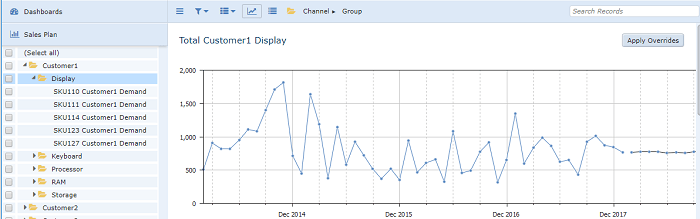
In the Demand Plan folder, you can view and modify a forecast for the aggregated data. You can make changes in the Adjustment and Overrides table that affect the child records.
Demand Plan Overrides
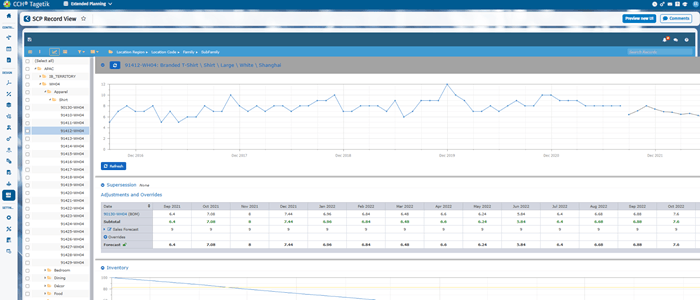
Keep in mind that you only see confidence levels in folder views that are producing new statistical forecasts.
See About Folder Views.
To apply an override in a folder view
- In the left pane, navigate to the folder that contains the records to which you want to apply an adjustment. In the main window, scroll down to the Rollup table.
Rollup Table
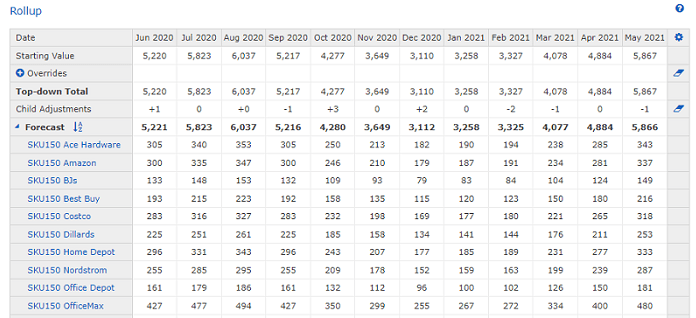 2. Make any changes you want to push to the child records. and press Enter The override(s) you made in step 3 is apportioned appropriately to each child record.
Rollup Table with Overrides
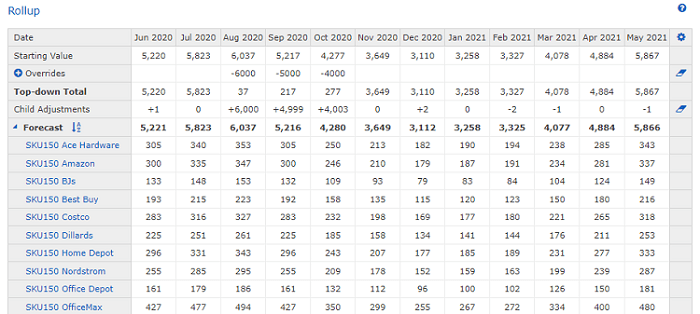 3. To change the level you want to apply these changes to, at the top of the screen, click the Group Order icon (
 ).
).
In the new interface, the Adjustments table is located at the bottom of the screen and provides the same functionalities as in the legacy interface. Using the button in the upper-right corner, you can add new Adjustments and change the view by using the Change Period Length option.