Contributor Cockpit
What it allows you to do
The contributor cockpit allows contributor users to do the following:
- View summary information on data collection and submission status.
- Run actions on process steps, such as data entry, data processing, and data submission and/or rejection.
Information visible to the contributor user
In the cockpit, all contributors view the contributor steps or mixed contributor/consolidator steps of the task workflow. On the displayed steps, the user only sees the organisational hierarchy for which they are authorised to work and, within it, all the entities not labelled as “Only CTP” or “Only consolidator data” on which they are authorised to run operation or submission activities.
The contributor cockpit is therefore structured differently depending on the user viewing it, but also depending on the process characteristics. The number and type of activities and data processing also depends on the process rule settings.
The task workflow of steps
Task workflow activities can be viewed as a chart or a list. In contrast to the list, the chart allows you to distinguish between activities to be run in parallel or in sequence. In the chart, every activity is represented by an icon coloured according to the activity’s progress status.
The list also contains details of every activity, namely the type of activity, the description, the progress status, the date the status last changed and the user who made that change. Activities can be accessed regardless of their order, but to declare one of them complete, all previous activities must have already been declared complete.
Therefore, the step cannot be submitted (submission task is grey) until all tasks have been completed.
Task workflow example
This example shows a task workflow containing both activities to be run obligatorily in sequence, and activities to be run in parallel. In particular, activities such as Checkpoint or HR Analysis cannot be run until the previous activity or group of activities is complete.
The Expense analysis, Employee Transfer Management and Review Attrition Report activities can be run and submitted in parallel, but only when the Set Employee Work Hours field has been filled.
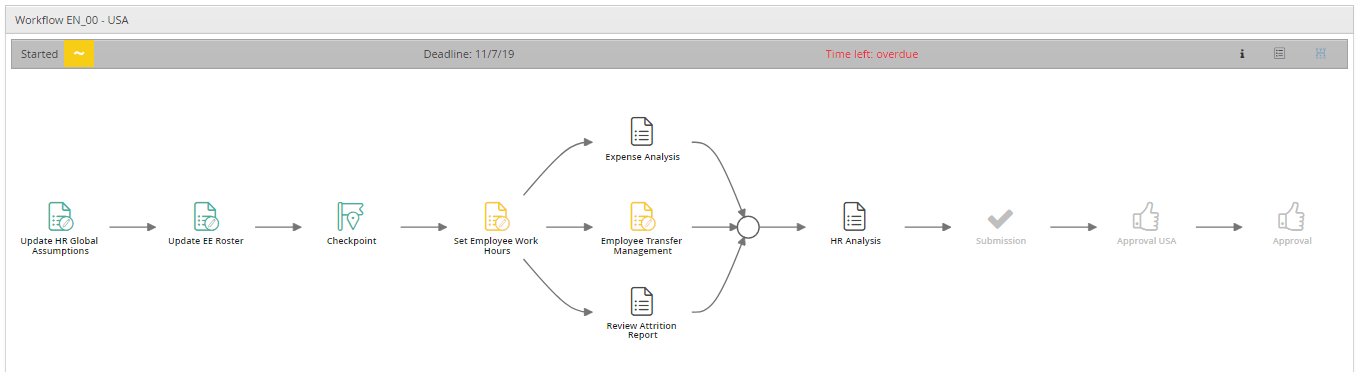
Details of the progress of individual activities.
Activity complete status can be set manually or applied automatically after the desired activity has been performed. Automatic completion takes place by default for activities that run data processing, or it can be overridden on the type of activity in the activity definition step.
Activities are considered optional when they are not significant for the purposes of submitting the entity. This rule is set by the administrator in the activity creation phase.