Consolidator cockpit
What it allows you to do
The consolidator cockpit allows the consolidator to do the following:
- Manage all activities associated with the data collection process concerning consolidation nodes (entry of consolidation journals, submissions, approvals, data processing) in a simple and structured manner.
- Monitor in real time the progress of the activities of every consolidation and sub-consolidation node in order to meet deadlines.
- Monitor the status of consolidation data processing.
Information visible to the consolidator
In the cockpit, all consolidators view the consolidator steps or mixed contributor/consolidator steps of the task workflow. On the displayed steps, the user only sees the organisational hierarchy for which they are authorised to work and, within it, the entities or nodes for which the financial statements need to be consolidated. They do not see the scenarios or periods stored offline or inactive consolidation scenarios.
The consolidator cockpit is therefore structured differently depending on the user viewing it, but also depending on the process characteristics. The number and type of available activities and data processes also depends on the process rule settings.
Data processing status of nodes by consolidation scenario
In the cockpit’s Consolidation scenarios tab, a status indicator is associated with every consolidation node/scenario. The indicator shows whether or not the node of the specific consolidation scenario needs to be re-processed to obtain consistent consolidation data in the event of changes to input data (e.g. following the entry of a gross amount, or an intercompany declaration).
In some cases, the node status indicator may also remain red at the end of the data processing. This could happen in the following cases, for example:
- If a gross amount has been edited on an entity and the consolidator does not have write permissions for the entity on the original scenario.
- If the original scenario was locked immediately after the original data was edited without data processing having been run.
If necessary, the data processing may not be limited to the selected node only. In fact, the system assesses whether it is also necessary to process other nodes that have not had their data directly edited. The purpose is to create consolidated data in line with the consolidation rules set by the administrator/consolidator user. One example of this is data processing for net equity reclassification.
Consolidation data processing according to process submission type
In general, processes involve either submission by scenario/period or single submission.
For single submission processes, the node status indicator remains red until all periods of the process have been processed.
Single submission processes
In single submission processes, consolidation is performed on all the scenarios/periods by default. When a period is modified, however, the default consolidation mode (impacted mode) only reruns consolidation for the modified period. This behaviour does not consider the impact that the modification of a specific period may have indirectly on the other periods of the process.
When working in a process with periods that are interconnected for logical reasons, you can deactivate impacted mode and then rerun the consolidation on all periods without any filter on the edited data.
For details on impacted consolidation mode, see Impacted data processing mode.
| Element | Description |
|---|---|
| Consolidation with periodic calculation | Periodic consolidation is used for accounts in which values accumulate over the year, and particularly accounts of a P&L nature. The values are copied from previous periods and the contribution of the processing period is added. Consolidation is performed systematically on the combination of periods and, even if one or a few periods are modified, the system reruns the consolidation on all periods of the process. For example, if periods 1 to 12 (or from January to December) are consolidated, but only period 5 (May) is modified, the system reruns consolidation on all the process’s periods after period 5. |
| Consolidation with progressive calculation | Progressive consolidation is used for accounts for which it is necessary to have a photograph of the situation at the processing period closing date, and particularly those of a BS nature. In this case, to avoid mass data processing, if one or a few periods are modified, the system only reruns consolidation on the period preceding the last consolidated period. |
In the interface, an indicator on the period shows whether the period has already been consolidated (green) or is to be consolidated (red). The indicator therefore varies based on the presence of modifications on significant nodes.
A node is significant when at least one of its entities is part of a consolidation scenario. Therefore, some nodes may only be significant in some periods. Non-significant nodes are shown in grey. The system checks whether a node is significant based on the run period consolidation area and the previous one. A node may therefore be grey when in reality it is significant for previous periods. Custom data processing can be run in order to override the data processing for those nodes.
The task workflow of steps
Task workflow activities can be viewed as a chart or a list. In contrast to the list, the chart allows you to distinguish between activities to be run in parallel or in sequence. In the chart, every activity is represented by an icon coloured according to the activity’s progress status.
The list also contains details of every activity, namely the type of activity, the description, the progress status, the date the status last changed and the user who made that change. Activities can be accessed regardless of their order, but to declare one of them complete, all previous activities must have already been declared complete.
Therefore, the step cannot be submitted (submission task is grey) until all tasks have been completed.
Task workflow example
This example shows the task workflow activities as a flow chart. The first three activities can be run in parallel. However, the others must be run in sequence. For example, the gross margin analysis activity cannot be run unless the previous planning activity has been completed.
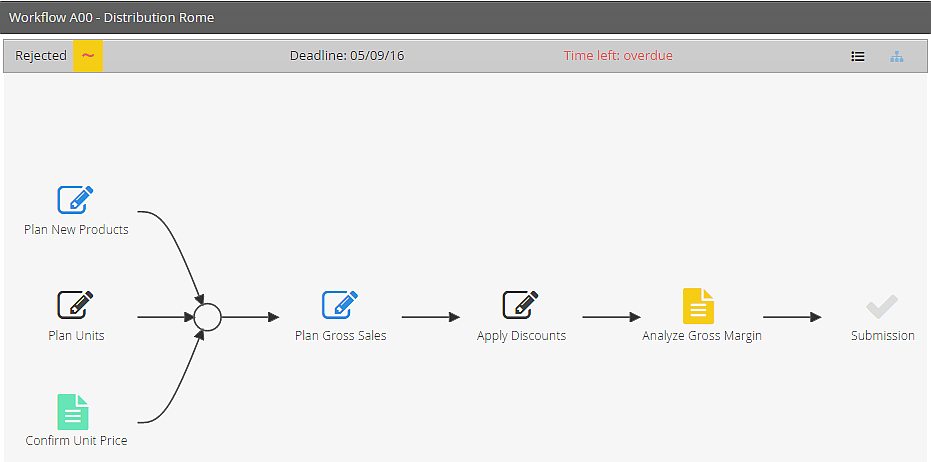
Details of the progress of individual activities.
Activities can be declared completed either manually or automatically, after the activity in question has been run. Automatic completion takes place by default for activities that run data processing, or can be overridden on any activity in the definition step.
Activities that are not significant for the purposes of submitting the entity are optional. This rule is set by the administrator when creating the activity.