Form matrices
What is a matrix?
A form's matrix is the tool with which the user defines the data managed by that form, the ways in which the data are managed, and the ways in which the data are displayed when the form is run. Creating a matrix therefore means deciding how to filter the data of the CCH Tagetik dimensions on the basis of the form's objectives.
When the form is run, the matrix appears as a normal data table in Excel, the row/column structure of which depends on the data managed, but its appearance can be customised using Tagetik styles (see Tagetik styles ).
Matrix elements
Matrix configuration involves configuring the following elements via the Matrix Wizard (Matrix Wizard - Window structure).
- Row/column filters (necessary)
- Matrix filters
- Headers
- Overrides
- Additional management options (see Matrix options tab)
Example matrix
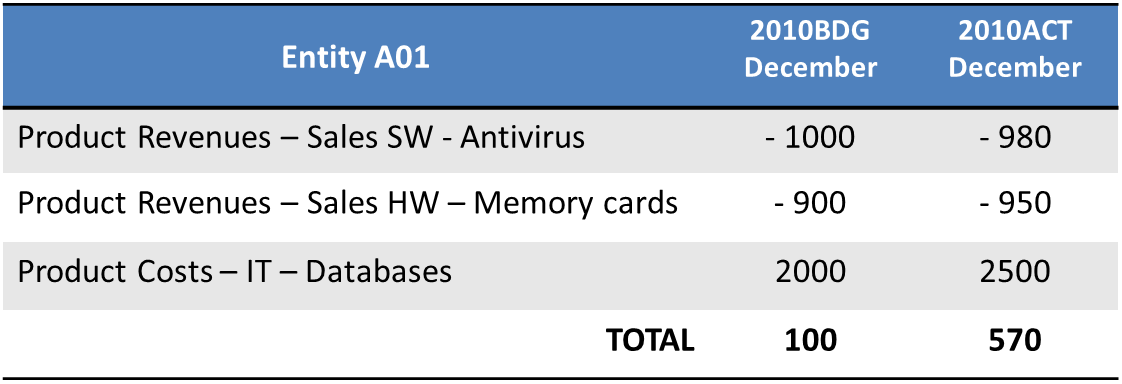
This example describes the creation of a matrix which shows a comparison, for entity 001, of the budget data and the actual data for 2010 relative to the month of December, including the following revenues and costs:
- sales revenue of cost centre "Software sales", product "Antivirus"
- sales revenue of cost centre "Hardware sales", product "Memory cards"
- costs of cost centre "IT", product "Databases"
To do this, the following filters must be set:
- the account, cost centre, product dimensions on rows
- the scenario/period dimension on columns
- entity A01 and the amount type (mandatory dimension specific to Reporting) on the matrix (i.e. on both rows and columns).
The created matrix appears as below.
Transactional matrices
Transactional matrices only manage data on columns. When a transactional matrix is set in the form, the form is called a transactional form. Transactional matrices can manage both Financial Workspace data and Analytical Workspace data.
For more details, see Introduction to transactional forms.
Multidimensional matrices
Multidimensional matrices manage data on both rows and columns. In particular, multidimensional matrices can be used to manage data from Analytical Workspace datasets. When creating the matrix, the user can select a dataset, a datasource or a virtual dataset for every Analytical Workspace.
The creation of matrices with Analytical Workspace data is subject to the following limitations:
- Multidimensional matrices cannot be designed on datasets with the "Show user data only" property enabled.
- "Comments and Attachments" fields cannot be added to multidimensional matrices, even if the associated dataset contains an equivalent field.
- Matrices cannot be defined on datasources that retrieve data via a different connection from the one used by the user.
Sorting of data in matrix trees
The display mode and order of elements in the dimensions tree and in the local row/column filter and matrix filter trees is defined in CCH Tagetik's general settings (see Settings window).
Display rules can also be set directly from the Excel interface, via the  Display mode icon in the design toolbar (see Tool bar).
Sorting entity, category and custom dimensions data
The order of elements related to the entity, category and custom dimensions is defined in the Sorting tab in the general settings for each dimension. For more details, see How to work with dimensions.
Note: whatever the configuration, the order is always ascending.