Add-in Excel
Introduction to the Excel interface
Introduction
Once the dedicated add-in is installed, the CCH ® Tagetik tab appears among the standard Excel tabs. Other tabs and windows can be opened from the toolbar on this tab, to run all the reporting functions enabled for the connected user.
What it looks like
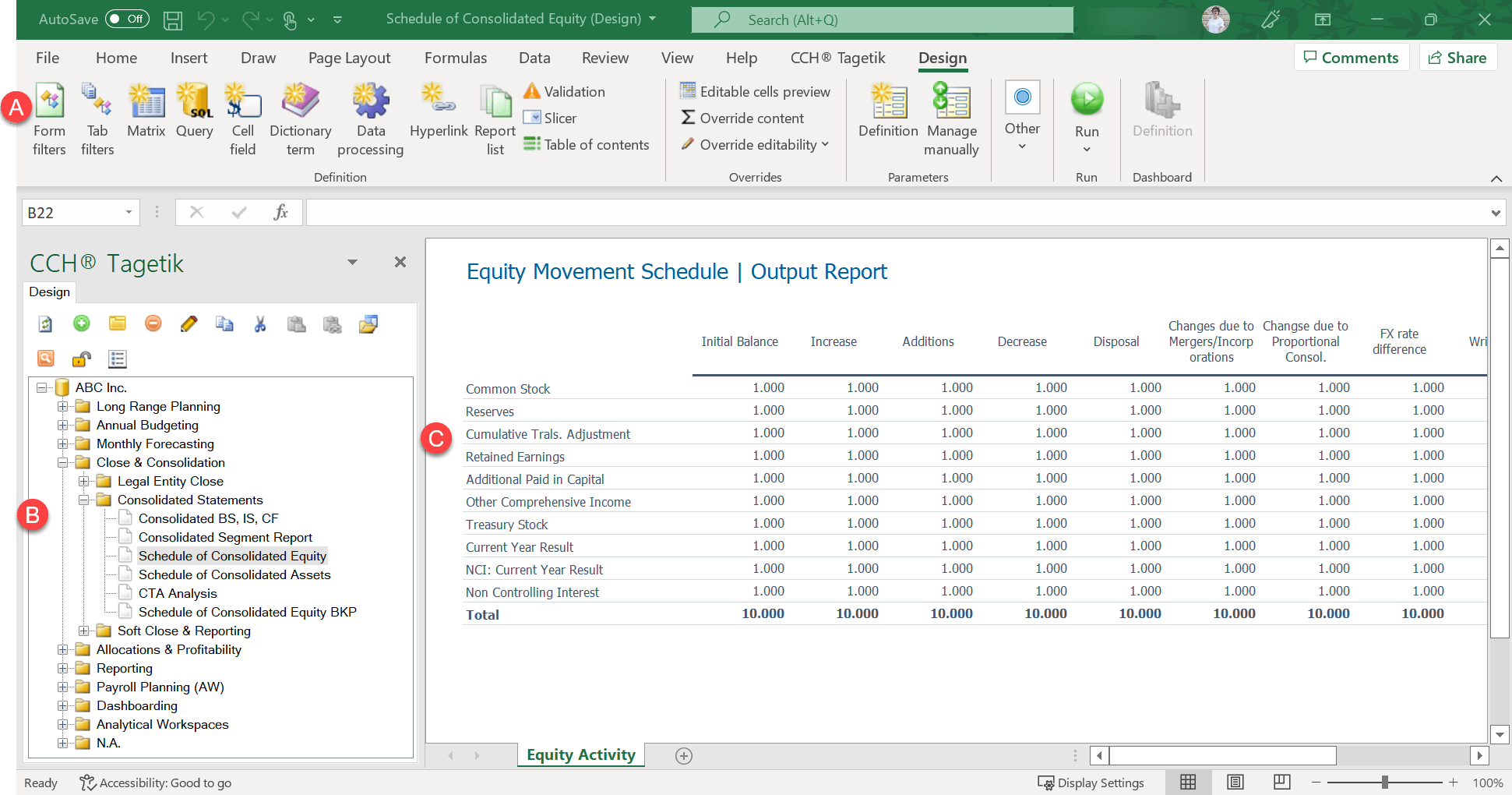
| Element | Description |
|---|---|
| A | Tool bar |
| B | Left-hand panel |
| C | Work desktop |
Tool bar
Allows you to access all of CCH Tagetik’s reporting functions and view only the buttons related to the functions enabled for the connected user.
Left-hand panel
Shows the elements needed to work in the various reporting function macros contained in the View section of the toolbar. In particular, you can view the following tabs:
| Element | Description |
|---|---|
| Design | Displays the folders of the application databases for which the user is responsible, where the administrator can create, edit and delete forms. If the user is connected to several databases, it also allows them to select the one they want to work on. |
| Navigation | Displays the list of available reports, allows you to run them and consult data extracted from the database. If the user is connected to several databases, it also allows them to select the one they want to work on. |
| Data Entry | Displays the list of data entry reports created previously, available for the selected process, scenario and period. Allows you to run them to enter data in the database. If the user is connected to several databases, it also allows them to select the one they want to work on. |
| Open items | Displays the documents currently opened on the work desktop, including those from different operational databases, organised hierarchically, and allows you to access them quickly. The currently selected item has a grey background. By right clicking an individual item, you can access any functions available for that item. |
| workflow | Only available if enabled, allows you to view and follow the workflow to enter data into the database. |
Buttons on the left-hand panel
Depending on the selected tab, the left-hand panel shows some of the following buttons.
| Element | Description |
|---|---|
| Update the structure of the listed forms. | |
| Create a form. | |
| Run the form and open the windows to select the necessary parameters. | |
| Create a node within the selected node or at the same level as the selected form. | |
| Delete the selected form or node. | |
| Edit the name of the selected form or node. | |
| Copy the selected form or item. | |
| Cut the selected form or item so you can paste it elsewhere. | |
| Paste the previously cut or copied form or item into the selected node or item. | |
| Paste only the link to the previously copied form or item into the selected node or item. | |
| Open the selected form in design mode to be able to edit it. | |
| Only if there is a Report List, run data collection only for the reports selected in the list. | |
| Open a search window to find specific forms. | |
| Allows you to rename the selected item. | |
| Move the selected item up. | |
| Move the selected item down. | |
| Close the report that is selected and open on the work desktop. | |
| Run the selected task. | |
| Mark the selected task as completed. | |
| Mark the selected as not completed. | |
| Allows you to manually remove the temporary locks of a form generated by any connection problems that has not been automatically removed by the system. Note: this function does not allow you to remove locks on forms in work off-line mode. To do this, you must use the Locked data entry forms function, which is only accessible to the administrator from the web interface in Forms management. | |
| Allows the user to select the display mode for forms on the panel: with description only, with code only or with both description and code. Note: the default view is defined in CCH Tagetik’s general operational settings, see Settings window. |
Status of open forms
The mode in which forms are opened is shown in the Open items tab as follows.
| Element | Description |
|---|---|
| The form is open in design mode. | |
| The form is open in navigation mode. | |
| The form is open in data entry mode. |
The constituent elements of every form open in design mode are listed below the form.
Work desktop
Area in which reporting operations are run and data extracted from the database is displayed.
Buttons on the Tagetik toolbar
This toolbar is always visible. Depending on the mode in which a form was opened, other toolbars may also be displayed. See Data entry toolbar, Design toolbar and Navigation toolbar.
The buttons are grouped into five different areas: Login, Forms, Show, Tools and Info.
| Element | Description |
|---|---|
| Login | |
| Allows you to login. | |
| Allows you to logout. | |
| Opens a window to exchange messages with other connected users. | |
| Opens a window to monitor the data processing in progress to check which processes are being run and avoid system overloading. | |
| Forms | |
| Ad hoc form: allows you to run the following functions: - create a new ad hoc form - convert a normal Excel spreadsheet into an ad hoc form. This allows you to treat it like a normal Tagetik report and insert a matrix, for example, or other elements. | |
| Show | |
| Design: opens theDesign tab in the left-hand panel and therefore allows you to define the structure of the various forms. | |
| Navigation: opens the Navigation tab on the left-hand panel and therefore allows you to view the data present in the CCH Tagetik database. | |
| Data Entry: opens the Data Entry tab in the left-hand panel and therefore allows you to edit data present in the CCH Tagetik database or enter new data. | |
| Open items: shows the Open items tab in the left-hand panel and thus allows you to rapidly access the various items present in the open form. | |
| . | Workflow - Table: shows the Workflow tab in the left-hand panel. |
| Tools | |
| Report list: opens the Report list wizard window to select and configure the publication of the set of reports called Report list. See Report List Wizard window. | |
| Parameters Definition: opens the Parameters Definition window to create, edit or delete shared parameters and, if the user is working in Design mode, also ad-hoc parameters. | |
| Refresh custom functions: allows you to run the following operations to refresh the custom formulas used to calculate the values of individual cells: - refresh all custom functions present in the current workbook (default option) - only refresh the custom functions present in the current sheet - only refresh custom functions present in the currently selected area. | |
| Batch export: locally exports a set of forms and transforms them into ad hoc forms. Also allows you to create a folder structure that mirrors the structure of the nodes in the group of forms. | |
| Batch import: imports a set of ad hoc forms into the application database. Also allows you to create a form group structure that mirrors the folder structure used locally by the user. | |
| Forms - Import dictionary: imports the dictionary items from one or several forms in the shared dictionary. | |
| Tagetik style: opens the Tagetik style window to edit style sheets. | |
| Refresh Dimension tree: refreshes the dimension tree. | |
| Parameters selection mode: allows you to define how to pre-populate the parameters used when the form is opened in Navigation and Data entry: - Point of View: If a value for every parameter has been specified in the POV (see User settings), so the system can identify a specific form, then the form will be opened automatically. - Last used parameters: the parameters last set during the session will be applied. - Defined by the system : equivalent to Point of View or Last used parameters depending on the value assigned to the Default Parameters selection mode property in the advanced configuration (see Settings window). | |
| Generate structure report: generates a report on the structure of the selected form. | |
| Info | |
| Options: opens a window to configure connections to the server and the settings of some of the Reporting function’s local parameters. See Options window. | |
| Information: shows information on the Add-in and the client to which the user is connected. | |
| Shows the name of the application database on which the user is working. |
Buttons on the work desktop
| Element | Description |
|---|---|
| Expends rows with subtotals. | |
| Collapse rows with subtotals |