Export Purchase Order
You can export purchase orders manually or automatically using the Vanguard Client.
You can place the exported file in a folder. Wolters Kluwer support manages all aspects of the configuration using configuration files.
To export data from CCH Tagetik Supply Chain Planning
- Log into your instance.
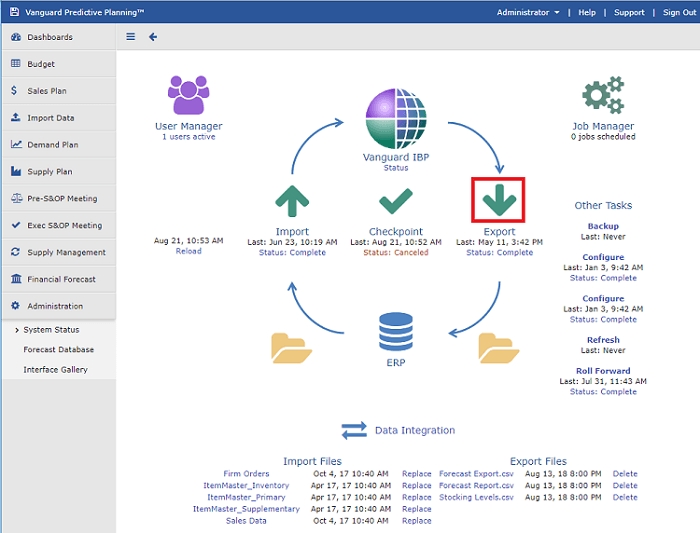
- In the left pane, click Administration > System Status.
- Click Export PO heading.
System Status Screen
 4. In the Export Properties box, set the following parameters:
Orders Export Properties Screen
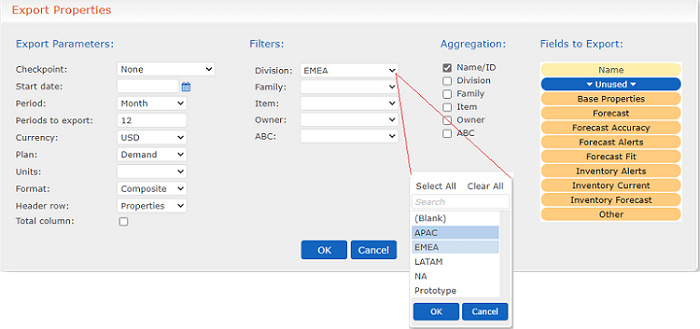
Order Export Properties Screen Elements
| Option | Description |
|---|---|
| Export Parameters | - Header row: Select from the pre-defined list. Examples include Properties and Names. - Export status: Select from the pre-defined list. Examples include Set and None. |
| Filters | Select any filter you want to apply. You can select any filters in use in your instance to filter the set of records that match these property values. To select multiple filters within a value, select each entry and click OK. |
| Order Types | - Select the workflow process state of the POs you want to export. - Imported: POs that have been imported and approved for scheduling. - Past pending: POs that are have past dates and have not yet been exported and processed. - Currently pending: POs that are have current dates and have not yet been exported and processed. - Future pending: POs that are have near future dates and have not yet been exported and processed. - On hold: POs that are waiting for a decision somewhere in the workflow process. - Suggested: POs that are waiting and are priority but still need approval. - Projected future: POs that have a future date. - Include previously exported orders: These are POs that have already been exported. |
| Fields to Export | Select the fields you want to export. |
| 5. Click OK. |
Under the Export PO heading, check the Status to confirm success. You can click Status to access the log information.