Add a Supersession Adjustment
A Supersession adjustment models the transfer of demand from one product to another product. When you apply a supersession, the old product transitions to the new one, including all historical data. If the supersession will happen in the future, the forecast goes through a transition and ultimately ends with all of the historical data transitioning to the new item.
You can use supersessions to model:
- Transitions
One product replaces another product. - Phase-outs
One product slowly phases out and is no longer sold. - Cannibalization
A new product competes with an existing product and will cannibalize some of the existing product’s demand.
Using refrigerators as an example, the following are types of supersessions:
Types of Supersessions
| Supersession | Description |
|---|---|
| 1 to 1 | You are phasing out white refrigerators and transitioning to black refrigerators |
| 1 to many | You are phasing out white refrigerators and transitioning to black and stainless steel refrigerators |
| Many to 1 | You are phasing out white and black refrigerators and transitioning to stainless steel refrigerators |
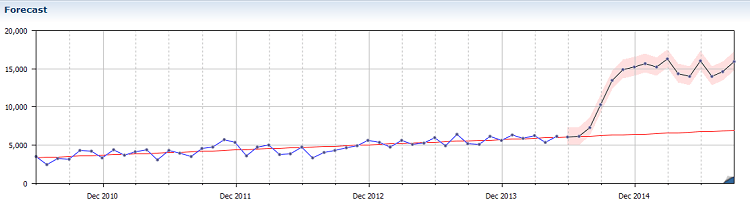
As demand for one product diminishes:
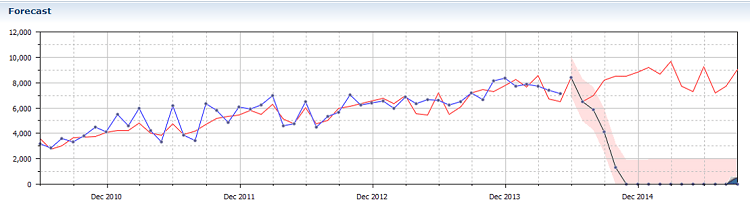
The demand for the replacement or competitor product rises.
Supersessions are especially useful for technology products or for certain seasonal items that have multiple iterations.
Note: To add a Supersession, you must have a Time Series Forecast record for the new item (unless you are modeling a phase-out).
See Time Series Forecast Record.
Once you add a Supersession, do not remove it. CCH Tagetik Supply Chain Planning automatically updates both records correctly as new data becomes available. You can only add Supersessions where there are records.
To add a Supersession adjustment
- In the forecast record for the item you want to phase out, in the Adjustments and
Overrides section, at the beginning of the Overrides row, click the Overrides icon (
 ).
).
See Open and View Records. 2. In the Adjustment screen, from the Adjustment Type list, click Supersession.
Adjustment Screen
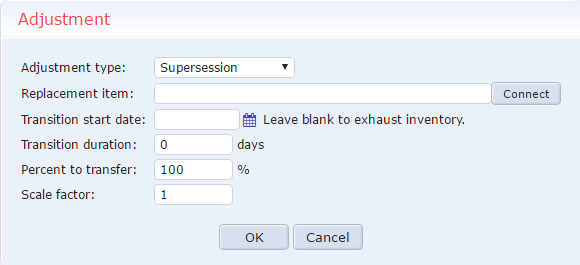 3. Set the following
parameters:
3. Set the following
parameters:
Adjustment Parameters
| Parameter | Description |
|---|---|
| Replacement item | Type the record name of the new item (leave blank if modeling a phase out). |
| Transition start date | Click the calendar icon and select the date on which the transition should begin. If you leave this field blank, CCH Tagetik Supply Chain Planning calculates on hand and on order totals and adds them together. Based on this calculation, a stockout date is determined (how long will it take day by day looking at demand to get to zero). For example, if you had a 4000 unit demand in October, CCH Tagetik Supply Chain Planning would transfer 2000 units between the first and the fifteenth of the month, and then transfer 2000 between the fifteenth and the end of the month. |
| Transition duration | Type the number of days for the duration of the transition. Most transitions have a 0 day duration (unless you are modeling on-hand inventory). When the Transition Duration is set to 0, all items transfer at the end of the month. Even if you set the Transition start date to the middle of the month, if the Transition duration is set to zero, the demand transitions at the end of the month. If you set the Transition duration to 1 or greater, the transition happens on the Transition start date. |
| Percent to transfer | Type the percent of existing demand to transfer. |
| Scale factor | Model differences between the sizes of the items. For example, if your existing item has a unit size of 500mL and the new item has a unit size of 100mL, you should set the Scale factor to 5 because you expect demand for the new item to be 5 times greater than that of the existing item. If the size change is reversed, you set the Scale factor to 0.2. |
| 4. Click OK. |
You must click OK before the Supersession is added to the replacement item’s record. CCH Tagetik Supply Chain Planning automatically adds record links to both forecast records in the Adjustments and Overrides section. 5. Save your changes.