Add Expiration to Records
If you have inventory that expires (for example, groceries, pharmaceuticals, batteries, etc.), you can import your expiration data for an item. This helps you see when inventory expires and plan inventory orders wisely to eliminate waste.
Expiration data sorts inventory based on expiration date or when a product is received. By using expiration data, you can make sure your products are shipped or used based on what expires first and schedule new shipments more judiciously so items do not go to waste. When an item is received, expiration data is entered and imported with the new inventory. CCH Tagetik Supply Chain Planning uses that data to forecast inventory levels by subtracting the inventory most likely to expire first and showing the data in the Inventory graph.
For example, you start the month with 450 bottles of X on hand: 100 bottles of item X are going to expire on the 10th (we'll call that Lot A), 50 bottles of item X are going to expire on the 20th (Lot B), and 300 bottles of item X are going to expire on the 30th (Lot C).
On the fifth of the month, your inventory shows you have 425 bottles of X on hand: 75 bottles of Lot A, 50 bottles of Lot B, and 300 bottles of Lot C.
Based on that use, the demand is 5 bottles per day and CCH Tagetik Supply Chain Planning software schedules what you will have on hand for the 15th: Lot A will be 0 (25 more items were sold from it by the 10th, but then it expired on the 10th and 50 items were wasted); 25 bottles of Lot B were used after the 10th, and 300 bottles of Lot C.
To add the expiration row to
Example of Expiration Inventory
| On Hand Inventory | Day of Month | On Demand | Lot A (expires on 10th) | Lot B (expires on 20th) | Lot C (expires on 30th) |
|---|---|---|---|---|---|
| 450 | 1st | 0 | 100 | 50 | 300 |
| 425 | 5th | 25 | 75 | 50 | 300 |
| 420 | 10th | 25 | 50 | 50 | 300 |
| 400 | 15th | 25 | 0 | 25 | 300 |
| 425 | 20th | 25 | 0 | 75 | |
| 400 | 30th | 25 | 50 | ||
| Waste | 25 | 0 | 25 |
the Adjustments and Overrides table
- In a forecast record, in the Adjustments and Overrides table, at the beginning of the Overrides row,
click the Add Adjustment icon (
 ).
).
Adjustments and Overrides Table
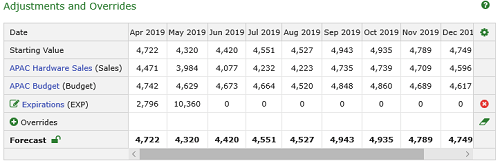
See Open and View Records. 2. In the Adjustment screen from the Adjustment Type list, click Expiration.
Adjustment Screen
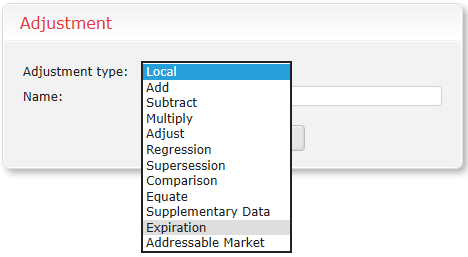 3. To identify your adjustment in the Adjustments and Overrides table, the Name is typically Expirations.
4. Click OK.
3. To identify your adjustment in the Adjustments and Overrides table, the Name is typically Expirations.
4. Click OK.
You can now see inventory drops at specific dates and when the next expiration is going to happen. 5. Save your changes.