Add Adjustments Using Local Overrides
You can apply final adjustments to your forecast to account for changes using local overrides.
Only apply overrides if the value is known and the quantity is out of the ordinary (a lot more or less than the forecast); something that would not be covered within the confidence band.
Following are examples of overrides:
Example of Overrides Used for Adjustments
| Example Override | Description |
|---|---|
| 100 | Replace the forecast value with 100 |
| +10 | Increase the forecast by 10 |
| -10 | Decrease the forecast by 10 |
| +10%/yr | Increase the forecast by 10% per year |
| -10% | Decrease the forecast by 10% |
| *1.1 | Multiply the forecast by 1.1 |
| *0.9 | Multiply the forecast by 0.9 |
| +10... | Increase this and all subsequent values by 10 |
| +10%... | Increase this and all subsequent values by 10% |
| G+10... | Grow by 10 each period going forward |
| G+10%/yr... | Grow by 10% per year going forward |
| T+10... | Increase the trend by 10 each period going forward |
| T+10%/yr... | Increase the trend by 10% per year going forward |
| @ | Force the forecast to happen on a specific day of the month. For example, 2246@15 will add 2246 units on the 15th of the month. |
To add an adjustment using local overrides
- Open the record you want to edit.
See Open and View Records. 2. In the Adjustments and Overrides section, in the Overrides row of the data table, click inside a cell.
Adjustments and Overrides Table
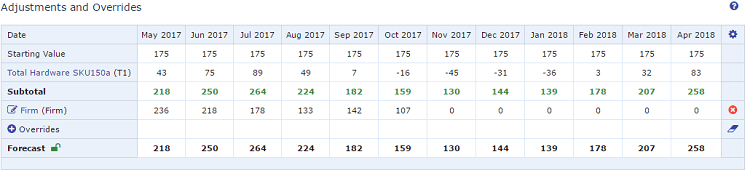 3. Type your override value or formula, and press Enter.
Override values are case-sensitive.
4. To clear override values, at the end of the Overrides row, click the Clear All Overrides icon ( ).
).
The entire row of manually entered data is removed. 5. Save your changes.