Order Rollups
This adjustment creates a hub-spoke relationship between the record to which it has been added (the hub) and any other record (a spoke), which points to the hub record as one of its suppliers. A hub record is created using an adjustment type and the spoke record is created by pointing to the source record.
To create a hub/spoke records
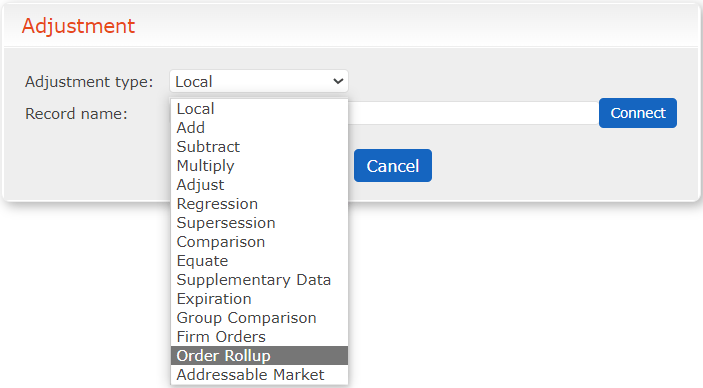
- From the record you want as the hub, select Order Rollup as the Adjustment type.
Order Rollup Adjustment Type
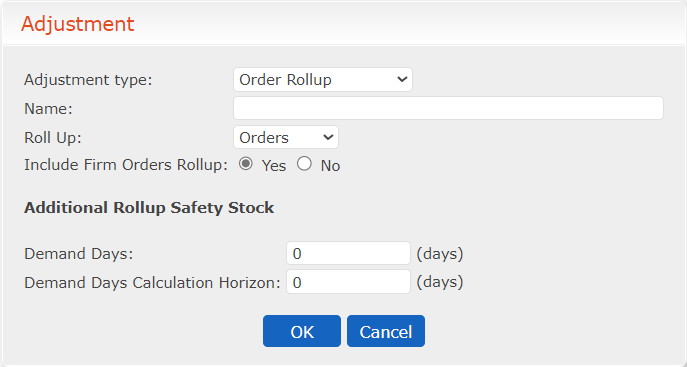
 2. Add a Name. This name displays on the adjustment.
3. Select a Roll Up type. This determines when the rollup order appears.
2. Add a Name. This name displays on the adjustment.
3. Select a Roll Up type. This determines when the rollup order appears.
Adjustment Types
| Roll Up Type | Use |
|---|---|
| Orders | Rollup order appears on the order date |
| Arrivals | Rollup order appears on the arrival date |
| Shipments | Rollup order appears on the shipment date. This date is calculated using the arrival date minus the transit time. |
| 4. Decide if you want the Include Firm Orders Rollup | |
| option. This determines if the orders from the spoke’s custom schedule are included in the rollup. If not, only projected orders are included. | |
| 5. Enter any Demand Days. This inventory property is independent of the standard safety stock. It is calculated by finding the | |
| average daily rollup order over the indicated horizon and multiplying that average by the number of indicated demand days. |
Adjustment Options for Order Rollup
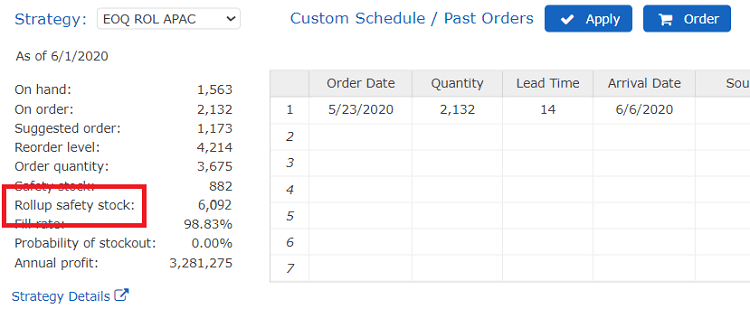
This rollup safety stock is shown on the Strategy section of the screen.
Rollup Safety Stock
 6. Click OK.
7. Add the Override
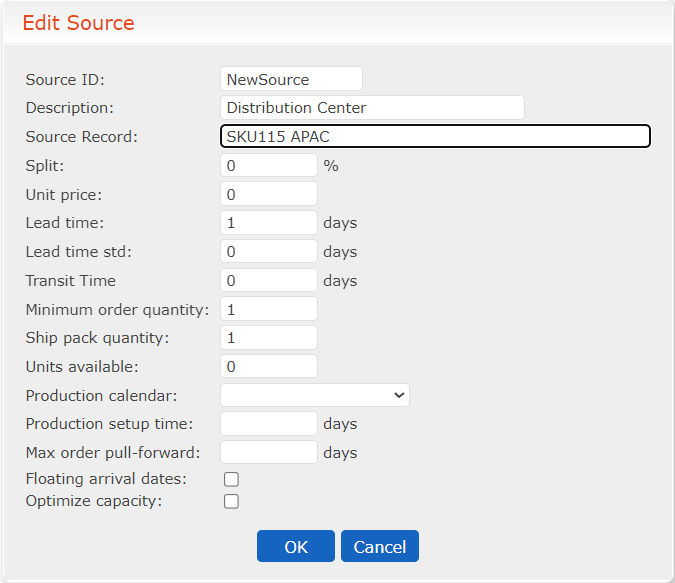
8. On the spoke record, include the hub record name as the Source Record of the
supplier on the Edit Source screen. See Multiple Sources of Inventory.
6. Click OK.
7. Add the Override
8. On the spoke record, include the hub record name as the Source Record of the
supplier on the Edit Source screen. See Multiple Sources of Inventory.
Edit Source Screen
 9. Save the spoke records.
10. The Adjustments and Overrides table on the hub screen aggregates the orders rolling up from the spokes to create an overall forecast.
9. Save the spoke records.
10. The Adjustments and Overrides table on the hub screen aggregates the orders rolling up from the spokes to create an overall forecast.
Populating the Adjustments and Overrides Table

A sortable Rollup table is created on the hub record.
Rollup Table

The orders appear in the Inventory graph as blue arrows pointing downward.
Inventory Graph with Rollup Arrows
