Task workflow for a Collaborative Office document
Background
In addition to numbers and amounts, CCH Tagetik allows you to submit Collaborative Office documents containing text, charts and tables.
How to manage document submission
CCH Tagetik allows you to link the submission of a document created using Collaborative Office to the desired step of a specific Business Workflow. To do this, a specific task workflow must be created within that step, made up of as many Collaborative Office tasks as there are document parts in the document to be submitted.
Task workflow structure
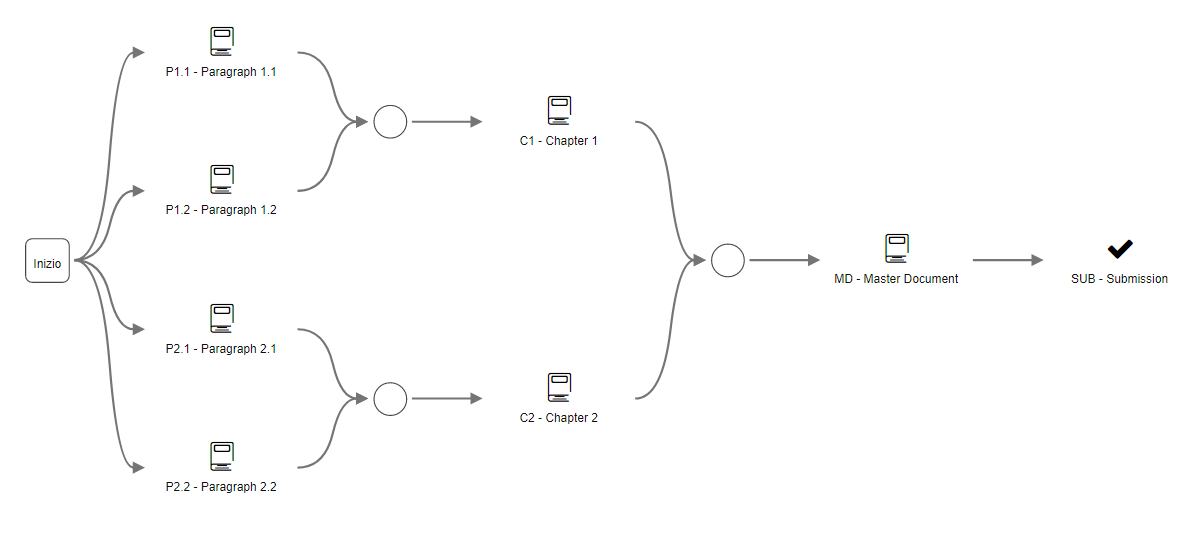
The task workflow must mirror the structure of the document to be submitted. The Collaborative Office tasks within it must be arranged according to the sequential order of the parts, which in this document will be referred to as specified in the following example of the document parts tree:
- paragraphs
- chapters
- document (master document)
Prerequisites for creating a task workflow
To create the task workflow for a Collaborative Office document, you must:
- Know the structure of the document in question.
- Have activated the Relate to the process property in the specific additional component of the Word file in document properties. Under the same parameters (Entity, Scenario, Period and Document language) the option can be activated for one document only.
Note: task workflows related to the process can only be managed from the web interface.
Example of a task workflow with Collaborative Office tasks
Utility for the user
For task workflows with Collaborative Office tasks, the user can access the process cockpit, open the various parts of the desired document in order and, if required, declare them to be complete.
The Task is complete option allows you to submit the document part, or run the submission/approval tasks once only, if the user is authorised to do so. If the Open as PDF option is active in the task definition step, it will not be possible to submit it from the cockpit.
Note: to enable the Task is complete menu and therefore submit the document part, the Manually declare task completed option must be activated when the task is created.
Document submission
A document can only be submitted when the document parts of which its comprised have been declared complete. Parts can only be declared complete when all of their sub-parts have been declared complete.