Parameters Definition window
Excel > CCH® Tagetik >  Parameters Definition
Purpose of window
This window allows you to manage shared and ad hoc parameters.
What it looks like
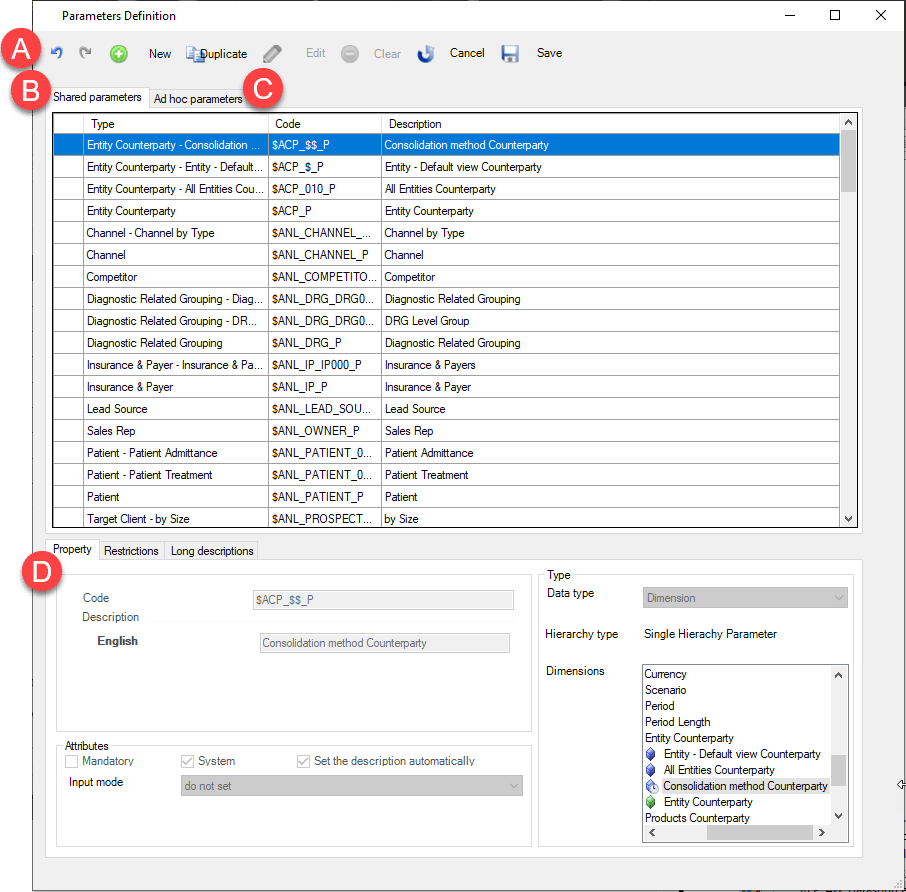
| Element | Description |
|---|---|
| A | Buttons on the page |
| B | Shared parameters tab |
| C | Ad hoc parameters tab |
| D | Configuration tabs |
Buttons on the page
| Element | Description |
|---|---|
| Undoes/repeats the last action. | |
| Add a parameter. | |
| Edit the parameter. | |
| Delete the parameter. | |
| Duplicate the parameter. | |
| Undo all unsaved changes to the current parameter. | |
| Save the current parameter. |
Page sections
| Element | Description |
|---|---|
| Shared parameters tab | Shows a list of shared parameters. |
| Ad hoc parameters tab | Shows a list of ad hoc parameters. |
| Properties tab | Allows you to define the type of parameter, give it a name and certain attributes. If the type is dimensional, it also allows you to define the dimension and hierarchy. |
| Restrictions tab | Allows you to define specific restrictions for defining omitted parameters at runtime, advanced selection and explicit restrictions. |
| Long descriptions tab | Allows you to insert an in-depth description of the parameter. |
Properties tab
| Element | Description |
|---|---|
| Code | Parameter code. |
| Description | Parameter description. |
| Type section | |
| Data type | Allows you to define the data type of the parameter. The data can be dimensional or non-dimensional. It is possible to choose dimensional parameters the value of which is obtained from a set of elements of a specific dimension: - Dimension: allows you to select elements or nodes of a CCH Tagetik dimension/hierarchy. - Advanced financial statement templates: parameter for advanced FSTs structured by account/custom dimension and/or control type, in which a dimension has been included. - Standard Financial Statement Template: Parameter for standard FSTs structured by account, with no dimension included When a dimensional option is selected, the Dimensions pane opens. It is possible to choose non-dimensional parameters for specific advanced selection script configuration. - Flag: yes/no parameters; - Date: Date parameter selected from a calendar; - Dictionary: Parameter selected from a list of elements; - Numeric: Number parameter; - Text: Free text parameter. - Process: Process parameter. |
| Parameter origin | Only for Dictionary. Shows all existing workspaces. |
| Dictionary | Only for Dictionary. Shows a list of the dictionaries available in the system. |
| Hierarchy types | Only for Dimension. Specifies the type of parameter selected in the dimensions tree below. - Multi-hierarchy parameter: to define a multi-hierarchy parameter, the root of the tree dimension (Entity or Target) must be selected. - Single Hierachy Parameter - Flat: all elements of the parameter (without distinction between hierarchies or groupings) |
| Dimensions | Only displayed with Dimension or Advanced/Standard Financial Statement Template in Data type. Shows the dimensions tree and allows you to select the desired dimension and hierarchy. For Advanced/Standard financial statement templates, only the account dimension can be selected. |
| Attributes section | |
| Mandatory | Makes it mandatory to define the parameter when the form is run. For non-mandatory parameters that are not defined, the system displays aggregated data. IMPORTANT: parameters on the Scenario, Period and Account dimensions are always mandatory. |
| Set the description automatically | Only for dimensional parameters. Enables the automatic insertion of the description of the dimension or grouping chosen in the parameter description. |
| System | Indicates whether the parameter is a system parameter or custom parameter. |
| Input mode | Defines the default method of defining parameters in the parameter selection window when the form is opened. - Do not set: do not enter any value. - Set with a default value: (only for Dimension-type parameters) allows you to specify a value to be shown by default at runtime. The available values depend on the restrictions defined on the parameter. IMPORTANT: if the element code set as default is renumbered, the attribute will be invalidated. - Script for default value: (only for Dimension-type parameters) allows you to specify a value to be shown by default at runtime using an advanced selection script (see Dynamic matrices). |
| (With Input mode set to Set with default value) Allows you to set the default value for the parameter. | |
| Hide when a default value is specified | (With Input mode set to Set a default value) If selected, the system hides the parameter from the form run window, and inputs the default value. When the user does not have access to the default value due to restrictions on their user profile, it is not used and the system asks the user to define the parameter. IMPORTANT: if active, the system will use the configuration option:Automatically define if omitted at the start. |
Restrictions tab
| Element | Description |
|---|---|
| Explicit restrictions | Allows you to manually define the set of values that the parameter can take on by selecting elements from the dimensions tree. |
| Attributes | |
| Automatically define if omitted at the start | Indicates the input mode for parameters not defined by the user: - From configuration: the system behaves as specified by the Automatically define parameters if omitted at the start parameter, in advanced form configuration (see Form tab Detail). - No: the system does not define the parameter. - Yes: the system automatically defines the parameter based on the restrictions specified in the definition of that parameter (OR), or as the root of the dimension to which it belongs, if it has no restrictions. |
| Allow lowest level elements | When the form is run, this allows you to select the lowest level elements of the hierarchy as the parameter’s value. |
| Allow nodes | When the form is run, this allows you to select the nodes of the hierarchy as the parameter’s value. |
| Disable Restrictions for Process | Excludes any restrictions defined by default at the process level from the dimension related to the parameter. |
| Dependent | (Selection type not equal to None) Makes the parameter dependent on the value of another parameter. |
| Allow OR | When the form is run, this allows you to select several values for the parameter simultaneously. |
| Advanced selection | |
| Selection type | Defines the parameter’s advanced selection. - None: the parameter is not dynamic. Insert children: with the parameter, all the parameter’s nodes and children are also selected. - Insert lowest level elements: with the parameter, all lowest level elements (leaves) of the node whose advanced selection is defined are also selected. - Advanced selection: enables an advanced selection script to be written. |
| Script | Only with Selection type set to Advanced selection. Allows you to insert an advanced selection script for the parameter. |
Long descriptions tab
| Element | Description |
|---|---|
| List of table languages managed by the system. | |
| Insert text field | Allows you to insert in-depth information on the parameter for the relative language. Descriptions that will be shown in a tooltip when the user positions the cursor over the parameter in the parameters selection window. |