Examples of custom parameters
Creating a custom parameter
Suppose we need to configure a form that can only be selected by American entities and we have a hierarchy that groups entities based on a geographical rule, i.e. based on countries and regions. To configure a form based on those requirements, we can create a shared custom parameter to restrict the choice to the North America node and all of its child nodes.
To create the parameter after the form has been opened in Design mode:
- click the
 Parameters Definition button on the Design ribbon bar;
 - click the
 New button;
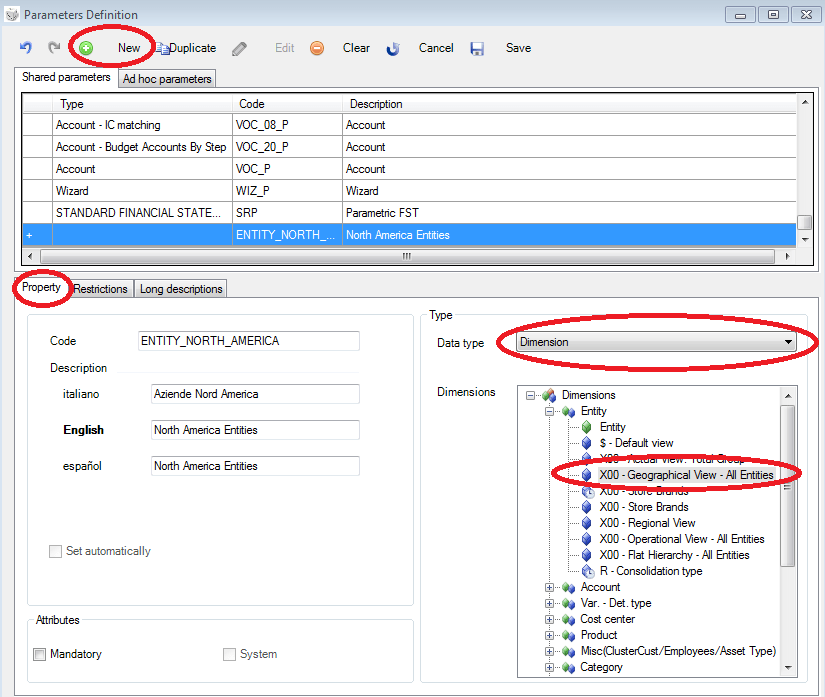
 - insert a code (ENTITY_NORTH_AMERICA), a description (North America Entities), assign Dimension as the parameter type and select the hierarchy to be associated with the parameter (X00 - Geographical View).
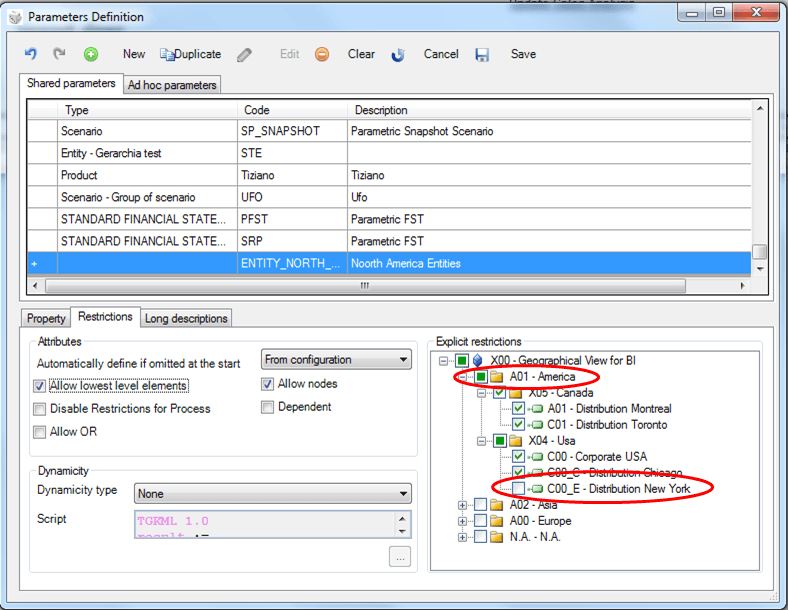
At this point, we can set restrictions on the selected hierarchy. We only want the child elements of the America node to be selectable. To do this, we need to select the Restrictions tab and then select the node A01 America in the Explicit restrictions section. If a default node is selected, all of that node’s child elements will also be selected. An element can be excluded by deselecting it from the hierarchy tree. In the example below, we have selected the America node and all of its children, except for element C00_E. Thus, when the user runs the form they will not be able to assign C00_E as the parameter value.
Since this parameter is not mandatory, if the user does not assign a value when running the form and automatic input is NOT active for that parameter, the system will not filter on the dimension associated with the parameter when reading the data to be shown.
However, if automatic input is active and the parameter is restricted to nodes X05 - Canada and X04 - USA with the exception of C00_E - Distribution New York then, when reading the data, the system will filter on the dimension associated with the parameter by establishing an OR relationship between the elements, in this case A01, C01, C00, C00_C.
Set restrictions on the selection of dimensional elements
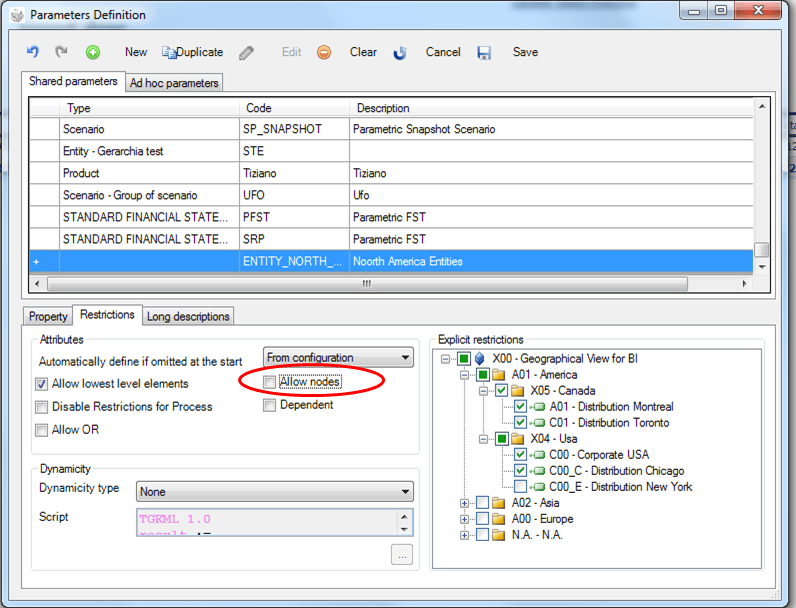
Suppose we need to edit the form created previously for American entities and ensure that the results can only be seen at the individual entity level and not at the country node level. Or, for example, we want the individual entity managers to be able to see their entity’s results but not the results for the whole country. We can restrict our previously created parameter by further limiting the set of data that the user can choose for that parameter. If the Allow Nodes option is deselected, it will not be possible to choose node elements. Therefore, the user will be forced to choose a single entity for this parameter at runtime.
Set up a dynamic parameter
Suppose we want to create a form that has the products sold by an entity on the rows. Since the products sold by the entity change continually (they are created and withdrawn very frequently) the best thing to do is to create a dynamic parameter so that it doesn’t need to be maintained too often.
The process of creating a parameter follows the same steps as in the previous example, with the only difference being that the hierarchy to be associated with the parameter is the product hierarchy.
To make the parameter dynamic, a selection type that is not "None" must be defined in the Restrictions tab; more specifically, because we want the user to be able to select all the elements related to the products hierarchy, it must be defined as Insert lowest level elements.
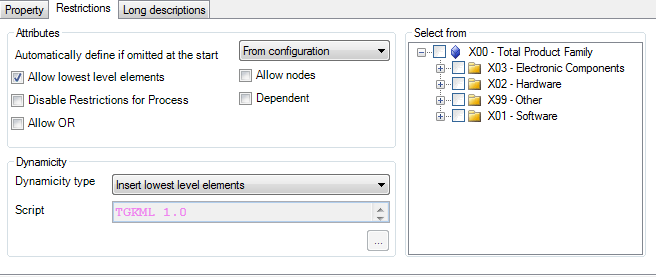
At this point, this parameter can be used within matrices without the need for updates. When the elements in the hierarchy are changed (new elements added, nodes added/changed), the parameter does have to be changed.
Create a parameter that is dependent on another parameter
For example, supposing that, in the presence of an entity restricted to certain cost centres, once the user has specified the entity on which they want to work, the system will only show the cost centres enabled for that entity.
To obtain an outcome of this kind, the user must:
- create a shared Dimension-type custom parameter associated, for example, with hierarchy X00 - Department of the Cost centre dimension;
- tell the system that, as the parameter can have variable values, it is dynamic, i.e. define a Selection type that is not "None" in the Restrictions tab;
- activate the Dependent option in the Restrictions tab.
Note: the order in which the parameters are set within the form is important: a dependent parameter must always be placed after the parameters on which it depends.
A dependent parameter must necessarily be inserted in the form using the Parameters management and positioned in the Other parameters group.
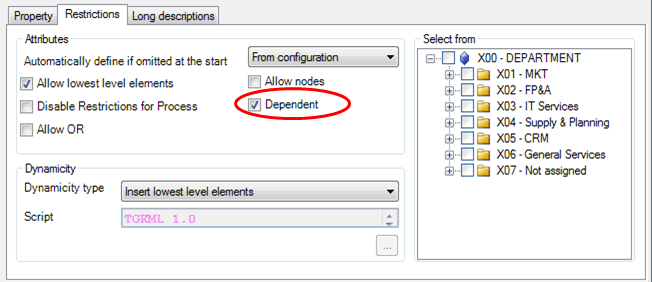
In the SP14 release, the concept of dependence was also introduced to the DTP run window, where there are parameters that depend on others. At the moment, only explicit dependency is supported in these situations (i.e. dependence that uses the TGKML 1.0 advanced selection scripts) whereas, if only the dependence check is being used (implicit dependence), then it has no effect on the parameters present in the run window and therefore the results are therefore not influenced.
Note: explicit dependence between Scenario-Period type parameters and between Process-Scenario type parameters has been added to both the Parametric Jobs run window and the DTP window.
Create a parameter for a percentage value
Suppose we need to build a form in which users have to enter a percentage value to run what-if analyses. For example, you want to determine the revenues from a product based on a discount inserted using a parameter.
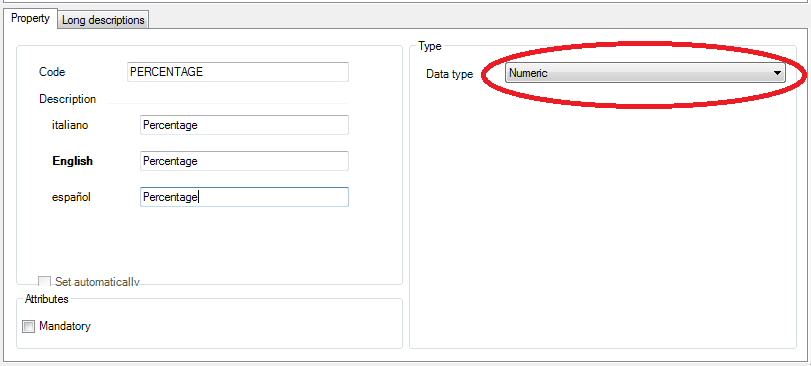
To obtain an outcome of this kind, a Numeric-type parameter can be used. As parameters of this type are not Dimension parameters, they are not visible within the dimensions tree and must therefore be inserted into the form using Parameters Configuration window.