Examples of using dynamic parameters
Using parameters
All parameters present in Tagetik (both system parameters and custom parameters) can be used within the Matrix Wizard to make the matrices dynamic.
In Tagetik, there is a parameter for every dimension and hierarchy. Parameters can be selected from the dimensions tree and are distinguished from the other elements by the colour blue. Both shared parameters and ad-hoc parameters can be chosen in the dimensions tree.
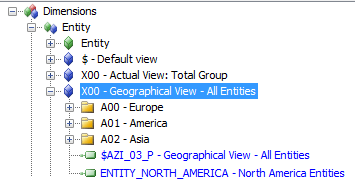
Once a parameter from the dimensions tree has been chosen, it can be inserted into the matrix as a row filter, a column filter or a matrix filter. Once inserted into a matrix, a parameter behaves the same way as a fixed value. They can also be nested into other elements and the properties that can be modified in the properties table are the same as for a fixed value (non-parametric) element.
For dynamic scenario and period parameter elements, there are additional properties that are activated in the properties table when inserted in the matrix as row filters or column filters. We will look at these properties in the next sections.
 The dimensions tree used to define the Form, Tab and Matrix filters does not show Process-type parameters or dimensional parameters on the period that allow ‘OR’ operations, as these are not supported by the forms.
Navigating scenario parameters
Navigating scenarios allows the user to create dynamic forms for comparing data saved in the system in different scenarios. When scenarios are defined in Tagetik, temporal links and comparative links can be created between them.
For example, if I defined a scenario called 2012ACTUAL, which collects actual data for the year 2012, I could create a "Previous" type link to scenario 2011ACTUAL and in turn create a "Next" type link between scenario 2011ACT and 2012ACT.
In addition to temporal relationships, comparative relationships between different scenarios can also be defined. For example, a scenario called 2012BDG, which is a forecast for the year 2012, must be compared with the actual data for that year, e.g. 2012ACT. In Tagetik, up to 5 reference-type relationships between scenarios can be defined.
These chains of scenarios can be used within the Tagetik reporting client when scenario-type parameters are selected. When a scenario-type parameter is inserted in a row or column filter, the "Navigation" property is activated in the properties table.
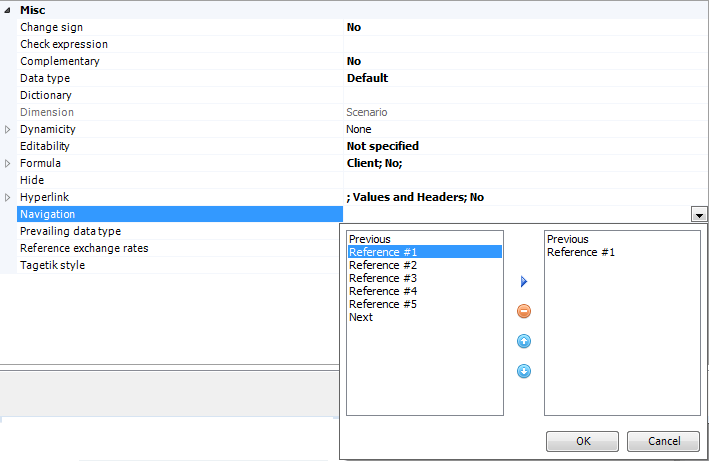
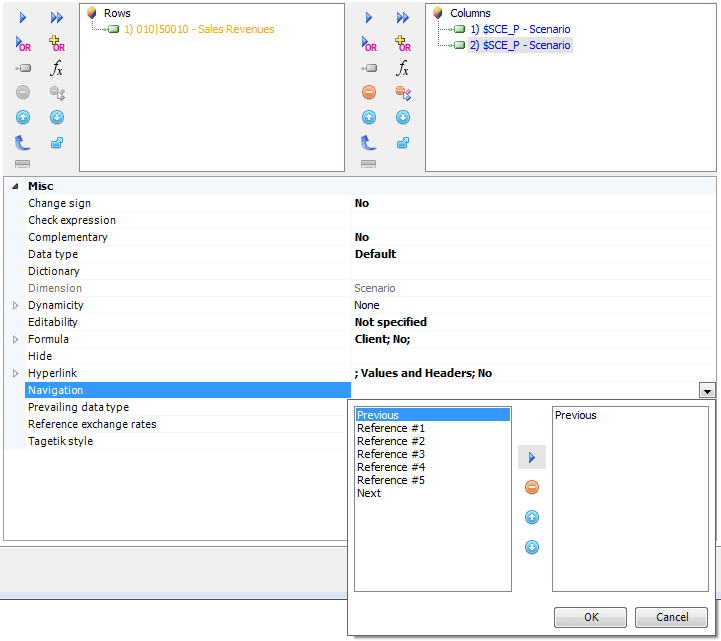
In this window, we need to define the navigation chain for our scenario. Navigation starts from the element chosen by the user when the form is run. For example, if a user chooses scenario 2012ACT and a "Previous" navigation has been defined, scenario 2011ACT will be used.
Scenarios are navigated by choosing an element from the list and clicking the  button. The element can be removed using the
  button. The order of the various scenarios can be changed using the
  and
and  buttons. Several elements can be inserted to create navigation chains, e.g. the Previous → Previous scenario or the Previous → Reference #1 scenario.
 The order in which the elements are added to the list is very important as the system navigates the scenarios according to the order in which they are added.
Let’s look at an example in which a dynamic matrix is created to compare two actual data scenarios. First, we need to insert a parametric scenario within our matrix. This element will be the element chosen by the user, so we will not set any navigation for the element.
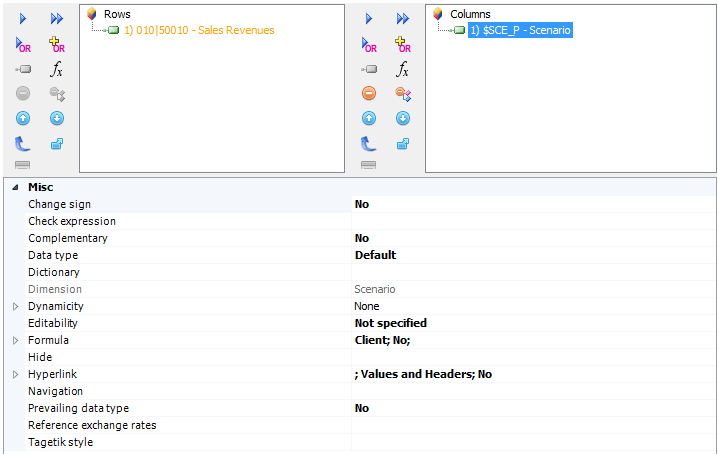
At this point, we must insert the second scenario, which will be the comparison scenario. In this column, we want to see the data for the scenario before the one selected by the user. So let’s insert a parameter with the same code as the one inserted previously and set the navigation for the element.
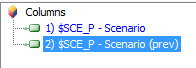
Once navigation has been set for a parameter, the text in the filter window is changed to indicate which chain has been set.
At this point, the dynamic matrix is ready and can be used. Navigation chains between scenarios can be changed within the web interface without having to change the structure of the created form.
Navigating period parameters
The mechanism for navigating between period-type parameters is similar to navigating between scenarios. Offsets related to the parameter chosen as the filter can be defined between dynamic periods.
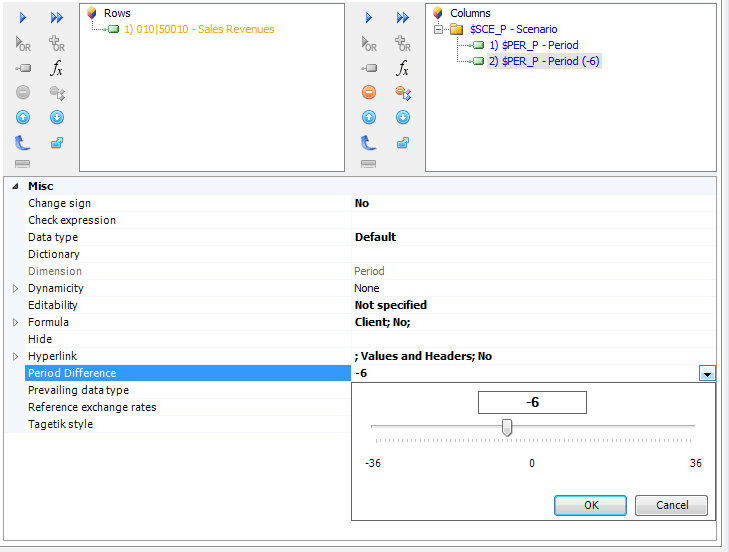
For example, I want to define a column which, depending on the chosen period, shows me data relative to 6 months earlier. If i choose period 12, the column will be defined with period 6, if I choose period 11, it will be defined with period 5, and so on.
A parameter of this type can be set using the "Period Difference" property present in the attributes table when we insert a period-type parametric element in a row or column filter. When we set a period difference, we must set the number of periods back or forward that we want to shift in relation to the chosen period. If the difference is greater than the number of periods in a scenario, the system obtains the periods from the scenario set as the previous or next scenario.
La navigazione del periodo non è totalmente supportata nell'AW, in particolare il sistema non ricava correttamente il valore della dimensione Scenario se, a causa dello scostamento maggiore del numero di periodi, è necessario usare lo scenario impostato come precedente o successivo. Questo si riscontra:
- nell'editabilità delle matrici multidimensionali
- nell'editabilità delle matrici LBL (Line By Line)
- nei dati estratti dalle matrici LBL (Line By Line)
Differences can be inserted directly within properties or using the scroll bar shown when properties are opened. The chosen difference is shown in the title of the edited parameter within the row or column filter.