Tab filters window
Excel > CCH® Tagetik >  Design > select form/create new form >
  Tab filters
Purpose of window
This window allows you to set filters applied to the form to subdivide data into separate sheets. These filters are elements and/or nodes of the dimensions tree that are added and modified in the local filters tree and determine the number of sheets in the report and the data shown in each of them.
What it looks like
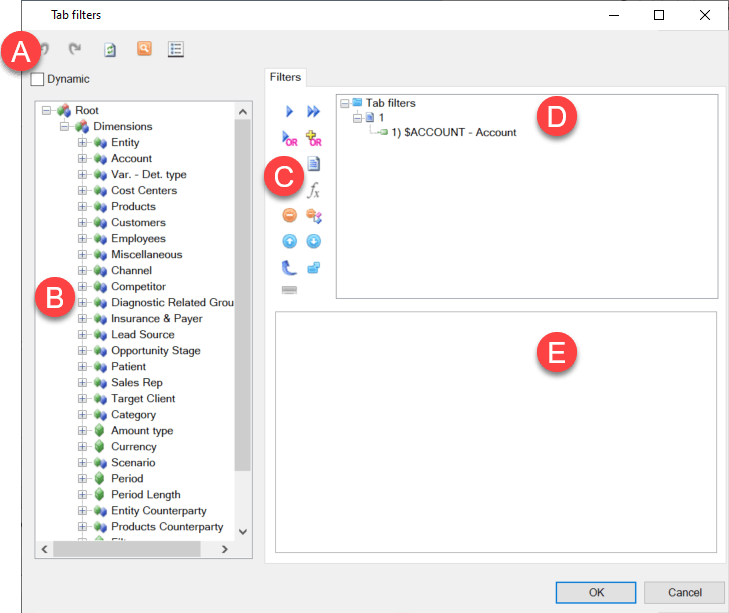
| Element | Description |
|---|---|
| A | Action buttons in all windows. See Configuration window structure. |
| B | Dimensions tree |
| C | Buttons specific to the window |
| D | Tab filters definition area |
| E | Table of properties of the selected element in the definition area |
Window sections
| Element | Description |
|---|---|
| Dimensions tree | Show the list of available dimensions. - system dimensions (scenario, period, account, entity...) - custom dimensions (products, cost centres...) - specific reporting dimensions (e.g. period length) |
| Tab filters definition area | Show the list of filters currently set. |
| Properties table | Allows you to manage the editable attributes of the selected dimension or filter. |
Buttons in the window
| Element | Description |
|---|---|
| Adds one or several elements or nodes selected in the dimensions tree under the selected node in the filters tree. | |
| Only with filters already defined, adds one or several elements or nodes selected in the dimensions tree to all filters already defined. Note: if there are no pre-defined filters in the column, it functions like the button. | |
| Adds one or several filters selected in the dimensions tree to a selected filter, creating a OR type logical relationship. OR type logical relationships can only be created with elements or nodes belonging to the same dimension as the filters already defined. The added filter is labelled with the concatenation of the individual element codes separated by ",". The value displayed is equal to the sum of the elements entered. | |
| Adds one or several elements selected in the dimensions tree belonging to the same filter dimension to a node of filters linked by an OR logical relationship. The added filter is labelled with the concatenation of the individual element codes separated by ",". The value displayed is equal to the sum of the elements entered. | |
| (Only for control groups) Adds the control group selected in the dimensions tree to the filter. See Control groups: basic concepts. | |
| (Only for control groups) Adds the control group selected in the dimensions tree to all filters already defined. See Control groups: basic concepts. | |
| (Only for FST items) Analytically adds, under the selected filter, the FST selected in the dimensions tree. See Financial statement templates. | |
| (Only for FST items) Analytically adds, under all filters, the FST selected in the dimensions tree. See Financial statement templates. | |
| (Only for FST items) Synthetically enters the FST under the currently selected filter. See Financial statement templates. | |
| (Only for FST items) Synthetically adds, under all filters, the FST selected in the dimensions tree. See Financial statement templates. | |
| Adds a sheet on which a logical formula can be inserted. See Formula filters. | |
| Allows you to create a new template. | |
| Pastes the copied filters under the selected filter. | |
| Pastes the copied filters under every filter. | |
| Allows you to copy the structure of a filter. | |
| Only with filters already defined. Moves the selected element up one position. | |
| Only with filters already defined. Moves the selected element down one position. | |
| Only with filters already defined on several levels. Moves the selected level up one level. | |
| Only with filters already defined. Replaces en bloc the selected elements of a filter with elements selected in the dimensions tree. Useful for reusing a filter by replacing its elements, but not its properties. | |
| Only with filters already defined in the rows/columns with an OR logical relationship. Deletes one or several elements from the filter containing the OR logical relationship. | |
| Only with filters already defined. Deletes the selected element or node. | |
| Only with filters already defined. Deletes the entire level of the selected filter. |
Properties table
| Element | Description |
|---|---|
| Expands a set of details which change a filter property. | |
| Expands the list of possible values for the property. | |
| Opens the property configuration window. |
For details of the possible options in relation to properties, see Row/column filter properties.
Filter colour legend
Only for account dimensions.
| Element | Description |
|---|---|
| - Green: the sign is the same as the dimension class sign. - Orange: the sign has been changed automatically based on its class. See Sign class. - Red: the sign has been changed in the filter properties. See Sign change. |