Formula filters
What they are
The formula filters are filters on matrix rows or columns which, while the form is being run, function like Excel formulas and make it possible to process data based on the data handled by the matrix itself.
There are advantages to inserting a formula during the design of a matrix, rather than into the matrix area directly. Formulas inserted in this way are also stored when the matrix is regenerated, or whenever the form’s structure is changed. On the contrary, formulas inserted directly into the matrix area in Excel are overwritten every time the matrix is regenerated.
Formula format
The supported syntax for formulas is English with separator ",", regardless of the display language used for CCH Tagetik, the add-in or the Excel installation. In Matrix Wizard formulas, references are made to filters in rows/columns rather than cell coordinates like in Excel. The syntax to be followed is detailed below.
- {n}: Row formulas: nth row, current column
- {m}: Column formulas: mth column. current row
- {n,m}: Row/column formulas: nth row, mth column.
E.g. Excel function "=SUM(A1: A2)" is "SUM({1}:{2})" in the Matrix Wizard.
In the form run step, the system transforms the Matrix Wizard formula into an Excel formula for all the row/column filters to which the formula refers. It then automatically adds the "=" symbol in Excel when it generates the matrix.
Note: in the local filters tree, formulas do not have descriptions except for formula-type FST items. In any case, descriptions can be allocated to formulas using dictionary items. See Dictionaries.
Server formulas
To add information on a filter within the matrix, server formulas can be inserted. These formulas allow you to add cell fields that refer to other elements of the matrix and form (relative to a dimension present on the rows if working on columns and vice versa, or other matrices or tab filters, form filters) to show the dimension properties (e.g. description, company name, etc.)
Prevailing formulas
When a row and a column containing formulas intersect, the system considers the row formula by default.
To tell the system your preference for a specific row or column in case of intersections, the Prevailing formulas option can be enabled in the desired row or column.
Note: if both intersecting formulas are set as prevailing formulas, the default behaviour will be applied. The default behaviour and the prevailing formula option do not apply to cells with subtotals.
Example of a subtotal on a row/column
In the presence of a subtotal calculation formula on both rows and columns, if the prevailing formula option is set as active in both formulas, the subtotal will be calculated on all rows and columns.
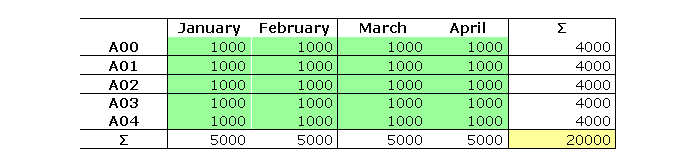
Example of different subtotals on rows/columns
By activating the prevailing formula option, several subtotal calculation logics can be defined in the same matrix and a selective display of the desired subtotals can be set in the form run step.
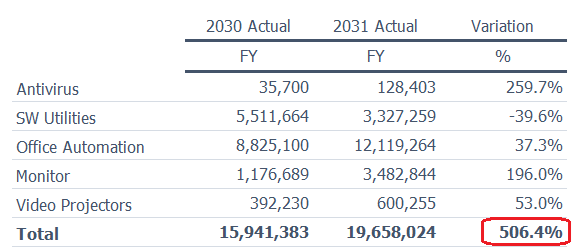
For example, in the following matrix, you want to see:
- the total of the intersecting column data in the cells of the last row
- a ratio to the data of the last column in the last cell of the same column
If the sum formula is set on the row, the matrix reports an unsatisfactory-type datum for the last cell of the last column.
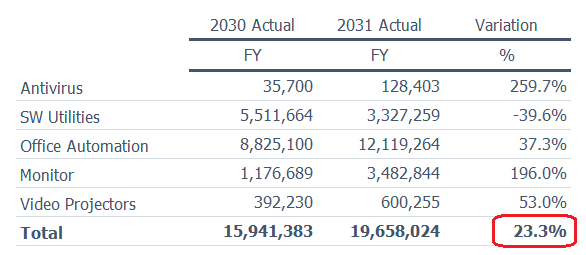
If the sum formula is set on the row and a prevailing ratio formula on the last column, when the form is run that formula will prevail over the sum formula on the row and the cell in question will report the desired value.
Quick actions for inserting formulas
Quick insert actions can be used to optimise the insertion of formulas in forms, e.g. to insert formulas on the entire row or matrix. For more details, see Managing formulas.
Create reference to specific cells
On standard non-dynamic forms, it is possible to create formulas with references to specific cells in the form.
| Element | Description |
|---|---|
| Bidimensional reference | Absolute reference to a specific cell. Created by indicating the cell coordinates, constructed as follows: - first term = row number - second term = column number For example, {2,5} corresponds to an absolute reference to the intersection cell between the second row and the fifth column. |
| Offset | Relative reference to a cell. Created by indicating the cell's position relative to the row/column on which the reference is being defined. - first term = number of row positions above or below the formula row/column (e.g. -3 = 3 rows above, +3 = 3 rows below) - second term = number of column positions to the left or right of the formula column (e.g. -3 = 3 columns to the left, +3 = 3 columns to the right) For example, {+2, -3} corresponds to a relative reference to the intersection cell between the second row below and the third column to the left of the row/column on which the formula is set. |
| Hybrid | Reference created by combining bidimensional and offset reference rules. For example, {1,-3} corresponds to a reference to the intersection cell between row 1 and the third column to the left of the row/column on which the formula is set. |
Interrupting automatic ranges
When two or more of a formula's arguments include references to adjacent cells, on running the form the system transforms those references into a range. Where the syntax of specific functions does not accept ranges, the system generates error messages. In such cases, the adjacent cells need to be separated with a placeholder row or column, which can be hidden. An example is provided below:
| Syntax with range | Syntax on running the form |
|---|---|
| NETWORKDAYS({1},{2}, Holidays_Dates) | NETWORKDAYS(A1:A2, Holidays_Dates) The syntax includes a range that is not permitted. |
| Syntax with placeholder between rows | Syntax on running the form |
|---|---|
| NETWORKDAYS({1},{3}, Holidays_Dates) | NETWORKDAYS(A1, A3, Holidays_Dates) The syntax does not include ranges. |
Supported Excel formulas
The add-in supports the following Excel formulas:
| Formula | Formula | Formula |
|---|---|---|
| Address | Hyperlink | Rank |
| Bin2Dec | If | Rate |
| Choose | Iferror | Replace |
| Code | ImReal | Rept |
| Column | Index | Roman |
| Columns | Indirect | Row |
| Complex | Intercept | Rows |
| Count | IPMT | Slope |
| Coounta | Irr | Substitute |
| Countbank | Lookup | Subtotal |
| Countif | Match | Sumif |
| Countifs | Mina | Sumifs |
| Days360 | Maxa | Sumproduct |
| Dec2Bin | Mirr | Sumx2my2 |
| Dec2Hex | Mode | Sumx2py2 |
| Variance | Na | Sumxmy2 |
| EDate | Now | T |
| Error.type | Npv | Text |
| Even | Oct2Dec | Time |
| Fact | Odd | Today |
| FactDouble | Offset | Value |
| Hex2Dec | PPMT | Vlookup |
| Hlookup | Quotient | Weekday |
Note: to calculate the value of formulas before viewing them, e.g. when sorting the matrix elements based on the value of a formula, it is necessary to use Excel functions related to advanced selection scripts (see Excel functions).