Add Historical Data to Records
An Historical Data section displays in records that have the Historical data source record property set to Local data table, which lets you add historical data to the forecast. You can add historical data manually, or use formulas to import data from other records.
The following record properties deal with historical data:
Record Properties
| Property | Description |
|---|---|
| Historical data source | The location of the historical data for the current record. |
| Historical data formula | Record or formula to use if you selected Formula as the Historical data source property. |
| Data values are | Whether values are rates or ending values. See Set Rate vs. Ending Values. |
| Period length | Whether to use the current length assigned, or to override the existing length with a different time configuration (for example, if your data is in weekly bins, you can override it to organize items into monthly or quarterly bins). |
Historical Fields
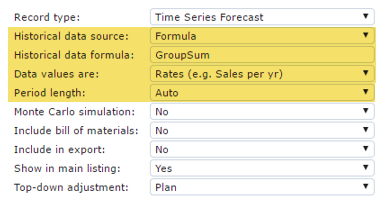
You can also import external data by referencing an Import record.
See Import Records.
To add historical data to a forecast
- In a record's properties, in the Historical data source list, select one of the following:
Historical Data Source Options
| Option | Description |
|---|---|
| None | There is no history. |
| Formula | Lets you import data from an external data source or from other records using simple formulas. |
| Local data table | Adds a data table in the Historical Data section in which you can manually enter historical data. You can also copy and paste data from an Excel spreadsheet. |
| 2. To copy and paste data from an Excel spreadsheet into the Historical Data section: |
-
In Excel, add the data to a row, and copy the cells you want to insert into the Historical Data table.
 2. In the Historical Data table, select the first row and paste the cells you copied from Excel.
 3. If you selected Formula in step 1, in the Historical data formula field, do one of the following:
 -
Reference historical data from any other record by typing the following formula:
Where ItemName is the name of the Import record and Data is the data name, such as a Product name.
For example:
Note: If no historical data source exists, create a new Import record.
See Import Records. - Type a GroupSum formula (typically used in top-down, have other formulas as well).
This kind of import is used in Comparables forecasting.
The standard GroupSum formula syntax is:
For example,
See GroupSum Formula Syntax. 4. In the Data Values list, select one of the following:
-
Rates (e.g., Sales per yr)
- Ending values (e.g., Cash)
See Set Rate vs. Ending Values. 5. In the Period Length list, select how you want the data to be organized (for example, by day, week, month, quarter, etc.). 6. To apply your changes, click Refresh. 7. Save your changes.