Override or Exclude Historical Data in Forecast Graphs
You can manually override historical data or delete a data point in a record directly in the forecast graph. For example, you may have stocked out in the past, so you do not truly know what demand was. You can override that historical value with known data rather than letting the forecast method infer what it was, which is what would happen if you cut the data from the graph.
When you exclude data points, the forecast method handles the exclusion. When you override data points, CCH Tagetik Supply Chain Planning uses your override values as the historical data. As if that was the original value.
See Magnify or Exclude Historical Data in Forecast Graphs.
To override or exclude historical data in forecast graphs
-
In a record, do one of the following:
-
Select a single data point you want to edit.
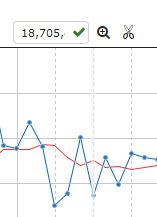 - Click and drag your cursor over a section of the graph you want to edit.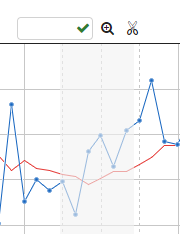
The selected section is highlighted in gray. The text box is blank when you select multiple data points.
To deselect the section, click anywhere in the graph. - Select an endpoint you want to edit.
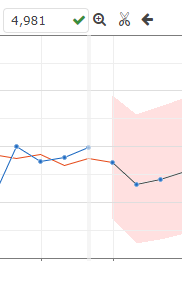 2. Release your cursor and, at the top of the graph in the text box, type a new value and click the
checkmark icon (
2. Release your cursor and, at the top of the graph in the text box, type a new value and click the
checkmark icon ( ).
).
Your value now overrides the value that was in the chart. A green line displays in the graph to indicate the change.
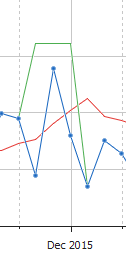 3. To exclude the data point, click the scissor icon (
 ).
).
To exclude an endpoint, you can use the scissor icon ()
or the arrow ( ) to exclude the data point
and align the forecast. This rolls back your forecast.
4. Do one of the following:
) to exclude the data point
and align the forecast. This rolls back your forecast.
4. Do one of the following:
- To save your changes, at the top-right of the record, click OK.
-
To return to the unedited forecast, at the top right of the graph, click Clear Exclusions.
The modified data point is restored to its original value. 5. To delete a history override, click the historical data point that has the override applied, delete the value from the text box, and click the checkmark icon.
This sets the data point back to its original value.