Access to Legacy Reporting from the CPM Workflow
Access this task from the Data Entry & Reporting menu. The feature is only available on workflows and processes when dimensions by step is set. Add the SCP Reporting task into the workflow to navigate through SCP directly from the CPM process.
- Click Edit and select the Data Entry & Reporting tab.
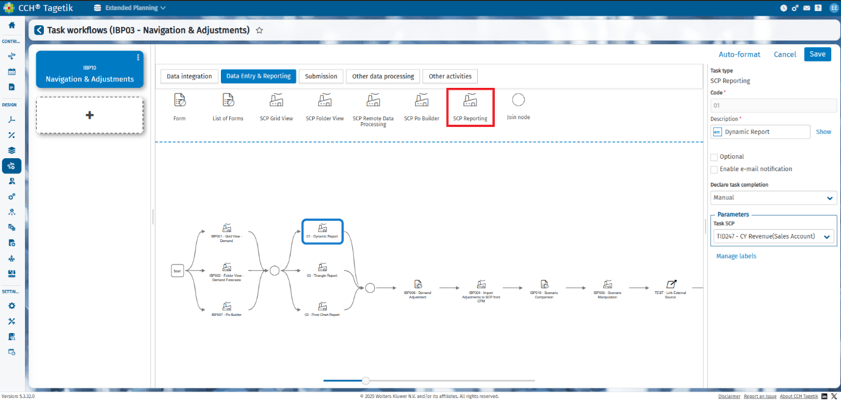 2. Add the SCP Reporting activity to the workflow by dragging and dropping it to the workflow.
3. Add the Code and Description and select the Task SCP. All accessible processes display in the CPM Contribute interface.
4. Click Open Process.
5. Select the folder from the side hierarchy for the task in SCP and click on the SCP Folder View task tile. Click Open.
6. From the SCP Navigation screen, select the scenario to display.
7. Click Confirm Operation. Navigate to the SCP Folder view directly from the process.
2. Add the SCP Reporting activity to the workflow by dragging and dropping it to the workflow.
3. Add the Code and Description and select the Task SCP. All accessible processes display in the CPM Contribute interface.
4. Click Open Process.
5. Select the folder from the side hierarchy for the task in SCP and click on the SCP Folder View task tile. Click Open.
6. From the SCP Navigation screen, select the scenario to display.
7. Click Confirm Operation. Navigate to the SCP Folder view directly from the process.
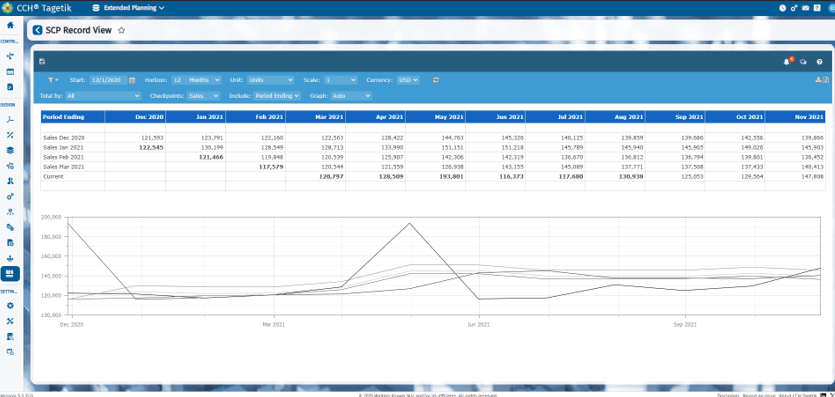
The behaviour of the Reporting Legacy SCP is described in the Supply Chain Planning manual and is not the subject of this manual.
Access to Legacy Customized Reporting from the CPM Workflow
This feature is an advanced option designed for administrator users with in-depth expertise in SCP configuration. It enables the display of reports created through advanced customizations within the workflow. To use it, follow these steps:
- Upload report structure files
Files containing the report structure in .dsb or .dml format must be placed in the folder:
\Server\DomainRoot\tenant\Bin.
- For new files, you need to open a ticket to request the upload.
- For existing files, they will remain in the
\Server\DomainRoot\tenant\Binfolder during migration to Modernized SCPReports SCP Legacy customized
- Reference the report in the SCP configuration file
The report must be referenced in the Menu.json configuration file for SCP.
This can be done via the CCH Tagetik interface under:
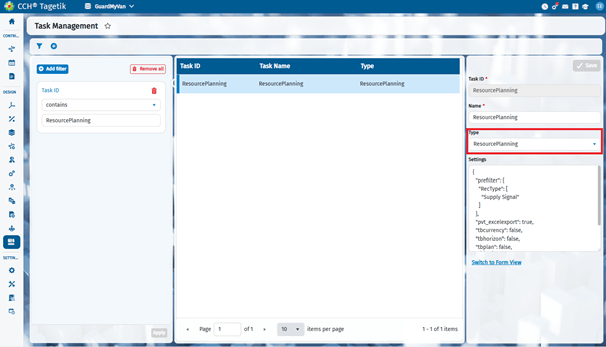
Design > Supply Chain Planning > Task Management.
- Create a new task.
- In the Type list, you will find the new report (e.g.,
ResourcePlanning). -
Then, configure the report settings as usual in Settings, for example:
{ "prefilter" {"RecType": [ "Supply Signal" }, "pvt_excelexport": true, "tbcurrency": false, "tbhorizon": false, "tbplan": false, "tbstartdate": false }
 3. Finalize and access the report
Once previous steps are completed, the report will be available within the SCP Reporting workflow configuration task. If included in the workflow, it will be navigable like any other legacy SCP report.