Access to SCP Folder View from the CPM Workflow
Access this task from the Data Entry & Reporting menu. The feature is only available on workflows and processes when dimensions by step is set.
Add the SCP Folder View task into the workflow to navigate through SCP directly from the CPM process.
- Click Edit and select the Data Entry & Reporting tab.
- Add the SCP Folder View activity to the workflow by dragging and dropping it to the workflow.
- Add the Code and Description and select the Task SCP.
All accessible processes display in the CPM Contribute interface. 4. Click Open Process. 5. Select the folder from the side hierarchy for the task in SCP and click on the SCP Folder View task tile. Click Open.
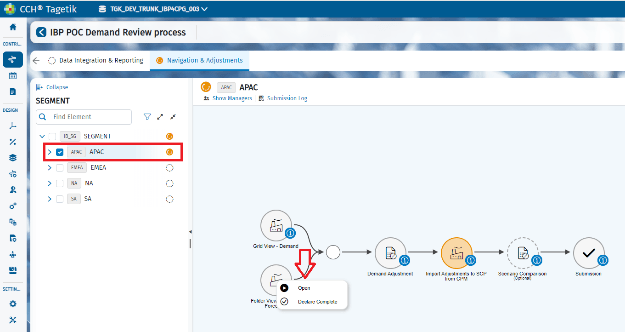 6. From the SCP Navigation screen, select the scenario to display.
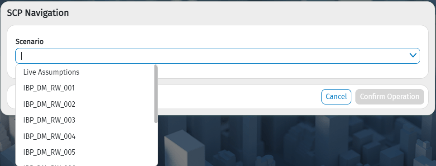 7. Click Confirm Operation. Navigate to the SCP Folder view directly from the process.
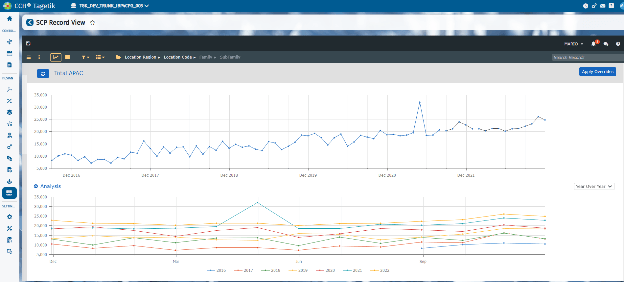
Which folder you select side hierarchy is important. The Folder View task lets you view the CPM Process information from the selected folder.