Page for Processes with dimension by step cockpit
 User
User
Application database > Processes tile > select process > Open process
Application database > Navigation panel > Processes > select process > Open process
Purpose of the page
This page allows you to monitor the progress of submission on the various steps of the process. It also allows you to run specific actions on individual tasks in the process.
If you select an individual element, it shows you the deadline date for submission. This date corresponds to the latest deadline set for the submission tasks applicable to the element selected.
It also allows you to act on multiple lowest level elements and nodes using multiple selection and the dedicated context menu.
What it looks like
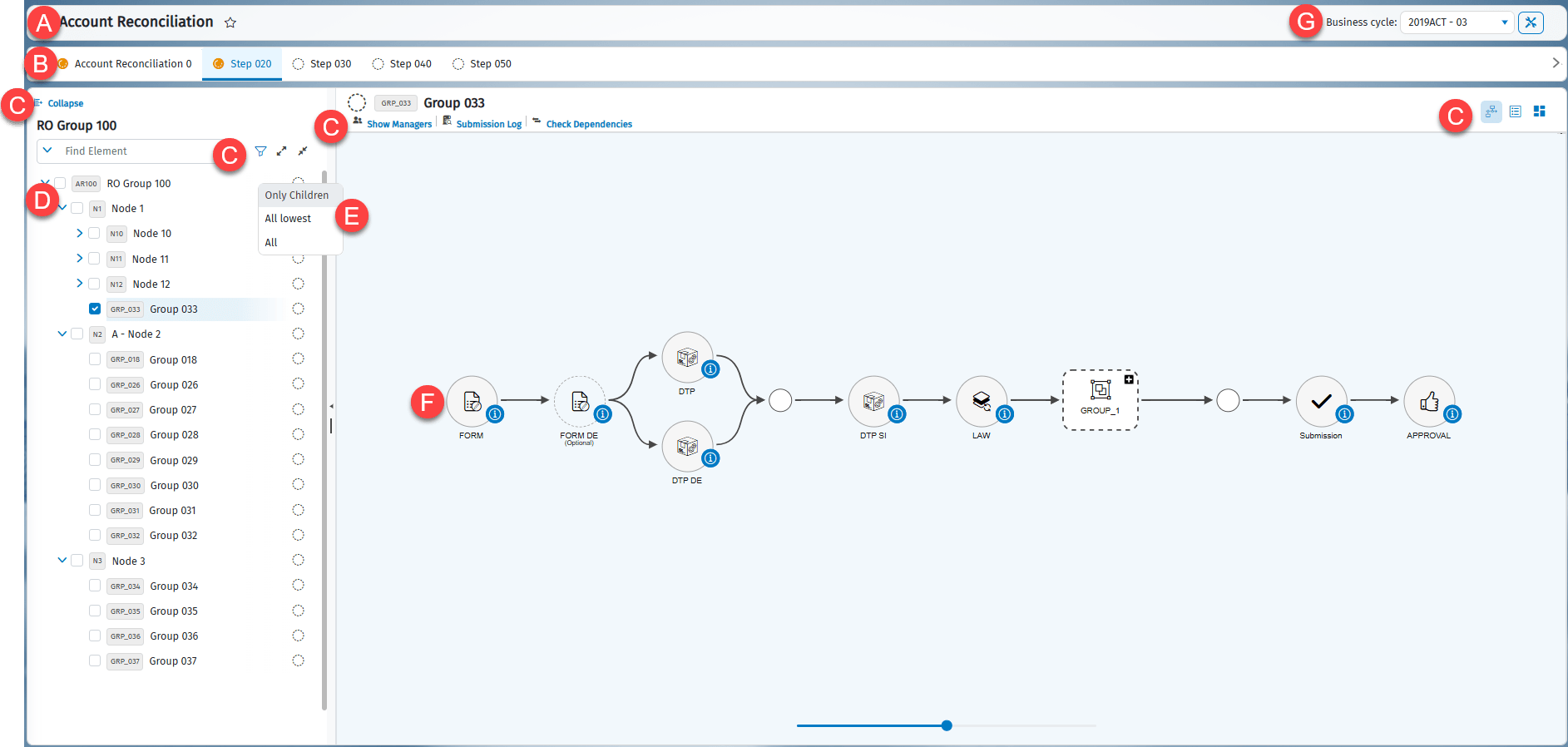
| Element | Description |
|---|---|
| To | Process name |
| B | Process steps tab |
| C | Action buttons |
| D | Organisation of the hierarchy with the tree of nodes and lowest level elements |
| E | Context menu |
| F | Tasks of the step and their status |
| G | Business Cycle displayed |
Buttons and/or links on the page
| Element | Description |
|---|---|
| Consolidation | It shows a list of data processing operations, if consolidation operations are enabled on the process. Preliminary data processing, to run the restorations. Consolidation data processing, to run the related data processing. Consolidation scenarios, to generate a report on the state of submission of the consolidation scenarios. |
| Shows a list of accessory functions: Reset states: this resets the submission states and the task states. | |
| This brings up a list of reports that can be useful to generate. For example: Allocation entries displays the journal entries generated by the data processing for allocations and closing. For further details, see .Allocation entries . Cash Flow Planning Entries: shows the entries generated by the Cash Flow Planning data processing. For more details, see . Journals book: Allows you to extract a report containing all Entity and/or consolidation journals. Further details are available in the dedicated chapter (Journals book ) Net Result and Reserves Group Evolution analysis: this allows you to analyse changes to net equity and the annual results for each entity in a given consolidation area. Additional details are available in the chapter on Process reports (). | |
| Collapse | Hide the organisation of the hierarchy. |
| Allows the management of advanced filters | |
| Allows the filtering of items to be displayed by submission status. | |
| Expands the hierarchy tree to display all the nodes and lowest level elements. | |
| Compresses the hierarchy tree. | |
| Displays the workflow as a flow chart containing the following information: - order in which the tasks must be run (in parallel or in sequence) - task type (form, DTP,...) - task status Right-click on the task to see the available actions. If the tasks are displayed in transparent mode, you can see them but cannot run any activities. Tasks with dotted borders are optional. It is possible to run several grouped data processes simultaneously, with the exclusion of 'Run ETL' and 'diagnostic' tasks. | |
| Displays detailed information on the selected task: - task name, description and status - deadline, if any - task managers - user and date of the last activities that were run on the task - any notes and attachments - related to the possible reason why the task cannot be run: - function code not enabled for user - some previous tasks must be completed (for submission and approval tasks) - insufficient user rights. | |
| Shows the workflow as a list of tasks, which you can filter by status, code and description. Mark as to do: declares the selected tasks as pending completion. Set as Complete: declares selected tasks as completed. Run: executes selected tasks. + : shows detailed information on the task. : shows the available actions for individual tasks. Submission: submits the selected elements. Allows for multiple submission when several elements in the hierarchy are selected. Reject: rejects the selected elements. Note: in the event of multiple selection, the area shows the list of operational and submission/approval tasks relating to the selected elements, grouped by task workflow. You cannot run groups of tasks from the list display. | |
| Mention | In the list phase, it is possible to enter comments on tasks, edit or delete them, as well as attach files. When a comment is added, a speech bubble icon appears next to the task. The @ , however, is only visible to the person mentioned. |
| Shows a list of functions grouped by type. The available functions depend on the step and the elements selected in the hierarchy tree. Data Entry Forms: allows you to access the data entry forms for the selected elements and steps. Allocations & Closing: allows you to run allocation and closing processing operations for the elements selected, filtering by routine or by rule. See Diagnostic: allows you to run diagnostic data processing for the selected elements. See . Snapshot:allows you to create and restore snapshots. Available only if snapshot data processing is active for the selected process and for the dimension of the step. See Snapshot Scenarios. Cash Flow Planning: allows you to access the views for managing the Profit & Loss account, Projected Flows, Accounting Entries, Financing, Assets, FX hedging, Weights and Calendar for the selected elements. | |
| Shows the list of functions that can be run on lowest level elements and nodes. Lock / Unlock Data: locks and unlocks data editing for the selected items in the tree structure and for the selected step. | |
| Show managers | Shows the list of users who can enter or submit data for the selected lowest level element or node. |
| Submission log | Shows the history of the activities that were run on the selected elements. Shows the following information: - activities run (approval, submission or rejection) - any comments entered in the rejection step - date and time performed - executing user |
| Show dependencies | Shows the following information on the selected step: - steps it depends on - steps that depend on it - submission status of all steps |
Organization
For each node/lowest level element, the system displays the submission progress status for the selected step. Here are the various progress status icons:
| Element | Description |
|---|---|
| The step is not significant for the element. No activity is available or required for the element (i.e. the element is not relevant). | |
| No activity has yet been carried out for the element | |
| As above, with data editability locked | |
| Data collection and submission activities are in progress for the element | |
| As above, with data editability locked | |
| The element is submitted. All data is submitted and locked. | |
| The element was rejected (after submission). Data collection is available again. | |
| As above, with data editability locked | |
| The approval process for the element has not yet been completed (e.g. the submission task and one of the two scheduled approval tasks have been performed). |
Context menu actions
By hovering over a node, you can select:
| Option | Description |
|---|---|
| Only the children | Select the nodes and direct lowest level elements of the node. |
| All lowest | Select the direct and indirect lowest level elements of the node. |
| All | Select all the nodes and all the direct and indirect lowest level elements of the node. |
Task status
For each type of activity, the status of the task is represented by the colour of the icon.
| Colour | Description |
|---|---|
| Grey | Not started For submission tasks, the tasks has not been submitted or has been rejected. |
| Yellow | Running The task has been run but has not yet been declared finished. Also indicates the case where at least one previous mandatory task has been rerun or declared not completed. In this case, the subsequent mandatory tasks must be rerun, because their prerequisites have changed. |
| Green | Completed For operational tasks, this status is manually declared or is automatically set immediately after the task is run (based on that defined on the task in the definition step). For submission tasks, this status is automatically set when the submission/approval takes place. |
Task type
| Task | Description |
|---|---|
| Run ETL | |
| Loading to Analytical Workspace | |
| Update Financial Workspace from Analytical Workspace | |
| DTP | |
| Form | |
| List of Forms | |
| Gross Amounts | |
| Intercompany amounts | |
| Entity journals | |
| Ownership structure register | |
| Cash Flow Planning Data Entry | |
| Preliminary of Entity and Group | |
| Preliminary on Consolidation Area | |
| Entity Data Processing | |
| Consolidation | |
| Calculation logics | |
| Allocations & Closing | |
| Cash Flow Planning Data Processing | |
| Financial investments congruence | |
| Intercompany Cockpit | |
| Submission | |
| Approval | |
| Stored Procedure | |
| PPS Data Processing | |
| Info | |
| Link | |
| Deploy | |
| ML Training | |
| ML Execute |
Available actions per task
Specific actions are available depending on the task type.
| Task | Available Actions |
|---|---|
| Form | Open on Web: opens the web form, if enabled. If this is set, the form is opened in read-only. Open in Excel: opens the form in Excel. If this is set, the form is opened in read-only. Task is Complete: Mark the task as completed. Set task as not complete: removes the manual Completed task setting For further details on opening the forms, see . |
| List of Forms | Open: opens a list of forms that can be opened individually. Task is Complete: Mark the task as completed. Set task as not complete: removes the manual Completed task setting |
| Data Entry type | Open: opens the data entry page. Task is Complete: Mark the task as completed. Set task as not complete: removes the manual Completed task setting |
| Data Processing type | Run: runs the data processing. Task is Complete: Mark the task as completed. Set task as not complete: removes the manual Completed task setting |
| Info | Task is Complete: Mark the task as completed. Set task as not complete: removes the manual Completed task setting |
| Link (available only in the new interface) | Run: opens the page indicated in the link. Task is Complete: Mark the task as completed. Set task as not complete: removes the manual Completed task setting |
| Submission | Submit: submits the element. |
| Approval | Approve: approves the element. |