Section Break
This utility inserts a section break for the document's layout or formatting. For example, it is possible to split the sections in parts or chapters and add to each part the formatting elements, such as columns, headers and footers or borders.
It is possible to use the sections to create (or limit) some formatting modifications in the same or other pages of the document. This is useful, for example, when the document has already consolidated some parts.
Let us assume that we have a document with two document parts A and B. When the document is consolidated in the master MD document, it could be necessary to insert a section break between the two document parts because, for example, the layout of all the pages in document part B must be different from that of the document part A. In these cases, inserting a section break between the two "include" objects is not enough and it is necessary to use the Section Break utility of Tagetik, so the system will unlock the "Include" objects, insert the section break and lock the objects again.
In order to insert a new section break on the point of the document where the cursor is positioned, it is necessary to click on the section break icon available in the Utility area of the Edit structure ribbon bar and then choose one of the available section break types:
- Continuous. Inserts a section break and starts a new section on the same page
- Next page. Inserts a section break and starts the new section on the next page
- Even page. Inserts a section break and starts the new section on the next even page in the document
- Odd page. Inserts a section break and starts the new section on the next odd page in the document
- Column. Inserts a column break and allows the text to scroll from one column to another where the document is formatted in columns
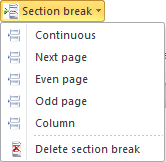
All sections inserted can be deleted by placing the cursor over the section to delete and then clicking on the Delete section break icon.