Login
The first step to use Tagetik Collaborative Office is to log into the Add-In. It can be done in two different ways:
- automatically (only for Word client) by opening, from the end-user web interface, a Document by clicking the Documents activities button
 . In this case, the system will open Office client and will automatically authenticate the user with the same credentials as those used to connect to the web interface;
 - directly from client with the same credentials (username and password) as those used to log into the web interface. In this case, it is necessary to select the Tagetik tab and then click the Login button available in the "Login" area of the Tagetik ribbon bar.

Image - Word client login
The system will display the same window it displays when logging into the web interface.
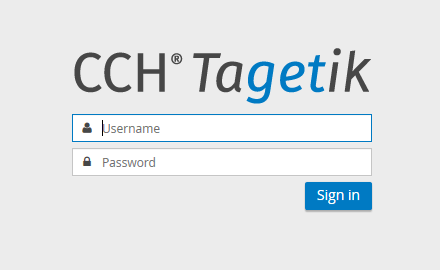
 Before logging into Tagetik, please verify if updates are available for the Add-In. If so, the user will be notified that the version needs to be updated. Once the update is complete, the system asks for the login username and password.
Once the user has entered username and password, the Login button becomes red and changes into Logout.

The login operations performed by the client are saved in the audit trail if the "Login Web" option, available in the "2-Auditing" tab, is enabled in the Repository's configuration. The saved information will be useful to perform statistical analysis on the Microsoft Office and Window versions installed on the various clients that connect to Tagetik. In particular, the saved information includes:
- Client.Office.Version. Client version used to log in (for Word client: 12.x= Word 2007, 14.x= Word 2010, 15.x=Word 2013)
- Client.Office.Build. Build of Client
- Client.OS.Version. Windows version of the client used to log in
- Client.NetFramework.Version. Version and number of the Framework NET’s build