Highlight Objects
This utility allows highlighting the Tagetik objects defined in a document part in order to help the user quickly identify all numbers or references from an external source when reviewing a paragraph (attachments and/or Tagetik database). The objects highlighted by the Highlight Objects utility are not detected as modifications by the client's Editor.
When you select the Highlight objects utility, available on the Edit Structure ribbon bar when opening a document part, the objects that need to be highlighted are marked with a border in the color set in the Color highlighter property (Document's properties Advanced area).
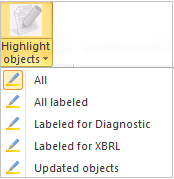
In particular, the utility highlights:
- All: all objects available in the document part (except the images, the charts and "From another file" objects)
- All labelled: only the objects labeled for the Diagnostic or for XBRL purposes
- Labelled for Diagnostic: only the objects labeled for the Diagnostic
- Labelled for XBRL: only the objects labeled for XBRL
- Updated objects: only the objects affected by the last update
 Before printing or saving the document, it is advisable to remove any highlighting, otherwise the document will be printed or saved showing the objects highlighted in yellow. In order to remove the highlighting, just deselect the related button, so any highlighted objects or borders (in case of table objects) previously defined will be kept.
On the contrary, if you want to remove the highlighted objects of a document part, then you will have to run the Remove highlighted objects utility accessible by right clicking on the open document and then following the Tagetik > Utility > Remove highlighted objects path.