Client settings
The Options window accessible by the button  on the Tagetik Collaborative Office ribbon bar allows you to:
- configure the connection to the webserver
- set some Collaborative Office specific local parameters
- set the log level of the Collaborative Office module
The window is divided in two tabs.
In the first tab named Connection it is possible to manage all webservices to which it is necessary to connect.
Any connection is identified by a name and a URL identifying the webserver.
If no connection has been set (for example, the add-in has just been installed) the system asks the user to set a connection using the default name "CONFIG00". The user can accept the default value or modify it according to his needs. Then it is necessary to insert the address of the web server into the URL field. If you don't know this address, you can ask your technical department.
After inserting the required information, click on the button  to save the connection you have just created.
On the left area of this tab you can see a series of buttons which allow you to manage the connection. Specifically:
| Button | Description |
|---|---|
| Add Adds a new connection | |
| Modify Modifies the selected connection | |
| Cancel Deletes the selected connection | |
| Save Saves any changes made to an existing connection or saves a new connection | |
| Cancel Undoes the last operation | |
| Test connection Runs a connection test on the URL of the selected connection and then shows the result in a message box | |
| Set as Current Connection Sets the selected connection as current connection |
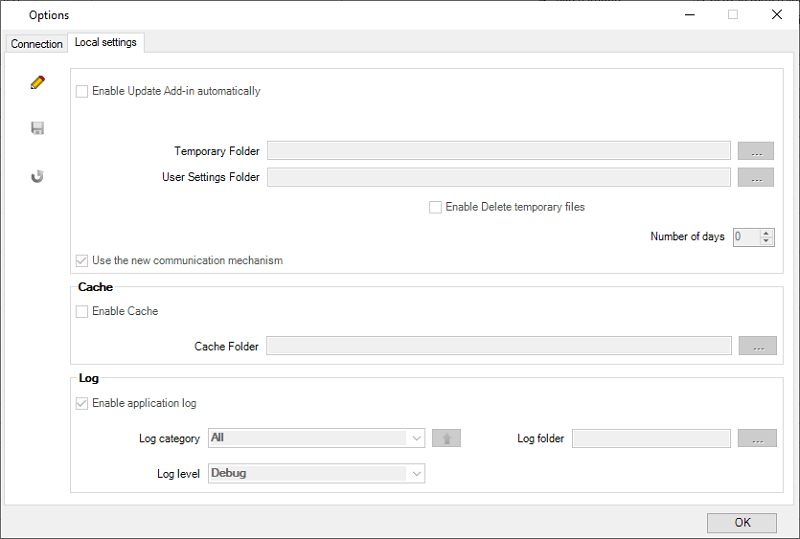
In the second tab named Local Settings it is possible to manage several settings that define the usage of the cache and of the log files as well as the update of the add-in.
In detail such settings are:
- Enable Update Add-in automatically. If this option is enabled, when opening the add-in, the system informs the user if a new version of the add-in is available and then asks the user to confirm the update;
- Enable Alive Log Add-in. Enables a periodic log within the log file in order to verify that the add-in is enabled. The log row is inserted into the file every 10 seconds. This information can be useful when analysing the log in order to understand if possible errors are due to add-in problems;
- Temporary Folder. When running the requests of the user, the add-in generates temporary files which are stored by default in the temporary files' folder of Windows. If necessary, the user can specify a different folder.
- User Settings Folder. The add-in always creates two setting files: Appsettings.xml and Usersettings.ini and stores them by default in the same folder in which the add-in has been installed. These files contain the list of the various connections defined in addition to a series of preferences set by the user related to the usage of the add-in. For example, the user may have opened the definition window of a matrix and modified its dimensions. The system will store the changes in order to show the new dimensions the next time it is opened;
- Load Excel Add-In. When this option is enabled, when opening an Excel attachment, the system verifies if Add-ins are installed on the local Excel Client and, if so, it enables the Add-ins also on the spreadsheet. So the user can use any Add-in function locally;
- Reopen Excel. When this option is enabled, whenever a new Excel file is opened, the system opens a new Excel application. This ensures that when opening the file, the system correctly runs the Excel application and loads any necessary external add-in for the attached file;
- Enable cache. Enables the usage of the cache. If the user decides to use the cache, it is possible to set up the folder in which the cache will be stored (Cache Folder).
 As for the information contained in the Log box, it is recommended that you contact the IT department of Tagetik before setting it as the level of such information is very technical, therefore it is necessary to carefully decide what to write on each log and to what level of detail according to the specific problem that needs to be investigated.