Compare documents
In order to compare two versions of a same document activity - typically the current version and a snapshot - it is possible to use the Compare documents utility available in the "Tagetik" ribbon bar.
In order to compare two documents, it is necessary to open the documents you want to compare, click on the  Compare button and then select:
- the Source document
- the Modified document
- the Options(Moves, Comments, etc.)
 Note. The options represent the differences that will be searched and are all selected by default in order to make the system consider all the differences.
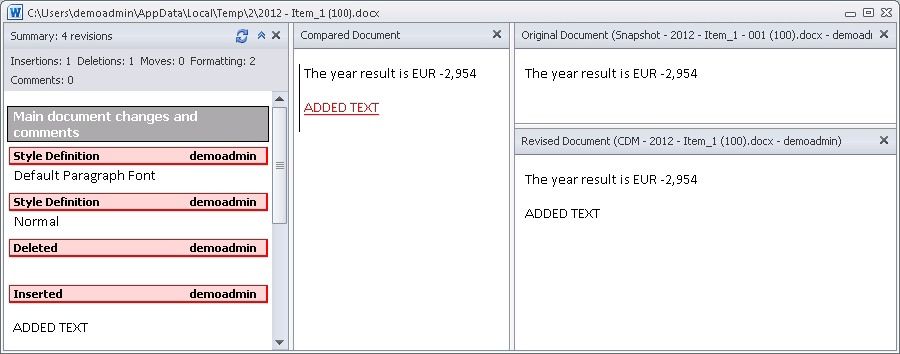
When clicking on "OK", the system opens a window showing on the left side what has changed form a version of the document to the other and who has made the modifications; a third document in the middle of the window, resulting from the "merge" of the two documents that are being compared, highlights in red the differences detected (this is a customizable standard function of MS Word); the source document and the modified document are displayed on the right.
When closing the window, the system asks the user to specify if all changes must be saved and where. The modifications can be saved locally to an external file without modifying the source document activity.