Update objects
When a change occurs in the datasource, whether it is a modification to an attachment of the document or from Tagetik database, it is advisable to update all the Tagetik objects that read data from the datasource. It is possible to update one single object or all objects defined in a specific document activity.
Update
The update utility can be enabled by the Update button available:
- in the Tagetik - Object - Updatemenu after right-clicking on the document
- in the Object area accessible from the Edit structure ribbon bar that appears when opening the document activity
- in the toolbar of the Object tab accessible form the Documents management panel when opening the document activity
Whatever the chosen path, the data processing will only update the value of the selected object by reading the values of data from the data source (no formatting update therefore takes place with this type of update). Moreover, when updating, if there are manually edited objects, the system will display the ‘Confirm edited values’ window in which the user will be able to choose which values to accept and which not to accept before continuing with the update. This window shows the following information for each object in which overrides occurred:
- Accept current read value: if enabled, this option allows at the end of the update not to keep the override on the object and to update the object with the value read on the data source at that moment
- Status: shows the result if the comparison between the value on the document, the currently read value and the previously read value (before edit) on the source. In more detail:
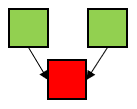 the value on the document is different from the value on the data source (current and previous)
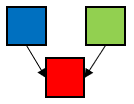 the value on the document and the current and previous read values on the data source are different
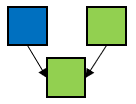 the value on the document and the previous read value are different from the current read value on the data source
- Type: type of overridden object
- Datasource: source of data (the cell address is displayed in the case of table cells)
- Description: object description
- Document value : value read on the document
- Currently read value: value read on the data source at that time
- Previously read value: value read on the data source before modification
- Override previous value: difference between the value read on the data source at that time and the value read on the document
Update with options
The update with options utility can be run by clicking the Update with options button available:
- in the Object area accessible from the Edit Structure ribbon bar, or
- in the toolbar of the Object tab accessible from the Documents management panel
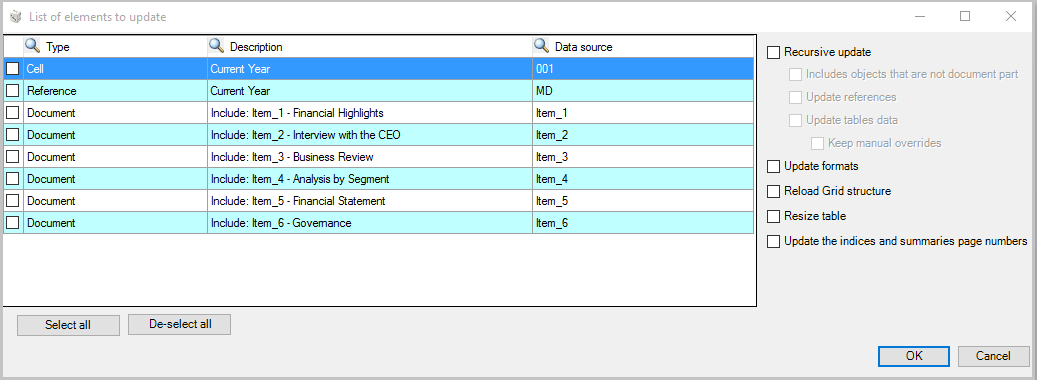
In both cases, it is necessary to open the document activity and then select all objects or the single objects you want to update. After clicking on Update with options, the system opens the List of elements to update window in which it is possible to update the various available objects according to the following options:
- Recursive update. Runs the update from the lowest level element to the selected document part. In case of intermediate nodes, the system will update them in order to include any changes occurred in the lower sections. If for some reason, some of the lower sections of an intermediate node have been modified but the node itself has not been updated, by using this option the system will update also the intermediate node before bringing its content up to the upper node. When this option is enabled, it is possible to update recursively the following:
- Includes objects that are not document part: document activities which are children of nodes that are not document part
- Update references: only the reference objects by reading data from the bookmark object
- Update tables data: only data of all objects by reading them from the data source (in this case the format is not subject to modification)
- Keep overrides: if data on the document are different from those read from the datasource, the value read on the document will be kept
 The recursive update improves the update time since it does NOT run the update (of data and / or formats) when no modifications has been made since the last update of the node; for all objects that are not from the Tagetik DB, the system considers the date at which the datasource was added to Tagetik and if it is earlier than the update date, then the recursive update won't be run. For data from the Tagetik database, the update is always run, independently of whether data have changed or not
- Update formats. Updates the format (generic, numeric, data and type "#,###") of all table objects and cells from Excel attachment and/or from Tagetik matrix. Moreover it aligns the numbers contained in the cell if the "Enable Decimals tab" option is enabled in the object's properties. Please note that this option does not update the layout of a cell in terms of colours, font and cell size.
- Reload Grid structure. Reloads the structure (values, formats, cell layout) of all table objects from Excel attachments and / or from Tagetik matrix. This procedure keeps any tags associated with the cells of the table;
- Resize table. Resizes the width of the columns and the height of the rows of all table objects, from attachment and from Tagetik matrix, using the style set in the object's properties
- Update the indices and summaries page numbers. Updates the indices and summaries (if present) with the right number of pages. This option is very useful when children nodes are added to a parent node. Indeed, in those cases, since the children documents are included into the parent ones as protected elements (locked), this option allows the system to unlock the object, update the index and lock the object again so that the user doesn't have to adjust manually the numbers of the pages in the indices and in the summaries.
The recursive update improves the update time since it does NOT run the update (of data and / or formats) when no modifications has been made since the last update of the node; for all objects that are not from the Tagetik DB, the system considers the date at which the datasource was added to Tagetik and if it is earlier than the update date, then the recursive update won't be run. For data from the Tagetik database, the update is always run, independently of whether data have changed or not
- Update formats. Updates the format (generic, numeric, data and type "#,###") of all table objects and cells from Excel attachment and/or from Tagetik matrix. Moreover it aligns the numbers contained in the cell if the "Enable Decimals tab" option is enabled in the object's properties. Please note that this option does not update the layout of a cell in terms of colours, font and cell size.
- Reload Grid structure. Reloads the structure (values, formats, cell layout) of all table objects from Excel attachments and / or from Tagetik matrix. This procedure keeps any tags associated with the cells of the table;
- Resize table. Resizes the width of the columns and the height of the rows of all table objects, from attachment and from Tagetik matrix, using the style set in the object's properties
- Update the indices and summaries page numbers. Updates the indices and summaries (if present) with the right number of pages. This option is very useful when children nodes are added to a parent node. Indeed, in those cases, since the children documents are included into the parent ones as protected elements (locked), this option allows the system to unlock the object, update the index and lock the object again so that the user doesn't have to adjust manually the numbers of the pages in the indices and in the summaries.
This utility can be run also by using the Update page numbers button available in the Edit Structure ribbon bar.