Rich Text
By clicking on the menu 'Insert Objects from Taegtik', the system opens the window for inserting the object. The window displays:
- on the left-hand side three sections: General, Wizard, Default Filters
- on the right-hand side a number of specific options for each section
'General' Section
In this section, the user must define:
- Code and Description identifying the object to be inserted
- Bookmark. Marks the object as a bookmark. This option is particularly useful when you want to use the object in other parts of the document or in another document as a 'reference' without having to insert it again. This means that if the content of that object changes, all other sections of the document that refer to that bookmark will also change. For more details on how to retrieve an object marked as a bookmark, see section 'Insert Object from Document Part: Reference'
- Lock object. Locking an object is an operation reserved for administrator users, as a result of which a contributing user is prevented from editing the object. If this option is selected, if a contributing user tries to modify the object (by deleting it or deleting its attributes), they will not be able to do so and will see all fields on the object's settings disabled, i.e. not editable. When this option is activated, the system displays an additional field called Object Status as shown in the following image

- Document. The object is editable or not depending on the default value set in the document properties window (see section "Create a new document" Advanced section)
- Locked. The object is locked, i.e. a contributing user can update the data but cannot delete the object or change its values and layout
- Unlocked. The object can be edited and deleted
- Updates the field at the same time as the operation. It allows the object to be updated to instantly retrieve all the information entered when defining its structure. If this option is not selected, the system will simply create a tag for the object (blue box indicating the object has been inserted) and then it will be necessary to update the object to retrieve its value
'Wizard' section
In this section, the user must navigate the Analytical Workspace > Datasets defined for the applied database to which the user is logged in and select the Formatted Text to be inserted into the document using the  Add button.
'Filters' Section
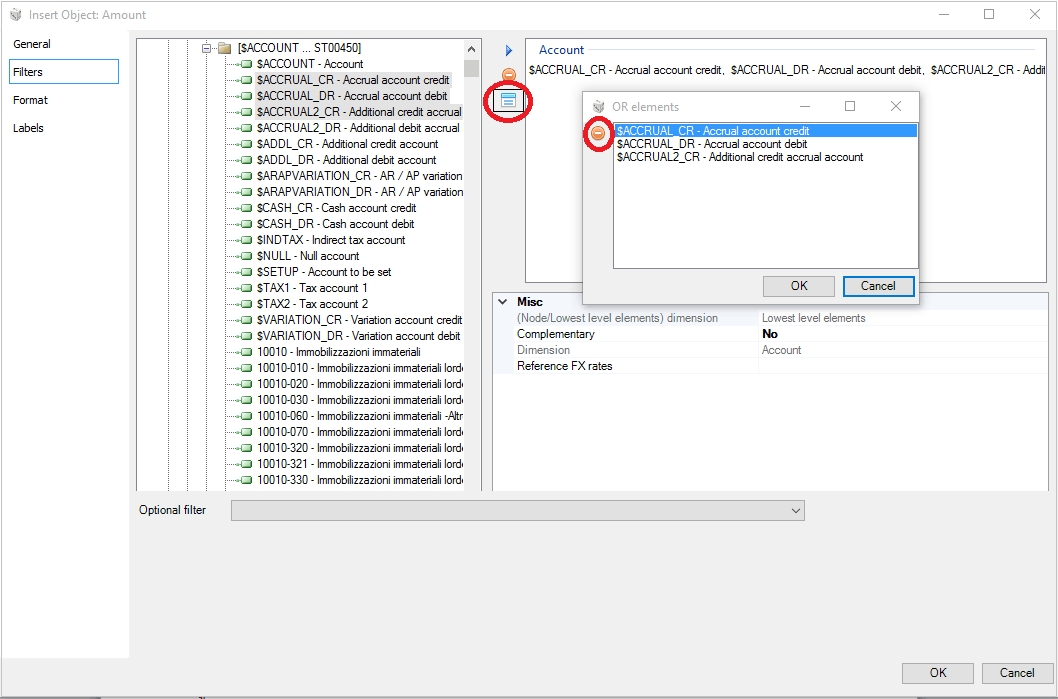
In this section, the user must specify filters on the dimensions required to retrieve the value from the Tagetik dataset.
- To identify a Formatted Text defined on a Dataset with a Partitioning Policy equal to None, it will not be necessary to define any dimensions.
-
In order to identify a Formatted Text defined on a Dataset with Partitioning Policy equal to Scenario Period it will be necessary to define at least the following dimensions:
-
Scenarios
- Period
-
In order to identify a Formatted Text defined on a Dataset with Partitioning Policy equal to Scenario Period and Entity it will be necessary to define at least the following dimensions:
-
Scenarios
- Period
- Entity
For each dimension to be defined, select a single element and add it using the Add button. It is always possible to delete an added item using the Delete button .
.
 The dimensions Entity, Scenario and Period only have to be defined if you want to use a different Entity / Scenario / Period than defined in the 'Document Properties'.