Export to Microsoft Office products
The content of a document or of a document part can be exported to the Microsoft Office products at any time. The export utility can be accessed by using the button Exportavailable in the "Utility" area of the "CCH® Tagetik" ribbon bar.
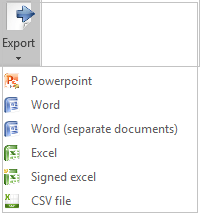
 PowerPoint client provides only exoprt in PowerPoint and Word format.
In order to export the content of any document, it is necessary to:
- select from the documents tree the documents / document parts whose content has to be exported (if you select the entire master document, the system will export the whole document). The selected documents / document parts can belong to different document types;
- select the export type (pptx, xlsx, docx, etc.)
- export the file by assigning it a name and configuring the directory
Export to Word
When running the export to Word, the system will export the selected part by excluding all Tagetik objects but keeping the content. Two types of export to Word are available:
- Word. The system opens the selected parts as a single document. At this stage, it is possible to save the word document as a result of the selected parts;
- Word (different documents). The system allows for the export of as many word documents as selected parts. In this case the name of each document will be the same as that of the document part it refers to.
In order to export only the submitted parts of a node, before running the export, it is necessary to select them automatically by using the “Select submitted parts” utility accessible from the pop-up menu that opens up when right clicking on the node.
Export to Excel
The export to Excel allows you to download the content of a document, or a document part, to a specific Excel file that the user can then modify and use for different purposes, for example, as a base for the preparation of the financial statement in XBRL format. In more detail, the system exports the following information:
-
in sheet 1-General: Id, Code, Value, Description, Document part and Object type of all objects, except the tables, present in the selected document
-
one spreadsheet for each table object present in the document with: Code, Description, Document part and Value (rows and columns) of the table.
The names of the spreadsheets match with the description of the table object they refer to. A cumulated number is added at the end of the name of the spreadsheet for each set of duplicated tables. The names of the spreadsheets with more than 13 characters are cut off.
 During the export process, the system checks the validity of the characters inserted in the tables' Description. If the Description contains forbidden characters (Underscore (_),
Asterisk (*),
Pipe (|), Slash (), Colon (:),
double quote ("), Less than (<),
Greater than (>),
Question mark (?)
, Space), during the generation phase, the system replaces such characters with the Underscore character (_).
During the export process, the system checks the validity of the characters inserted in the tables' Description. If the Description contains forbidden characters (Underscore (_),
Asterisk (*),
Pipe (|), Slash (), Colon (:),
double quote ("), Less than (<),
Greater than (>),
Question mark (?)
, Space), during the generation phase, the system replaces such characters with the Underscore character (_).
Signed Excel
The export to Excel allows you to download the content of a document, or of part of it, into a specific Excel file, as shown in section Export to Excel. Moreover, this utility allows you to add a digital signature using a "trusted" certificate in order to ensure the reliability and the verifiability of the SBR filing and tagging process. In particular, the system asks for a Certificate file name to sign the document.
This function requires the configuration of the Keystore, namely the system configuration file that manages the "data encryption"