Tables dimensions
In Tagetik Collaborative Office it is possible to assign each table object a style (both from Excel attachment and from Tagetik matrix). It is possible to set different dimensions according to the specific needs for all the table objects of the document. When updating an object, the system updates data and applies the related table style.
 In order to apply the specific style to a table, it is necessary to enable the "apply style" option in the Update with options window.
The dimension of the tables to which a specific style is applied can be managed centrally by using theTable size option available on the "Tagetik" ribbon bar.
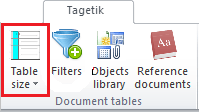
When clicking on the  Table size button, the system displays a menu from which you can choose the dimension you want to define:
Table size: Rows
When you select the "Rows" dimension, the system displays a window in which, first of all, it is necessary to create a header by specifying:
- Code and Description of the row's style
- Default row height, meaning the fixed size of the row in centimetres.
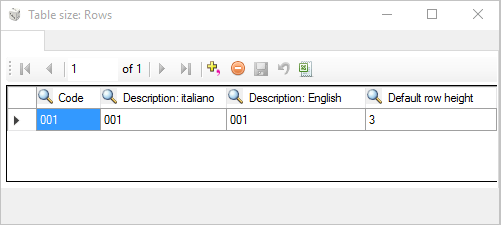
After saving the header, it is possible to access the size detail window and then specify the dimension to apply, row by row:
- Row, row number
- Row height, specific row size
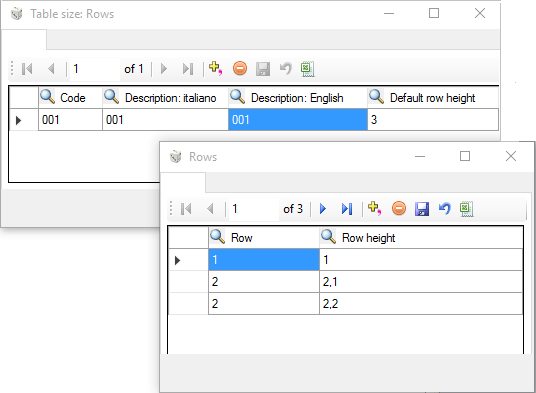
 If all the rows of the table have NOT been specified in the detail window, the size of the remaining ones will be set according to the value defined in the "Default row height" field.
Table size: Columns
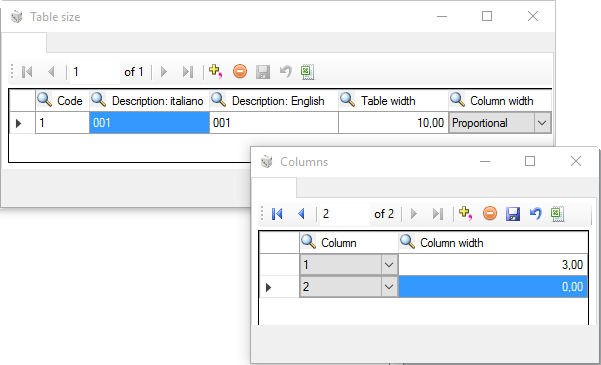
When you select the "Columns" dimension, the system displays a window in which, first of all, it is necessary to create a header by specifying:
- Code and Description of the column's style
- Table size, overall size of the table in centimetres
- Column size, size of the columns for which no fixed dimension is specified. This field can be set to:
- Proportional, the columns size is calculated in proportion to the original size (namely, the width of the paragraph in which the table object has been inserted) taking into account the specified Table size
- Distributed, the columns size is calculated by dividing the Table size by the number of columns
then double click on the row to access a detail window in which you have to specify the fixed dimension of each column in centimetres and set up:
- Column, column number
- Column width, specific size of the column
-
the dimension of the columns which are not specified in the detail window can be managed in two ways:
-
Proportional: the size of the columns which are not specified in the detail window is calculated in proportion to the original dimension, taking into account the specified overall size
- Distributed: the size of the columns which are not specified in the detail window is calculated on the basis of the total length divided by the number of columns not defined in the detail
If all the columns of the table have NOT been specified in the detail window, the size of the remaining ones will be set according to the value defined in the "Column size" field.