Manage Diagnostic
In order to run the diagnostic, first of all it is necessary to access the Setup labels and rules menu and then define the following:
- Diagnostic tags. Labels to associate with the Tagetik objects available in the document to be checked
- Diagnostic rules. Rules needed for the check purposes
- Utility. Routines that allow the management of the defined diagnostic tags and rules
Diagnostic tags
The tag can be considered the element to be associated with the Tagetik objects whose value has to be checked. The tags are defined in the Diagnostic tags tab. For example, if you want to check the value of the Net Revenue account at page 1 with the breakout of the same account for the three business areas at page 5 of the document, you will have to create four tags, as shown in the image below.
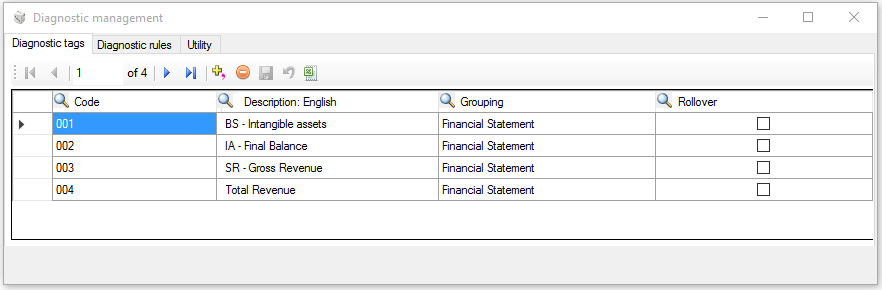
To add a new tag, you just have to define:
- a Code
- a Description
- a Group in which to arrange the tag
- specify if the tag type is Rollover, namely if it is used by the Run rollover utility
Diagnostic rules
After creating all the necessary tags, it is possible to define the checks to perform. Firstly, it is necessary to create the header of the rule to apply to the checks by clicking on the Diagnostic rules tab.
 The diagnostic doesn't include any concept of time (no scenario nor period is defined in the Diagnostic). Therefore, for example, if you need to check the same object (Net revenue) between two different sections of the same document, both for the current year and for the previous year, you'll have to create two different tags, such as "Current net revenue" and "Previous years' net revenue".
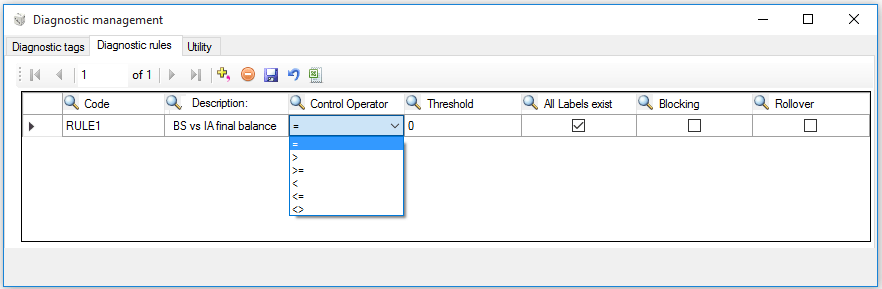
In this window it is necessary to define:
- a Code
- a Description
- a Control Operator on the basis of which the system runs the balancing check. Tagetik provides the user with six different operators:
- equal. Verifies that the algebraic sum of the values of the "parent" tags is equal to the algebraic sum of the values of the "child" tags
- greater than. Verifies that the algebraic sum of the values of the "parent" tags is greater that the algebraic sum of the values of the "child" tags
- less than, greater than or equal to, less than or equal to. What specified for the "greater than" operator also applies to this case, obviously using the right operator
- different. Verifies that the algebraic sum of the values of the "parent" tags is different from the algebraic sum of the values of the "child" tags . If there are only "parent" tags, this operator verifies that the algebraic sum of the values of the "parent" tags is not zero
-
a Threshold, meaning the limit beyond which the unbalanced rule generates an error, and then choose on of the following options:
-
All Labels exist. It requires that the rule is run only if both areas Parents and Child (see image below) contain at least one tag. If these areas don't contain any tags, the rule will be run anyway and the system, once the checks are completed, will display an error message.
- Blocking.When this option is enabled, when submitting the document, the system runs automatically the rule and if such rule is not validated, it interrupts the submission of the document
- Rollover. Indicates that the rule type is rollover, meaning that it is used by the Run rollover utility (in this case, the only accepted control operator is "equal to")
Then, in the Wizard window that appears by clicking on the header of the rule, it is necessary to specify the labels that must be affected by the rule. The window is divided into three areas:
- Documents/List. It contains, in the form of tree or list and divided by document/document type code, all the tags created in the Current document
 and in the Reference documents
  . The labels defined in the current document are labelled with the symbol "$"
 - Parent. Here it is necessary to insert the tags that represent the first term of comparison for the defined rule. In case of Rollover rule type, in this area it is possible to insert only one tag belonging to the current document
- Child. Here it is necessary to insert the tags that represent the second term of comparison for the defined rule. In case of Rollover rule type, in this area it is possible to insert only the tags of the reference documents
 It is necessary to lock the object that is associated with the child label when the object that is associated the parent label is:
- on different document parts inside the same document, or
- on different documents as in the case of the "Reference document" for the "Rollover" labels.
Please note that in order to lock an object you just have to enable the Lock object option available in the General area of the object's properties.
In order to insert the labels into the related areas, it is possible to use the "drag and drop" function or the "blue arrow" displayed on the left hand corner of each section. To remove a label from the section, it is necessary to use the  Delete button .
In our example, the rule has as tag the tag "004" that must be equal to the algebraic sum of the child tags "001, 002 and 003" as shown in the image above.
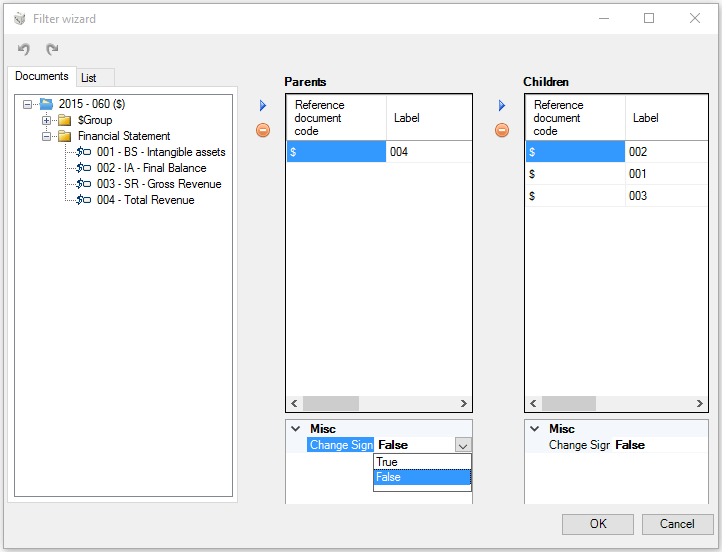
The Change sign option allows changing the sign of the value. This can be useful when you extract data from a data source where the profit is labelled with the sign "-" and the expenses with the sign "+" and we want to have these two values with the opposite sign.
Utility
This tab allows managing the labels and the rules by the utilities shown in the following image.
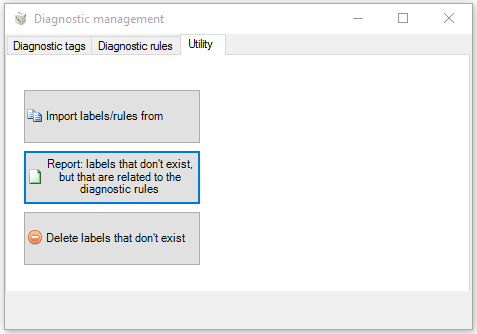
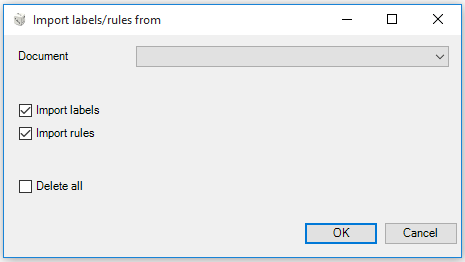
- Import labels/rules from: it imports the diagnostic labels and rules of the values between two documents of the same document type. After clicking on the button, a window containing the following buttons appear:
- Document: allows choosing the source document by selecting it among those available for the same document type of the selected document
- Import labels: imports the labels of the selected document
- Import rules: imports the rules of the selected document
- Delete all: deletes the labels and the rules of the document before importing the labels or the rules from the document selected in the Document field
 - Report: labels that don't exist, but that are related to the diagnostic rules: report showing the labels that do no longer exist but that are still related to the diagnostic rules
- Delete labels that don't exist: deletes the labels that don't exist from the document's objects that use them
- Report: labels that don't exist, but that are related to the diagnostic rules: report showing the labels that do no longer exist but that are still related to the diagnostic rules
- Delete labels that don't exist: deletes the labels that don't exist from the document's objects that use them