Find (only for Word client)
When filling a document, you may need to:
- search quickly all the occurrences of a specific word or of a sentence
- search the occurrences of a specific word or of a sentence and replace it with another
For this purpose, Tagetik Collaborative Office provides the users with the Find and Replace utility that works like the analogous Word utility but in this case the search is run on all the document parts that compose the document. This utility is available in the "Utility" area of the "Tagetik" ribbon bar .
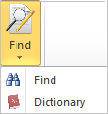
By clicking on the  Find button, the system opens the Find and Replace window which is divided into two tabs:
- Find
- Find and Replace
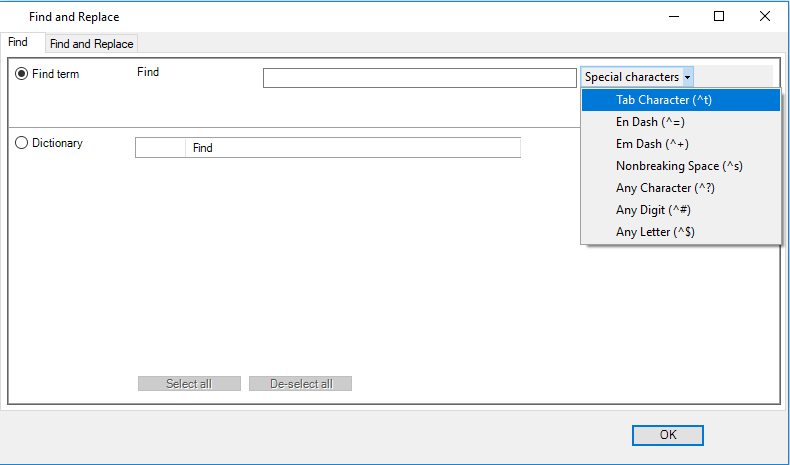
Find
In this window the user can:
- select the "Find term" option and specify the word to search in the "Find" field. The expression to use can be any combination of words and, additionally, it is possible to choose among the characters available in the "Special characters" list or
- select the "Dictionary" option and then select the word to search among those available in the Dictionary
After clicking on the OK button, the system runs the search and, once it is completed, it displays the results as shown in the following image:
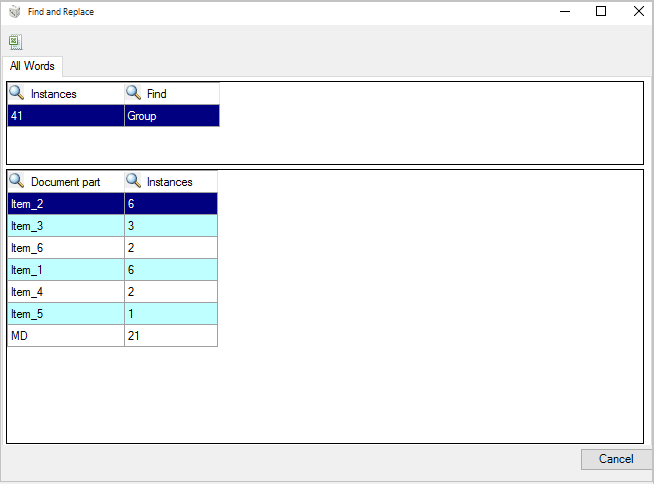
The result window shows:
- in the upper part, the number of times the text appears in the document
- in the lower part, the document activities in which the text appears and the number of times each one appears
Find and Replace
The Find and Replace utility is similar to the Find utility described before, but in this case it is possible to specify also the word the searched term has to be replaced with, as shown in the image below:
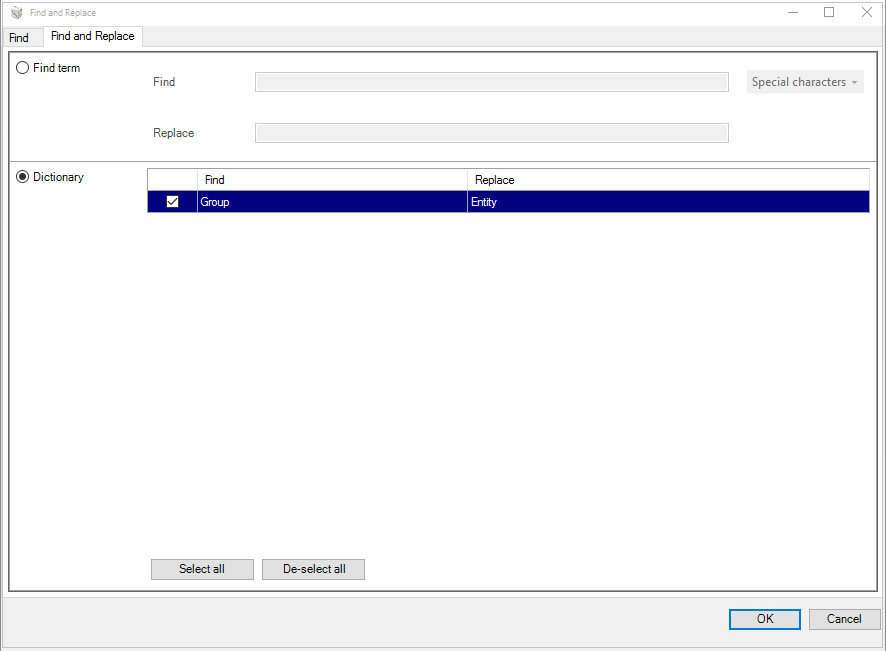
In this window the user can:
- select the "Find term" option and specify:
- the term to search in the "Find" field. The expression to use can be any combination of words and, additionally, it is possible to choose among the characters available in the "Special characters" list
-
the replacement word in the "Replace" field
-
select the "Dictionary" option and then select the word to search / replace among those available in the dictionary
After clicking on the OK button, the system runs the search and, before replacing the word, displays the result window as shown in the image below:
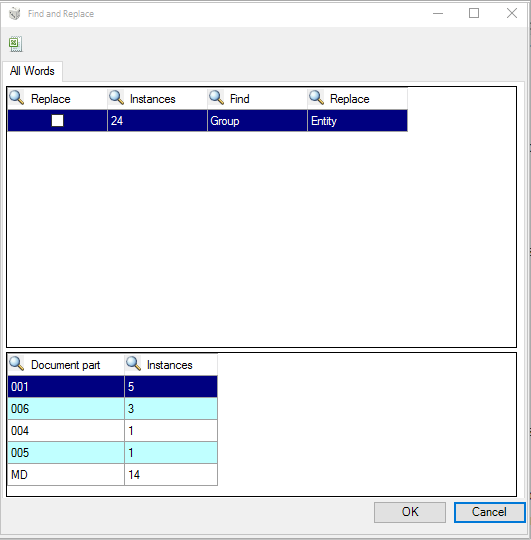
The result window shows:
- in the upper part, the number of times the text appears in the document
- in the lower part, the document activities in which the text appears and the number of times each one appears
In order to proceed with the replacement, just select the instance to replace in the Replace column.