About the Record View
When you open a record, several sections display in the primary screen depending on which record type you are viewing.
View a Record 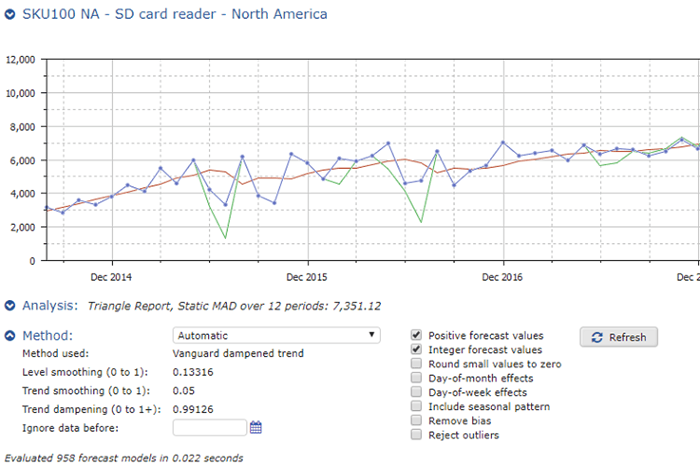
Following are the sections that display in every record:
Record Sections
| Section | Description |
|---|---|
| Name (forecast section) | Displays the forecast graph, which contains data points for historical data and forecast data. It also displays the model and confidence interval for the forecast. See About Forecast Graphs. You can toggle between the forecast and the record properties using the Show More/Show Less icon ( or ). See View Record Properties. |
| Status | Shows the status of the record in a pre-configured workflow. To change the status, click the appropriate stage in the workflow. Workflow Stages |
| Customized section(s) based on record type | Depending on the record type you have selected, different sections display where you can configure the record. See Record Types in CCH Tagetik Supply Chain Planning. If you choose to run a Monte Carlo simulation in a record, a Monte Carlo section displays. If you have inventory optimization in your configuration of CCH Tagetik Supply Chain Planning, an Inventory section displays in most records. See About the Inventory Section. |
| Documentation | Add detailed descriptions for changes you make to a record. The documentation section contains the following fields: - Description: Since the Names chosen for records are often short, cryptic identifiers (such as a part number), use the Description field to assign more intuitive text. - Rationale: Record owners use this field to explain why particular values or methods have been chosen, the source of key information, and any other details that help to explain the record. There is no character limit in this field. - Footnote: You can attach important qualifications or caveats to summary reports based on the record. Footnotes display at the bottom of any report that includes the record (along with a link to the record). This field is usually reserved for temporary situations, such as identifying deficiencies in a forecast where corrections are pending. - Reminder (): You can add an alert or reminder within a record. For example, if you are going on vacation, you might set a reminder to assign your items to another user in your absence. See Set Alerts and Notifications. You can add widgets to your Dashboard for easy access to several of these fields across records. |
| Change History | Every time a change to a record is saved to the database, a copy of prior values is stored in the Change History section. This helps document the evolution of forecasts and provides the data for rollbacks and forecast vs. actual comparisons.You can do the following in the Change History section: - Propose a change to a record. See Propose Changes to a Record. - Restore a record to previous values. See View and Restore Previous Versions of Records. - Purge the history of a record. See Purge the History of Records. |
Notice as you scroll down through the record the top bar and setting buttons "stick" at the top of the screen so you can always access what you need and see where you are.
Preview New UI
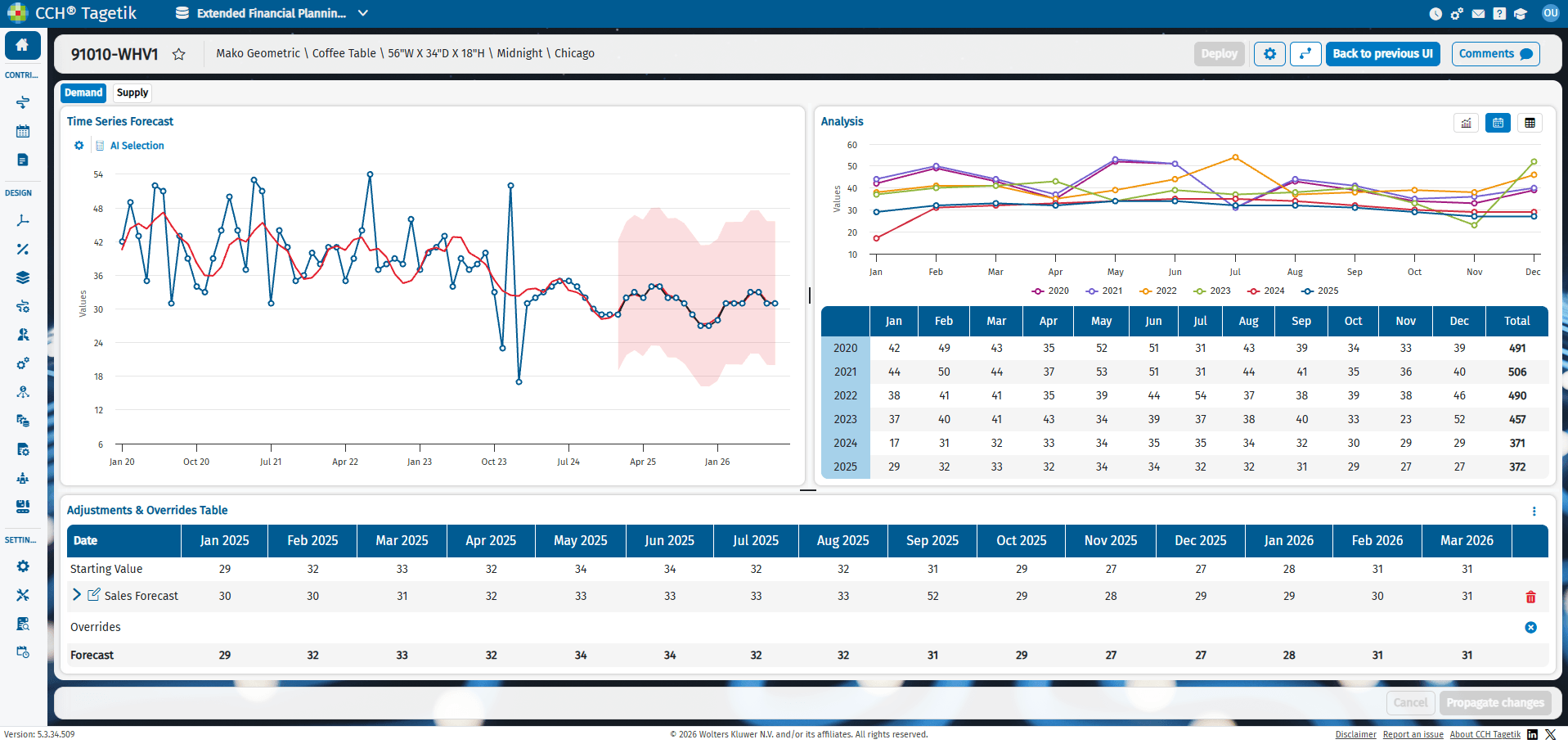
The Preview of New UI feature allows users to access the new version of the record view, which contains the same elements as the current version but with an improved and modernized visual design.

Note: If you switch from the Legacy view to the modernized interface, you must save any changes before proceeding. Unsaved changes will be lost when moving between the two interfaces.