Supply Chain Planning Setup
The Supply Chain Planning Setup page has the main purpose of allowing the advance settings of Supply Chain Planning. The new interface allows to reach advance settings in a centralized approach. The technical settings follows the standard characteristics of the CCH Tagetik Supply Chain Planning module and are not the subject of the following manual. The manual is intended to explain how to access the functionality from the new interface. Below is a detailed comparison between the mapping of the classic interface and the new interface.
The Setup of the CCH Tagetik Supply Chain Planning solution can be reached via the path Design -> Supply Chain Planning -> Setup in the new interface. The new interface required a change in the naming to be aligned with those of the other CCH Tagetik modules. This means that:
- The "System Setup -> Advance Settings" are renamed "System Setup", because the workflow is feature managed by a dedicated are within CCH Tagetik Platofrm.
- The “User Manager -> Single Sign-On (SAML) Settings” are renamed "Setup Single Sign-On”.
Setting CPM-SCP Configuration
The Setting CPM-SCP Configuration connects tables of an Analytics Workspace to an SCP process in a simple way with a user friendly interaction mode.
The settings are automatically used by the task named "Import Data into SCP from CPM" and "Import Adjustment into SCP from CPM" and configurable via the feature named "Collaborative Workflow" to import data from the CCH Tagetik Analytical Workspace Module to the CCH Tagetik Supply Chain Planning Module. The configuration of the task is described in the "Collaborative Workflow" chapter of this manual.
The solution design allows only one instance of Module CCH Tagetik Supply Chain planning; therefore, it is not possible to tie 2 SCP instances to a single CPM
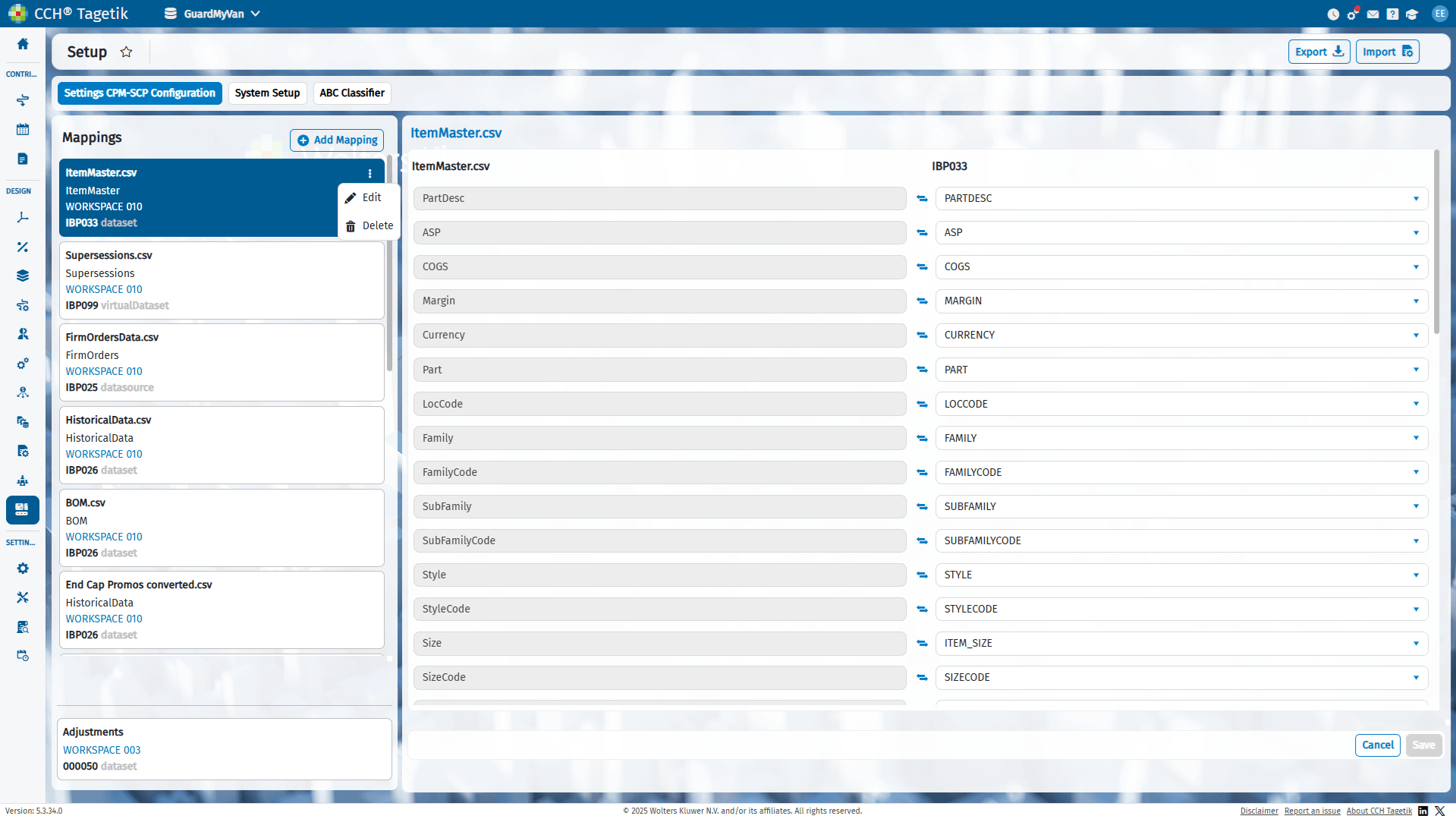
The settings contain a list of mappings representing the alignment between an AIH dataset, datasource, or virtual dataset and a Supply Chain Planning process input file.
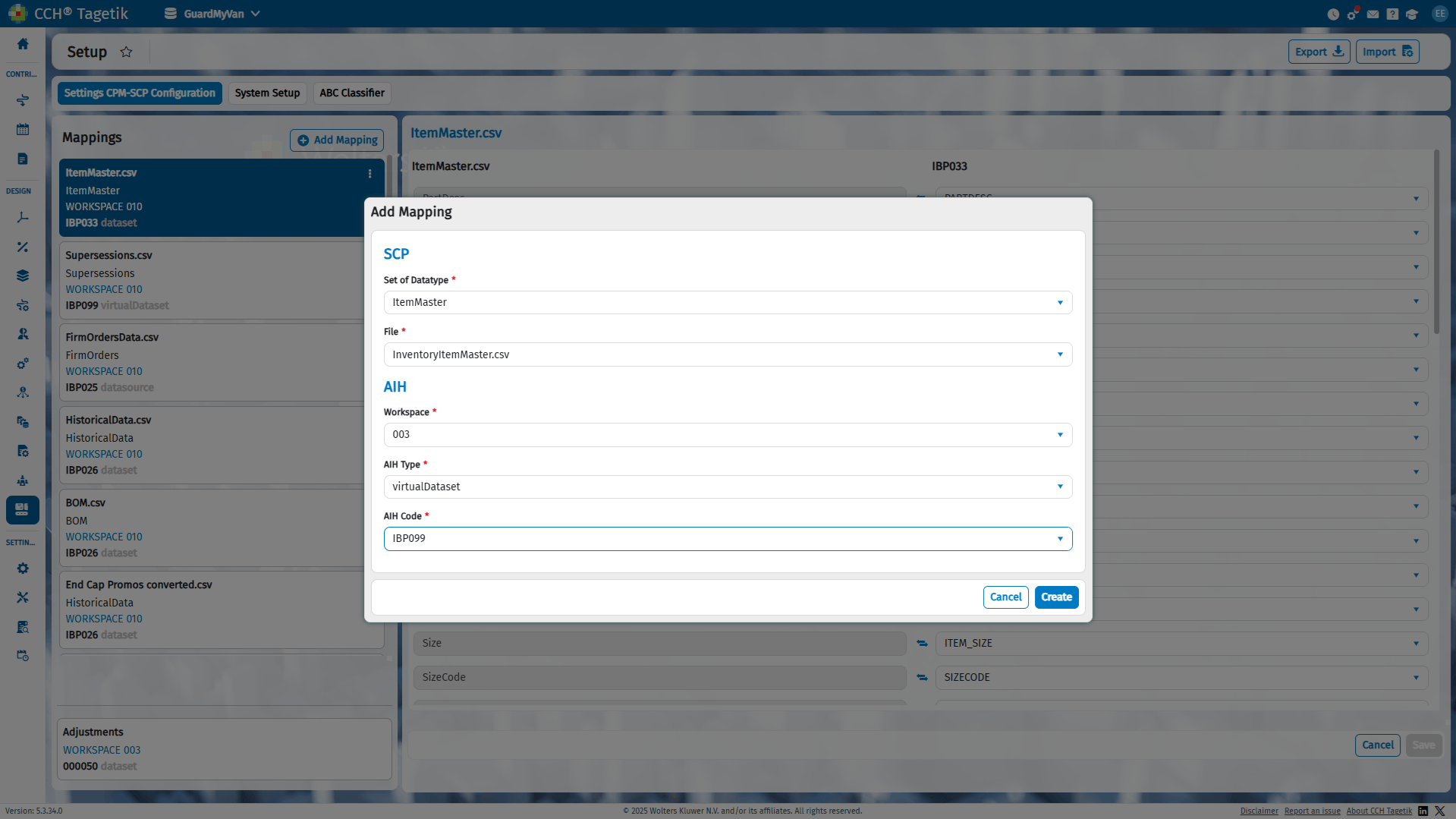
A new mapping can be created using the dedicated button. For each mapping, you can define the Supply Chain Planning process file that will receive the information. The data to be filled in in the SCP section are:
- Set of Data Type, i.e., the import file types that will be used to initiate the Supply Chain Planning process, according to the module configurations.
- File, i.e., the files available for the Supply Chain Planning application type, according to the module configurations.
The data to be filled in in the AIH section is:
- Workspace, with the code of the Analytical Workspace where the objects to be used in the module will be found.
- AIH Type, the selection of the type of object to be read, which can be a dataset, datasource, or virtual dataset.
- AIH Code, with the list of object codes available for the selected workspace.
After completing the settings, click the Create button to save the mapping and list on the page. To delete or edit the header of a mapping, click the three dots next to the mapping title.
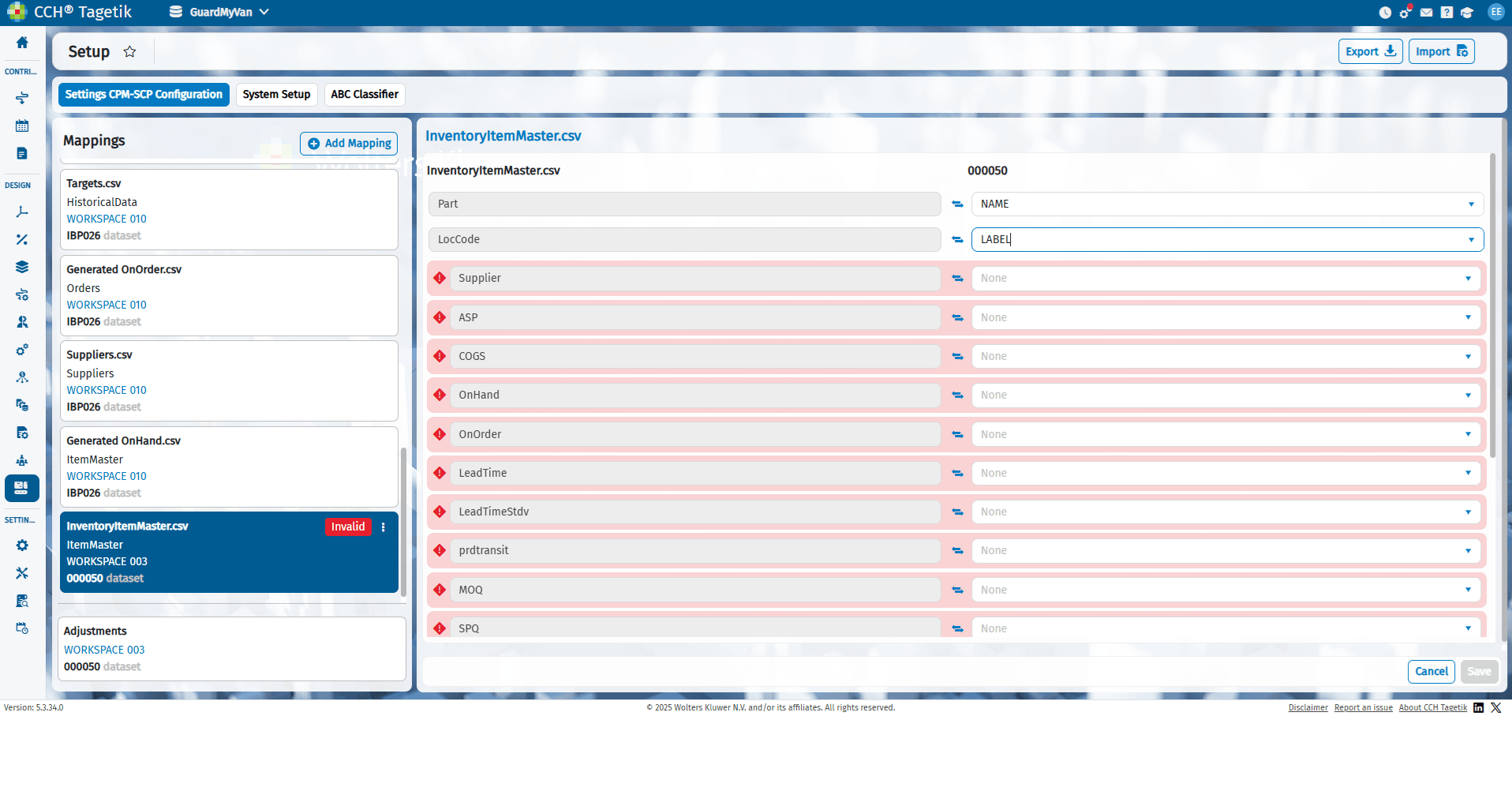
Selecting on the individual mapping header displays the columns that comprise the mappings:
- The first column contains the name of the file set within the mapping in the "File" setting and contains all the columns in the file. This column are automatically populated when the mapping is created.
- The second column contains the object code selected in the "Mapping Setting" setting. This column represents the columns of the dataset to be mapped in the Supply Chain Planning process input file and can be manually selected by the user.
Unmatched file columns are highlighted with a warning. Once all the columns from the input file have been matched to the columns, the mapping can be saved. If all the columns in the mapping are unmapped, the header displays the word "Invalid." To resolve this "Invalid" label is mandatory that all columns in the file must be mapped.
All mappings are automatically used by the task called "Import Data SCP from CPM" which can be used by Workflow or via Data Processing
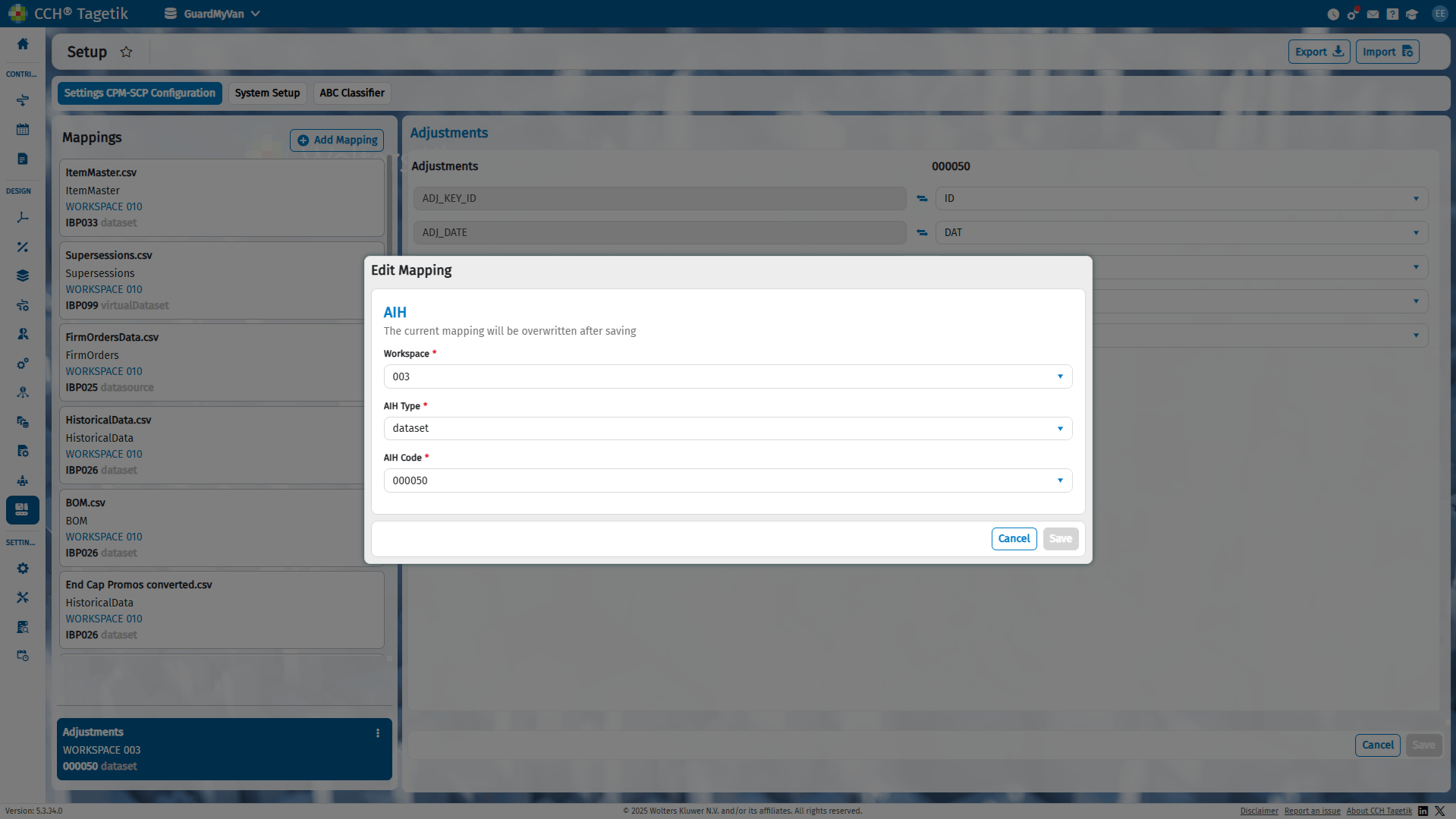
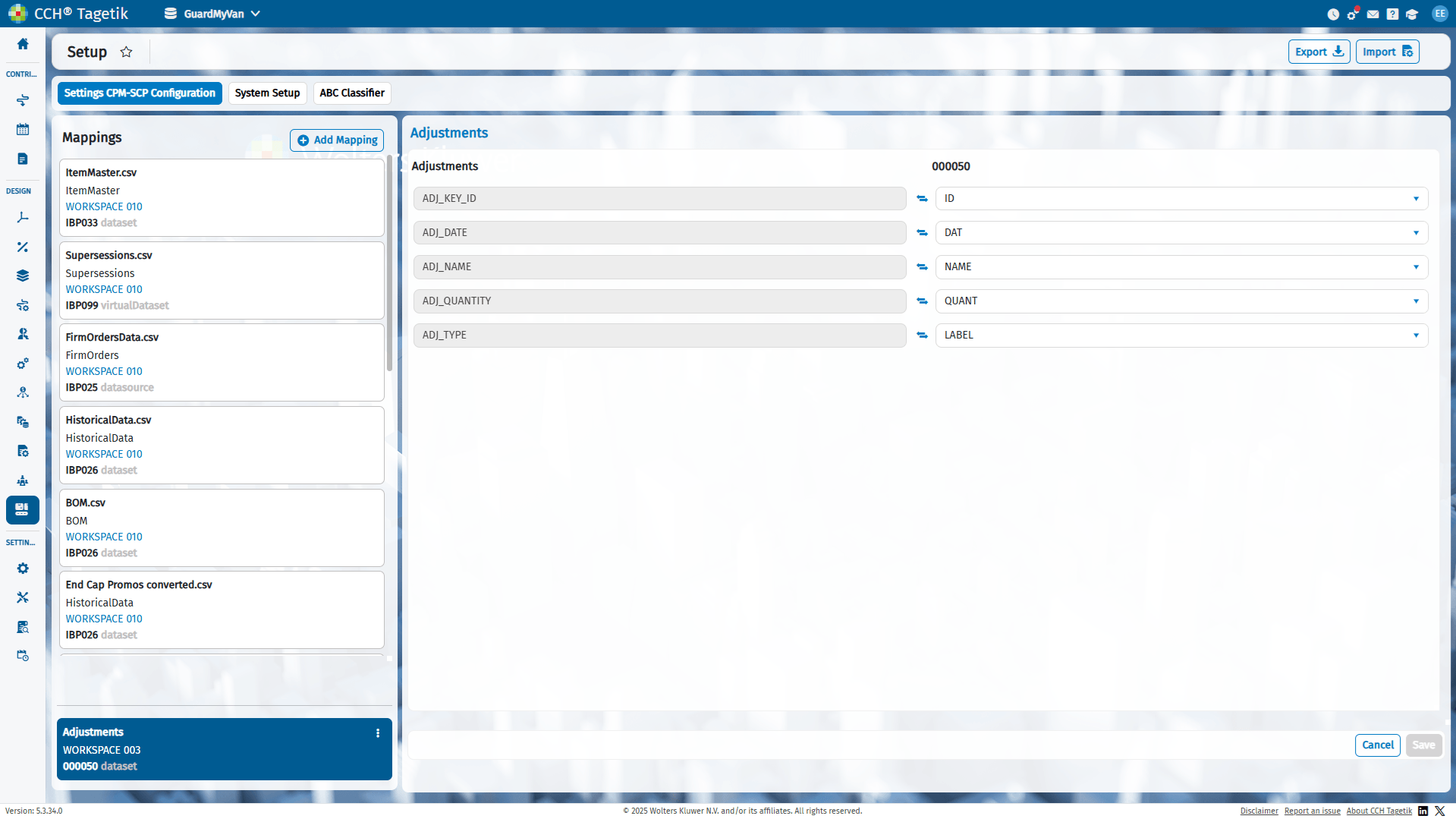
On the CPM-SCP Configuration Settings page, a mapping column called "Adjustment" is always present. This specific mapping is used by the "Import Adjustment SCP from CPM" task, which can be used by Workflow or via Data Processing.
In this case, the data stored within an AIH object is not used to initialize a file, but is used to modify the Forecast for a specific record. Therefore, it is only necessary to set the AIH section with the data related to:
- Workspace, with the code of the Analytical Workspace where the objects to be used in the module will be found.
- AIH Type, the selection of the type of object to be read, which can be a dataset, datasource, or virtual dataset.
- AIH Code, with the list of object codes available for the selected workspace.
Selecting the mapping displays the details of the mapping. The first column contains the name of the file set within the mapping in the "Adjustment" setting and contains all the columns in the file. This column is automatically populated when the mapping is created. The second column contains the object code selected in the "Mapping Setting" setting. This column represents the columns of the dataset to be mapped in the Supply Chain Planning process input file and can be manually selected by the user.
The mapping Adjustment can only be modified, and it cannot be deleted.
The Adjustment mappings is automatically used by the task called "Import Adjustment SCP from CPM" which can be used by Workflow or via Data Processing. For more details check the chapter Supply Chain Planning > Configure Local Adjustments.
System Setup
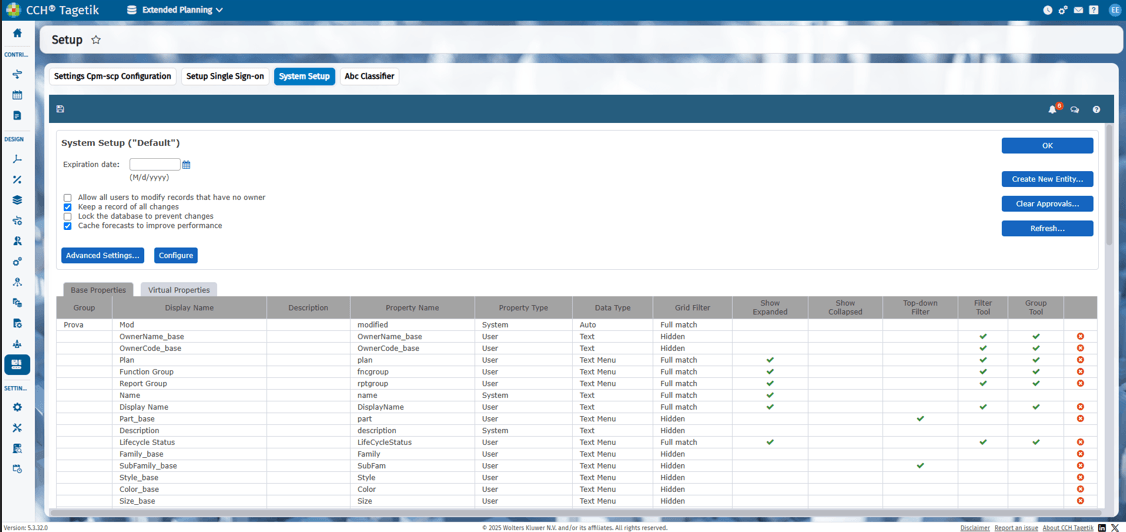
The submenu System Setup allows to enter on System Setup -> Advance Settings. The page structure has not changed compared to the Classic interface, so the basic configurations have been maintained. For more details about the task configuration, consult the manual dedicated to the CCH Tagetik Supply Chain Planning solution
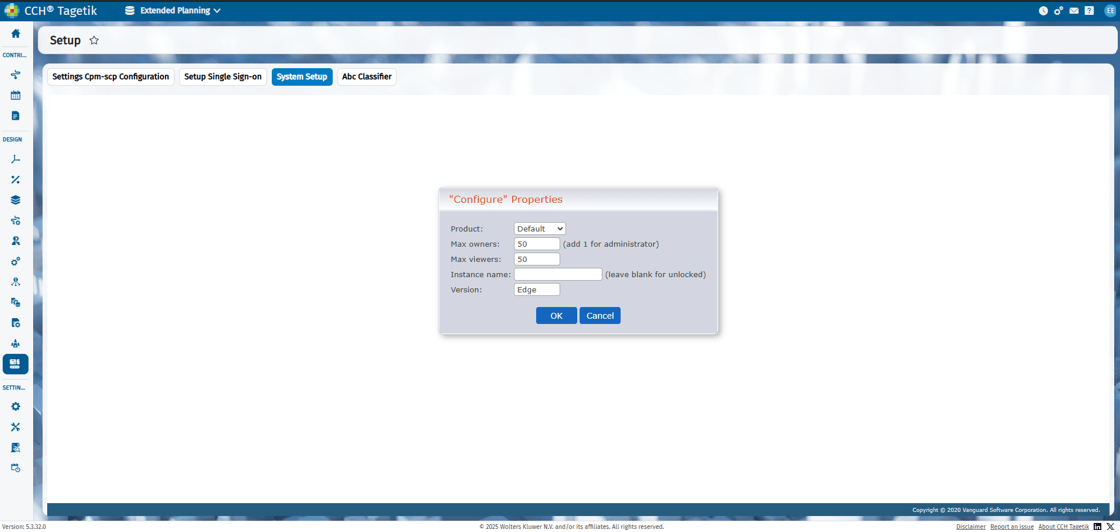
The task "Configure" allows to make a configuration properties for deployment according to SCP standard capabilities
ABC Classifier
The submenu System Setup allows to enter on "System Setup -> ABC Classifier". The page structure has not changed compared to the Classic interface, so the basic configurations have been maintained. For more details about the task configuration, consult the manual dedicated to the CCH Tagetik Supply Chain Planning solution.
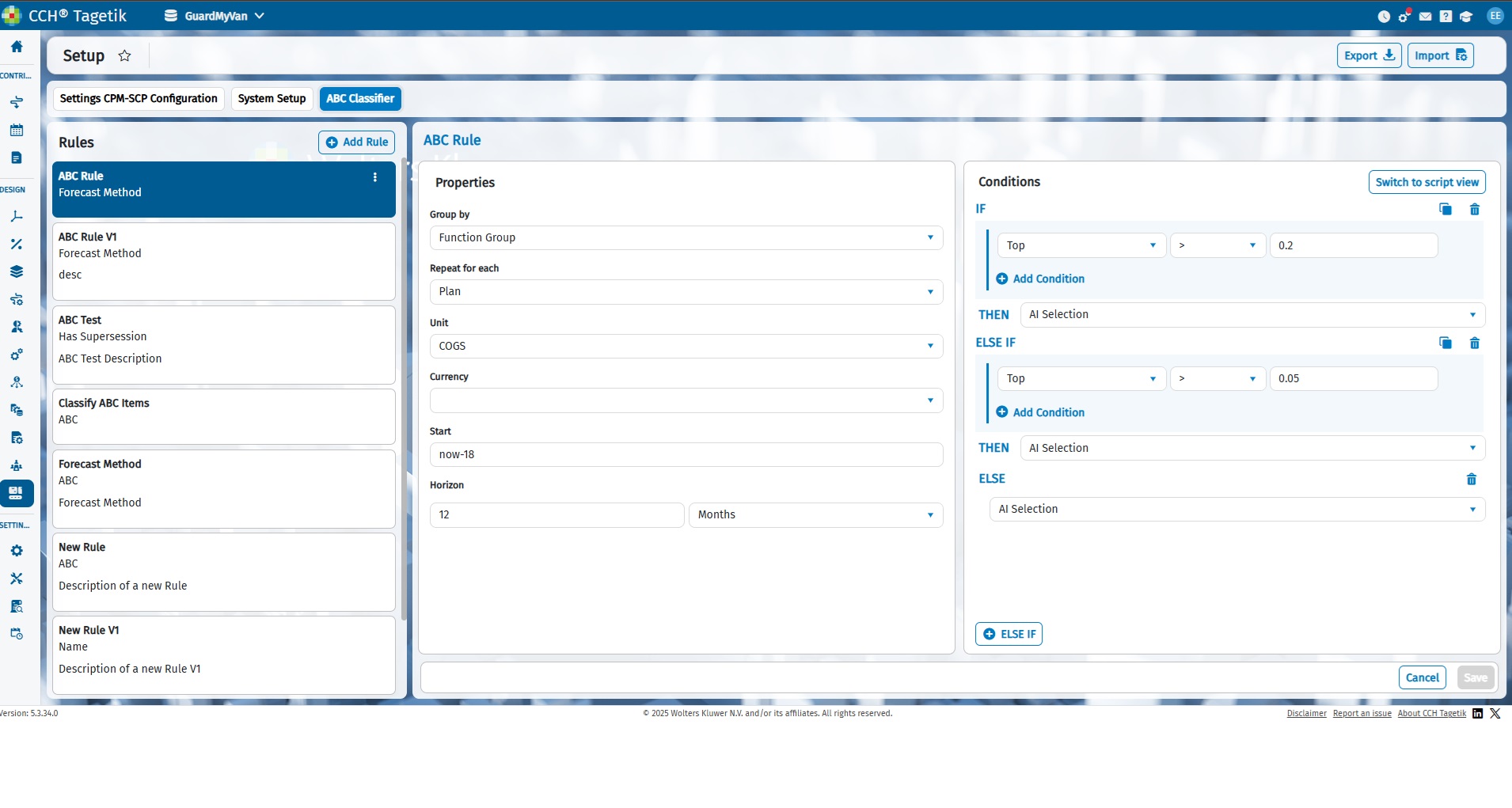
The behavior of the ABC Classifier is described in the Supply Chain Planning manual and is not the subject of this manual.