Supply Chain Planning Data Integration
Activity Manager
The Activity Manager page has the main purpose of allowing the creation of SCP tasks. The technical construction of the tasks follows the standard characteristics of the CCH Tagetik Supply Chain Planning module and are not the subject of the following manual. The manual is intended to explain how to access the functionality from the new interface. Below is a detailed comparison between the mapping of the classic interface and the new interface.
The Supply Chain Planning classic interface gives the possibility to configure the solution through the path System Status -> Job Manager -> Implementer Settings. In which you can do:
- Edit Task
- Edit Step Name, in which a double interface is available, dscript and User Friendly.
In the interface you can edit and save tasks. Also add a new step to the task via Add Step. For more details you need to consult the manual dedicated to the CCH Tagetik Supply Chain Planning solution.
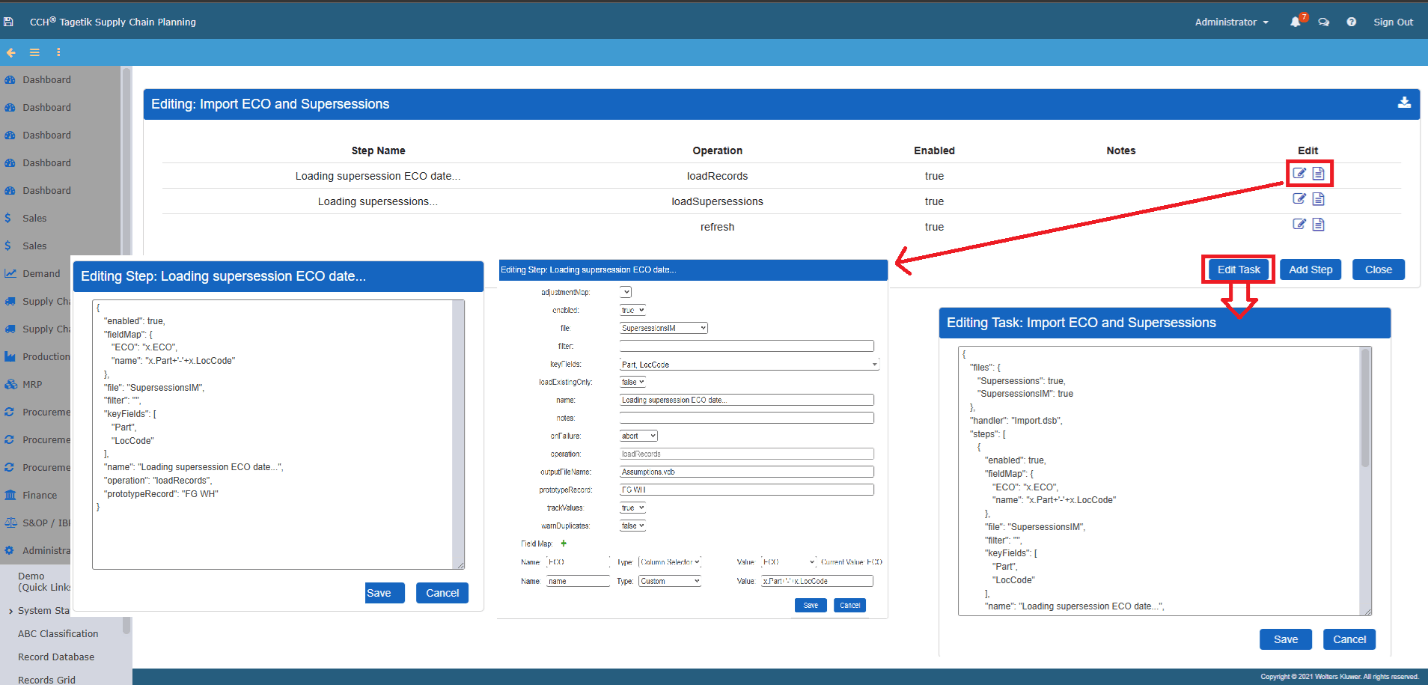
The configuration features of the CCH Tagetik Supply Chain Planning solution can be reached via the path Data Integration -> Activity Manager in the new interface. The new interface required a change in the naming to be aligned with those of the other CCH Tagetik modules. This means that:
- The "Tasks" are renamed "Activities".
- The "Steps" have been renamed "Operations".
The Activity created via Supply Chain Planning Data Integration are available via Collaborative Workflow feature and It can be used for within CCH Tagetik standard worklow.
The Activities sub-menu allows you to view the list of all the activities configured on Supply Chain Planning. The menu allows you to select a single activity. Once the activity is selected, the Operations submenu is automatically refreshed with the Operations related to the activity. The same happens for the Logs, from which you can navigate the level of detail and the date/time of the individual logs.
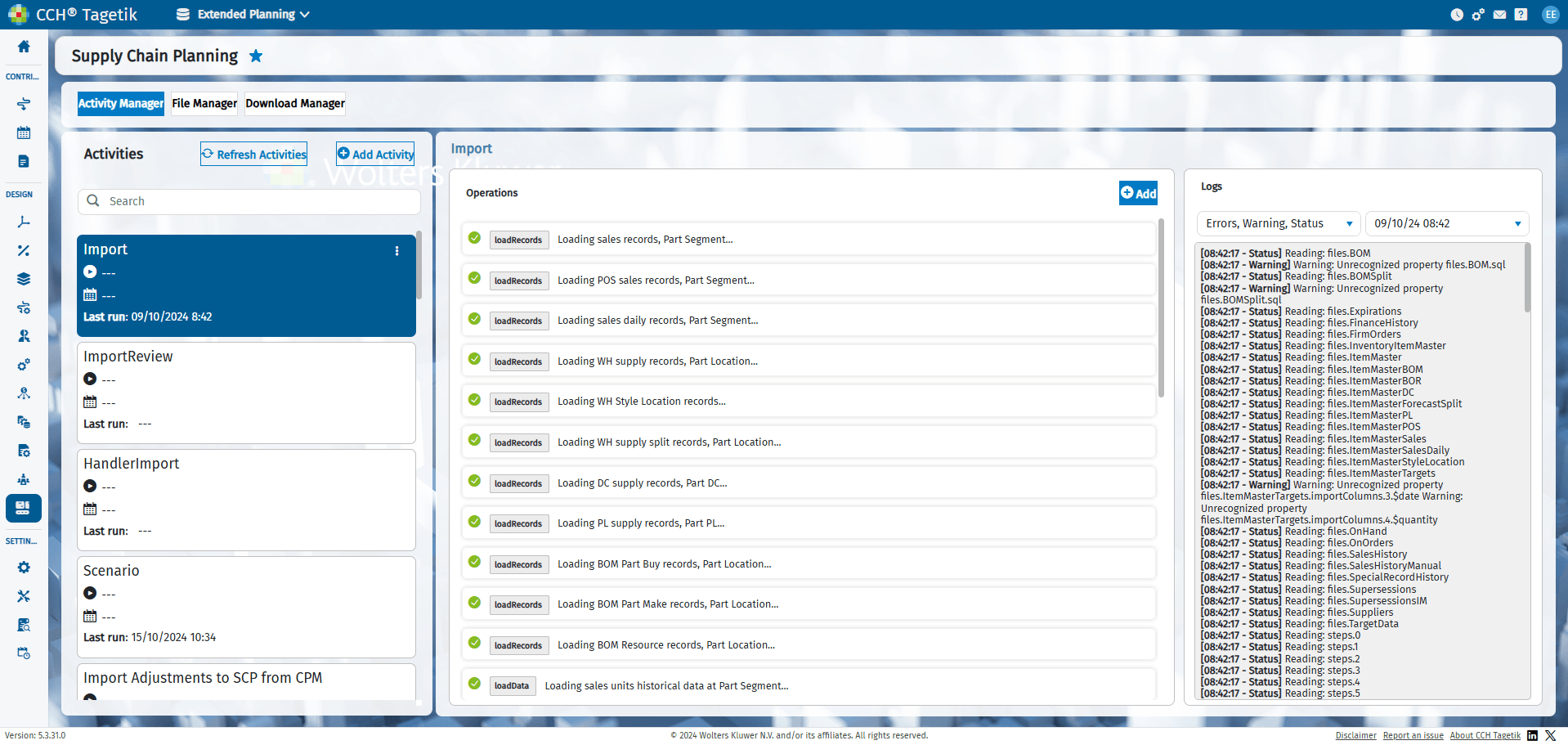
The Logs can be exported by the dedicated Export Task that allow to save a export file in local as txt file.
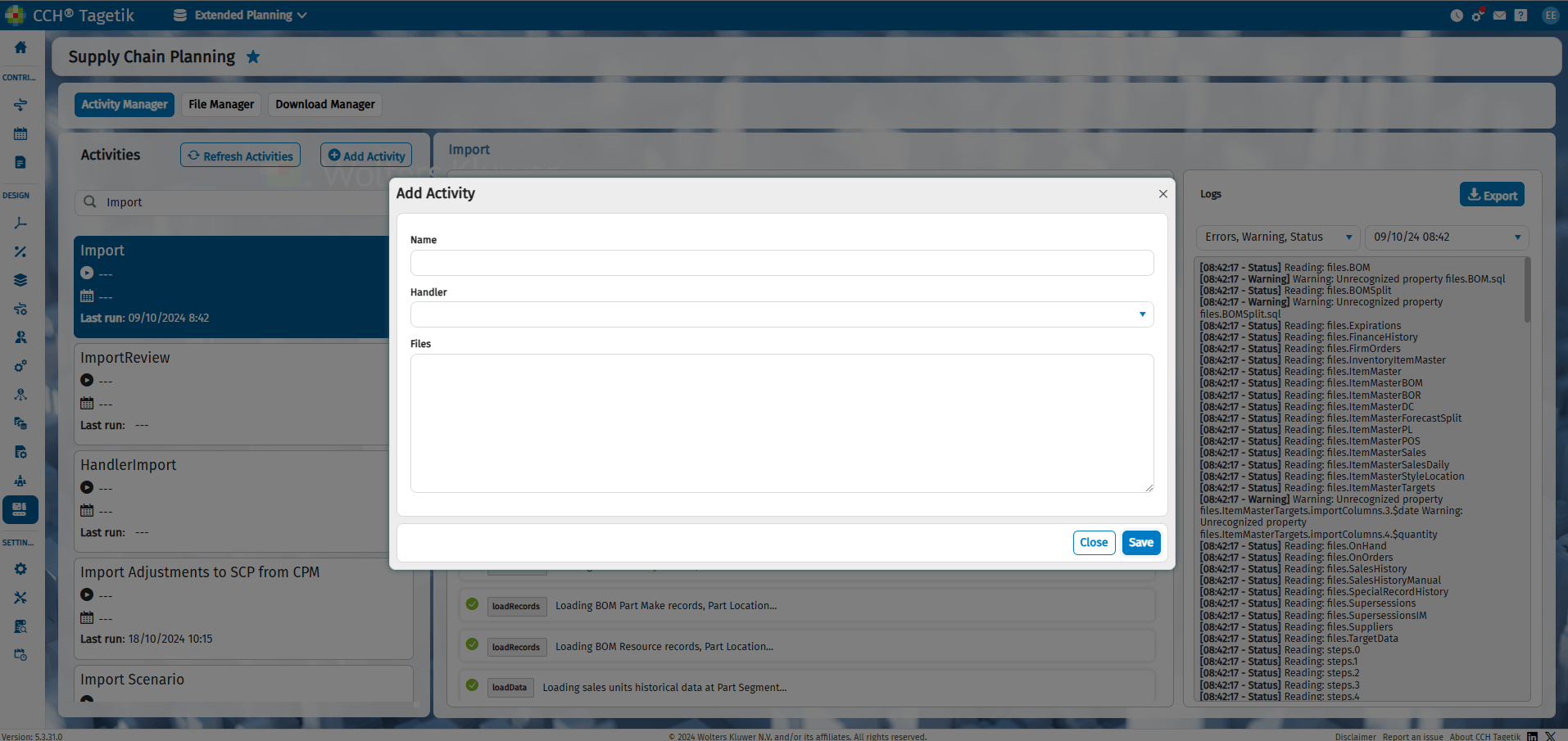
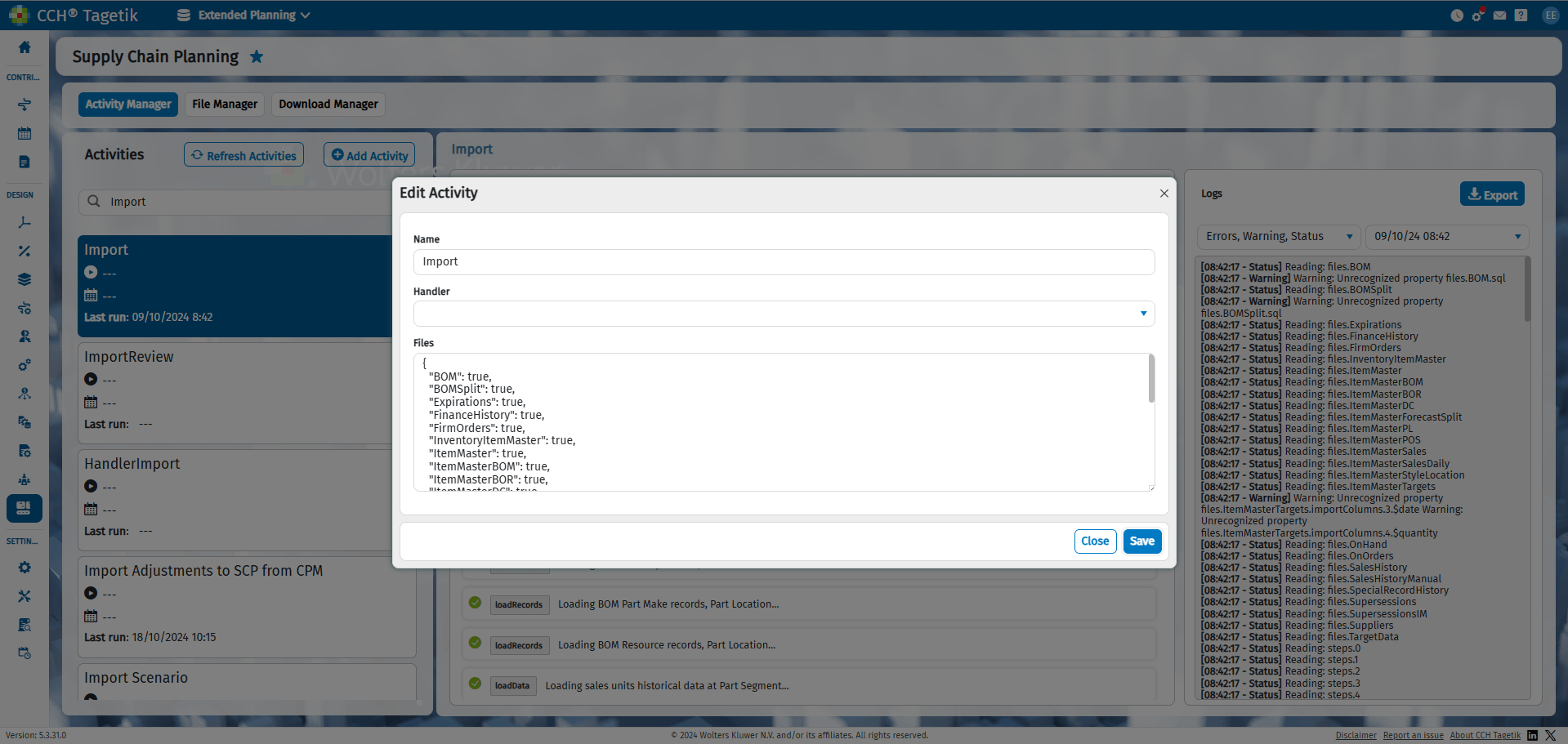
It is possible to create a new Activity  using the dedicated button that links to the Activity editing and configuration menu. Using the Add function, you can access the "Add Activity" configuration page. Here you can:
- Name: Give a name to the activity via the Name field.
- Handler: Select the handler via a drop-down menu. This is in turn made available by installing the CCH Tagetik Supply Chain Planning module.
- Files: Modify the Activity script via the dedicated space.
The Refresh Activity  button allows you to update the list obtained, which can also be filtered using the appropriate menu
  . From technical standpoint, “Refresh Activities” allows to data processing the task “Publish task parameter”.
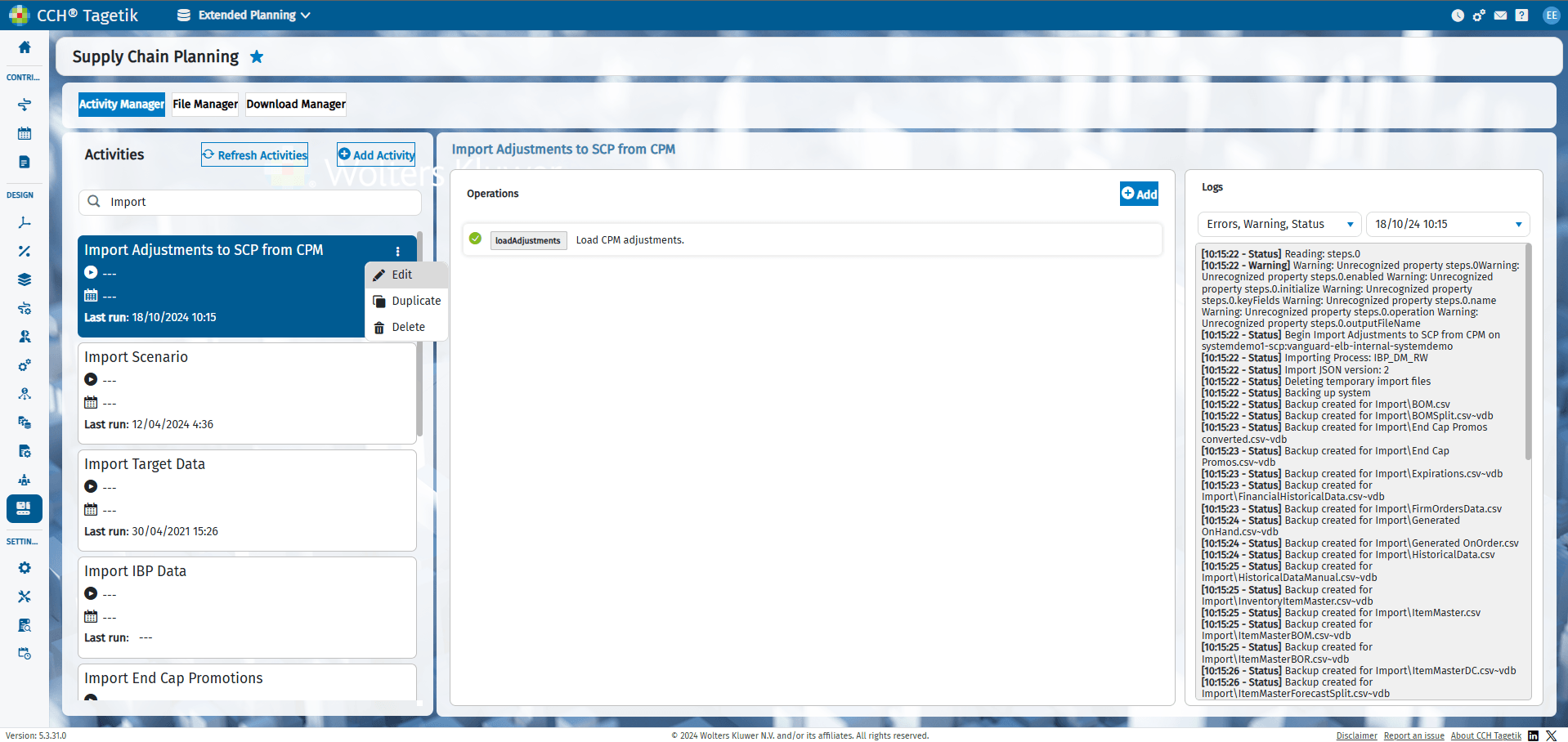
It is possible to modify the Activities by accessing the dedicated submenu  . The available options are:
- Edit: Allows you to modify the structure of the Activity.
- Duplicate: Duplicate the structure starting from an existing Activity.
- Delete: Delete the structure starting from an existing Activity.
However, some precautions must be considered to fully exploit the features of the Modernized SCP:
- When creating a new Activity, you must specify the selectable handlers must already exist and can be selected from the relative drop-down menu that corresponds to the .dsb file. It is not possible to create new handlers.
- Once you create a new Activity and click on the "Refresh Activity" button, it will be viewable and usable on Collaborative Workflow and Job Scheduling.
A technical note should be made: in order for it to be viewable and usable by Collaborative Workflow and Job Scheduling, a new Activity (which will build a new file with the .tsk extension on the instance) must call a "handler" (a file with the .dsb extension) that must have the GetParameters node inside it. All handlers in the basic installation contain a GetParameter node. However, if a new handler is created via advanced configurations that are not covered in this manual, it is necessary that the new handler (a file with the .dsb extension) contains the GetParameter node so that its tasks can be viewed and used via Collaborative Workflow.
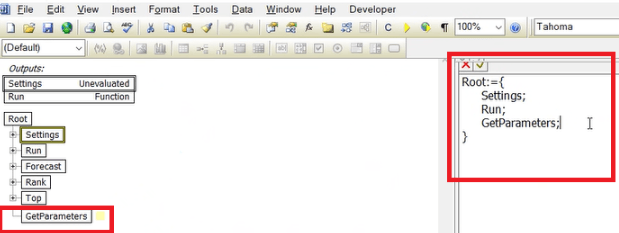
The GetParameter method should be configured as an Output node. Open the .dsb task with Studio -> right click on the GetParameters node -> Node Properties -> Type and select Output.
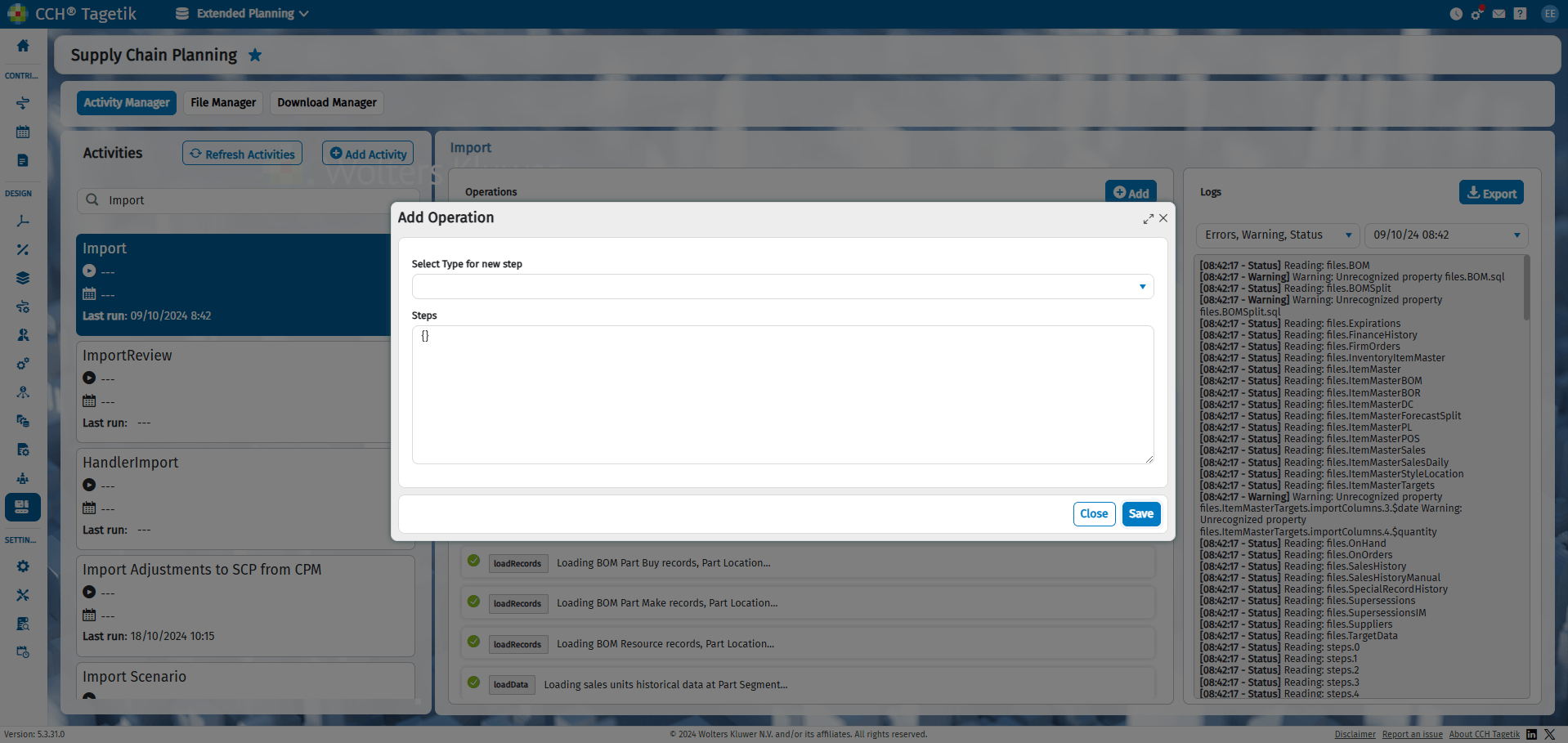
It is possible to create a new Operation with  using the dedicated button that links to the Operation editing and configuration menu. Here you can:
- Select Type for new step reading from the once allowed by the CCH Tagetik Supply Chain Planning.
- The Step section will be automatically filled in based on the selected Type. You can then edit the configuration script and save the changes.
It is possible to modify the Operations already created by accessing the dedicated submenu . The available options are:
- Edit: Allows you to modify the structure of the Activity.
- Duplicate: Duplicate the structure starting from an existing Activity.
- Delete: Delete the structure starting from an existing Activity.
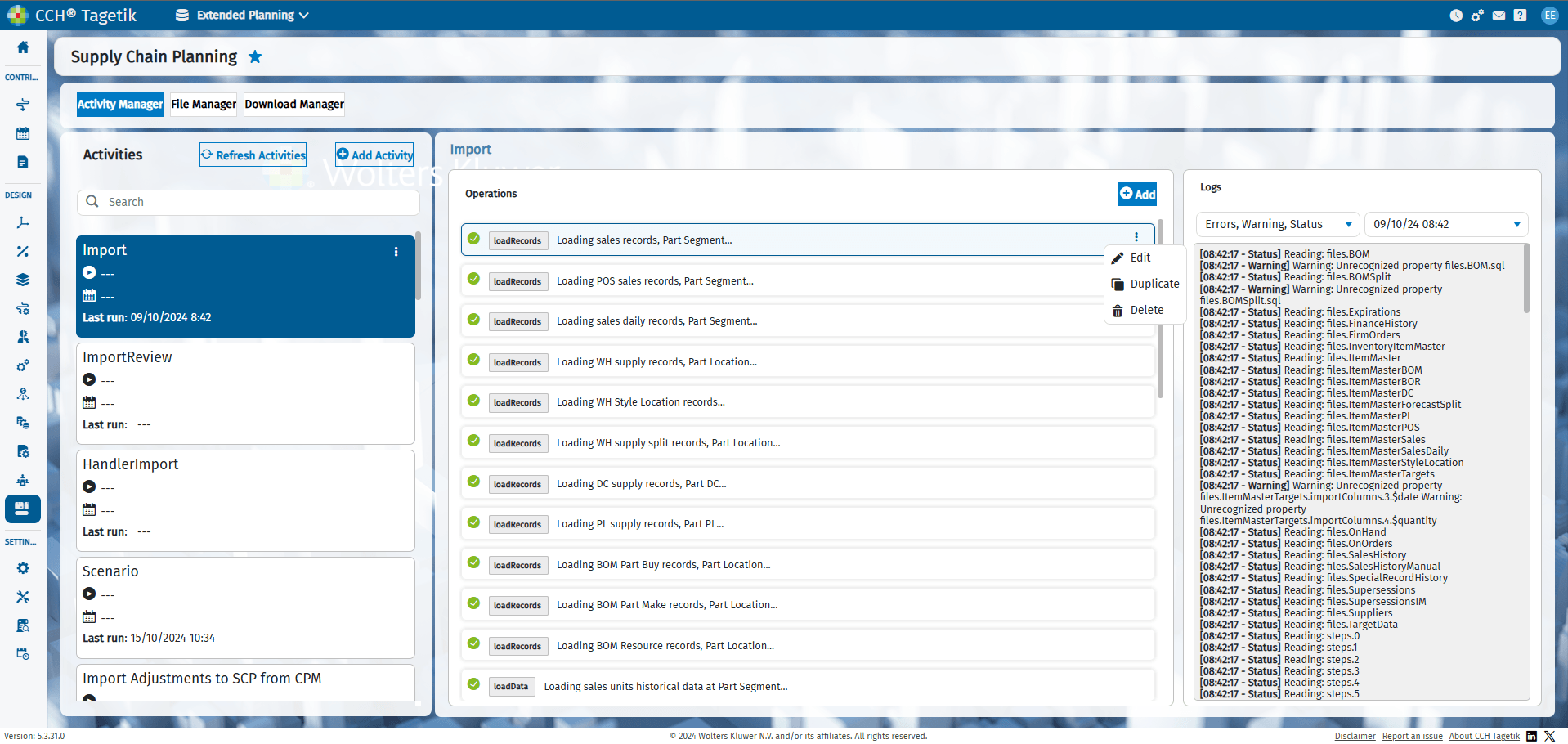
By selecting Edit Operation you can access the configuration modification of individual operations:
- Form View: allows you to configure individual operations via a user-friendly interface. In which, based on the type of task, you can change the configuration using drop-down menus and toolbars and adding/removing elements via buttons. This allows you to use a no-code logic in modifying individual operations.
- Script View: allows you to directly modify the code underlying individual operations for more complex configurations.
It is possible to switch between the two configuration modes using the dedicated button. Once the changes are complete, it is necessary to save the new configuration for it to be applied to the module.
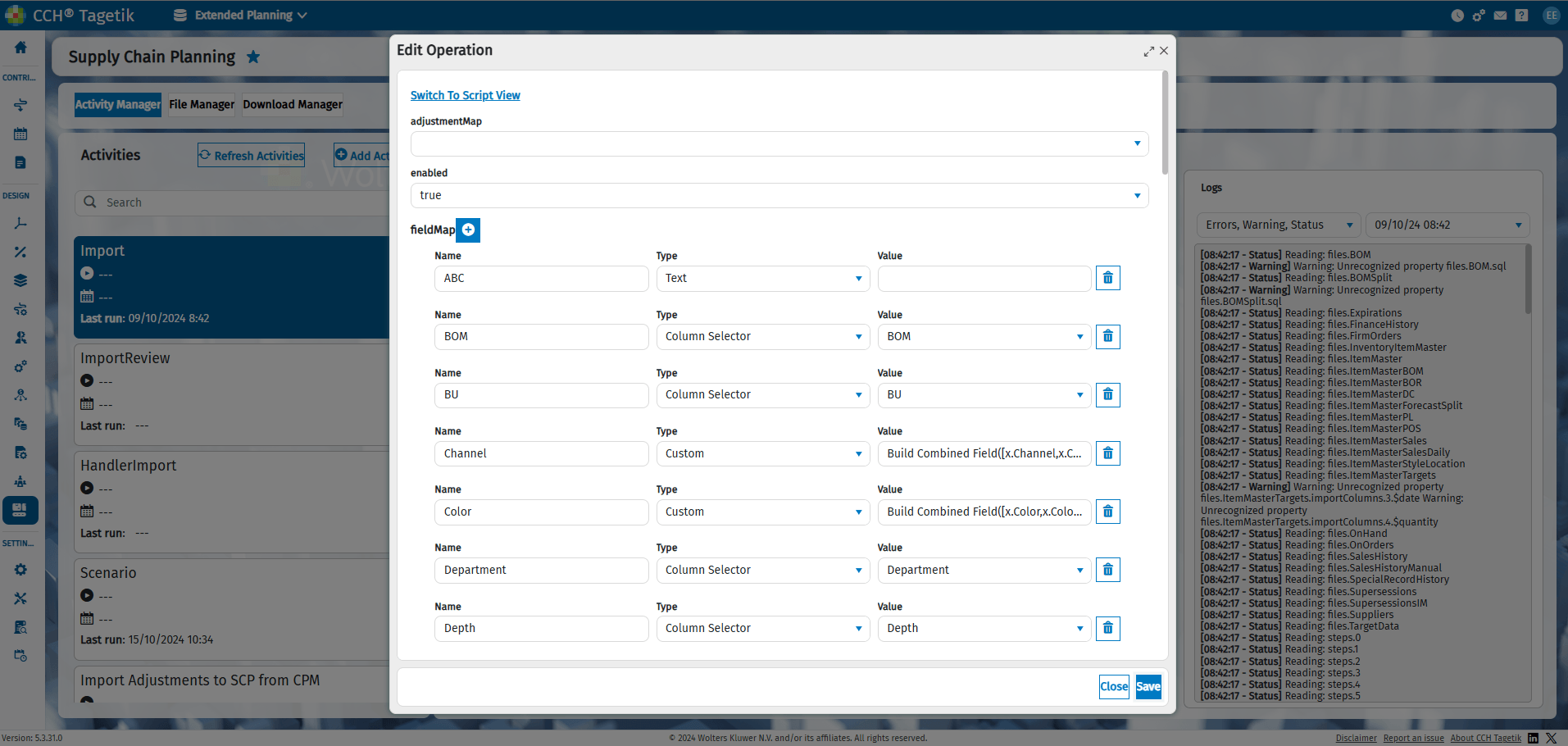
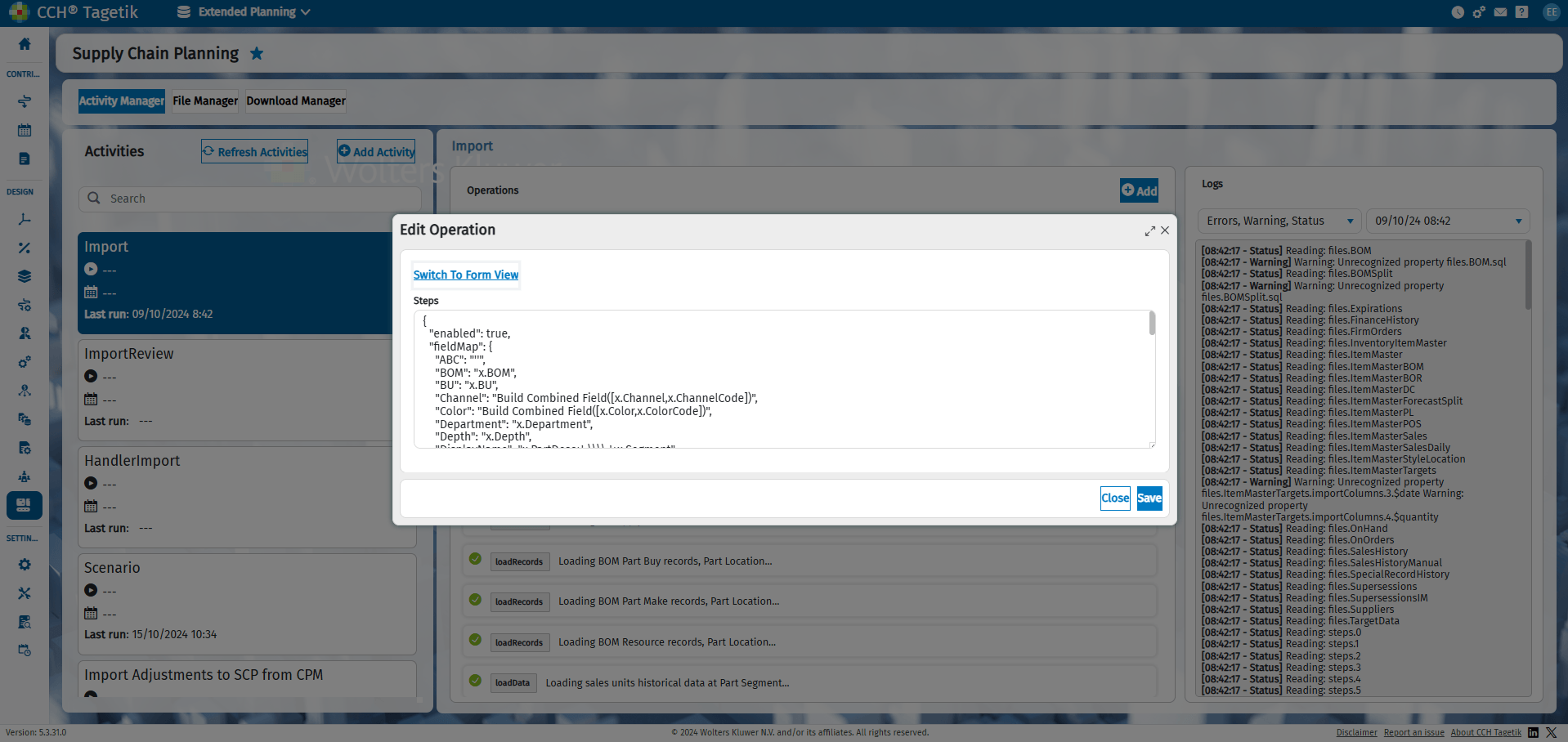
For the technical explanation of the configurations, code structure and more, refer to the dedicated manual for CCH Tagetik Supply Chain Planning
File Manager
The File Manager page has the main purpose of allowing the settings input files for the CCH Tagetik Supply Chain Planning. The technical construction of the input file follows the standard characteristics of the CCH Tagetik Supply Chain Planning module and are not the subject of the following manual. The manual is intended to explain how to access the functionality from the new interface. Below is a detailed comparison between the mapping of the classic interface and the new interface. The Supply Chain Planning classic interface gives the possibility to configure the solution through the path System Status -> Job Manager -> Edit Data Settings. In which you can Edit Data Sadd a new file to the import configuration. For more details you need to consult the manual dedicated to the CCH Tagetik Supply Chain Planning solution.
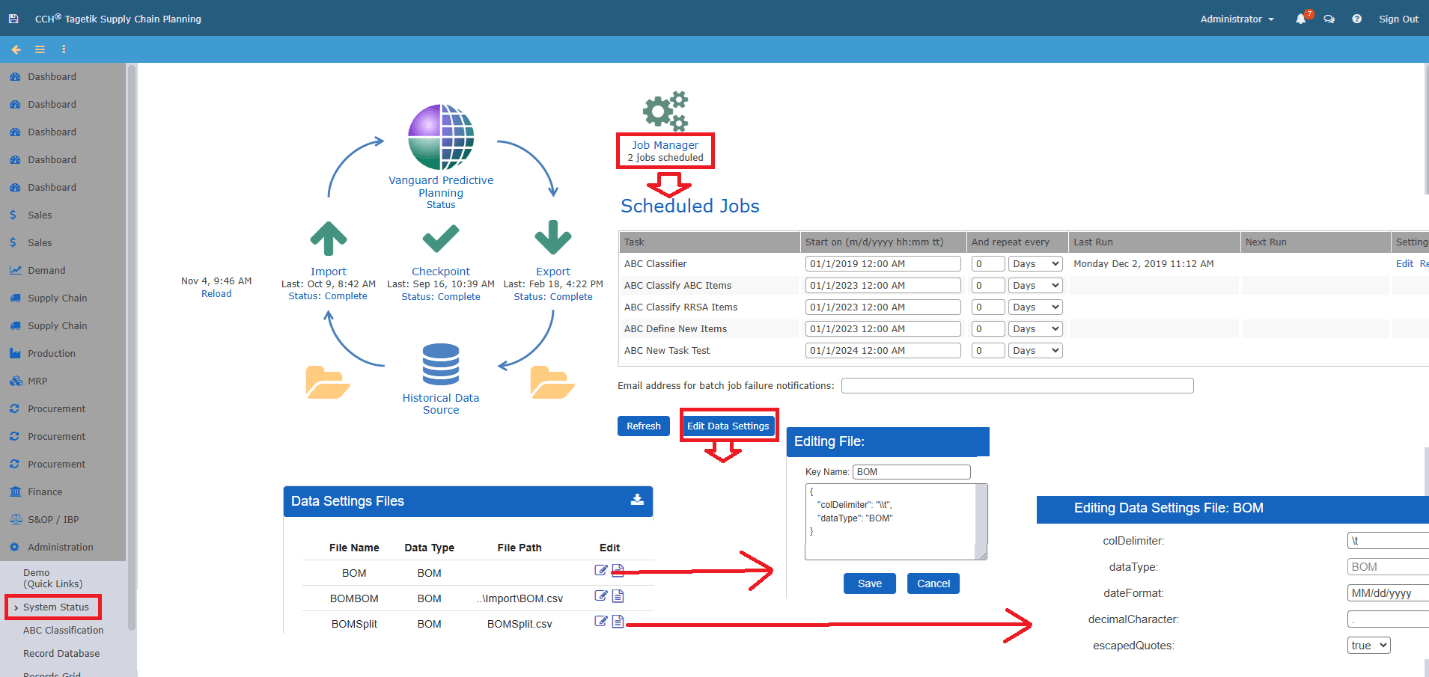
The configuration features of the CCH Tagetik Supply Chain Planning solution can be reached via the path Data Integration -> File Manager in the new interface. The new interface required a change in the naming to be aligned with those of the other CCH Tagetik modules. This means that:
- The "Data Settings File" are renamed "File Manager"
- The "File Name" have been renamed "Name"
- The “File Path” have been renamend “File Name”
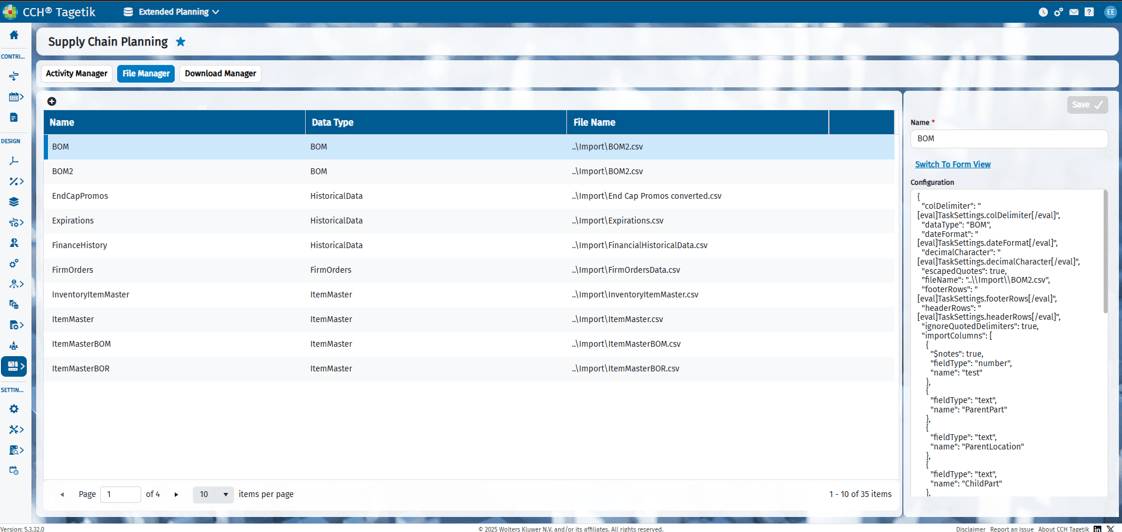
- The “Editing Data Settings File” have been renamed “Configuration
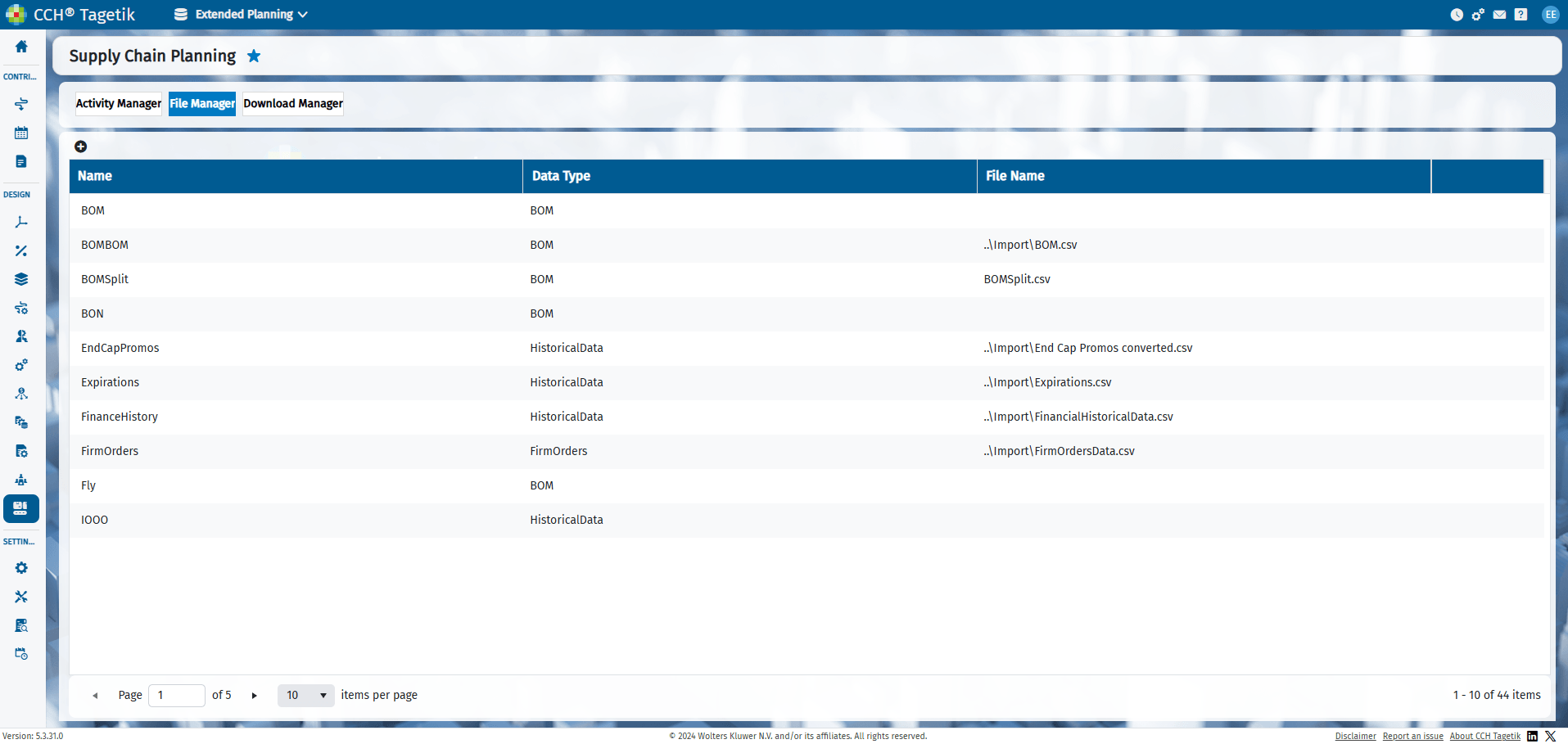
The File Manager sub-menu allows you to view the list of all the Files configured on Supply Chain Planning. The menu allows you to select a single file. Once the file is selected, the Operations submenu is automatically refreshed with the Name and Configuration of File. It is possible to create a new file using the dedicated button  or delete the structure starting from an existing file
  . By selection Configuration you can modify an individual file setting via Scrip View, that allows to directly modify the code underlying individual settings.
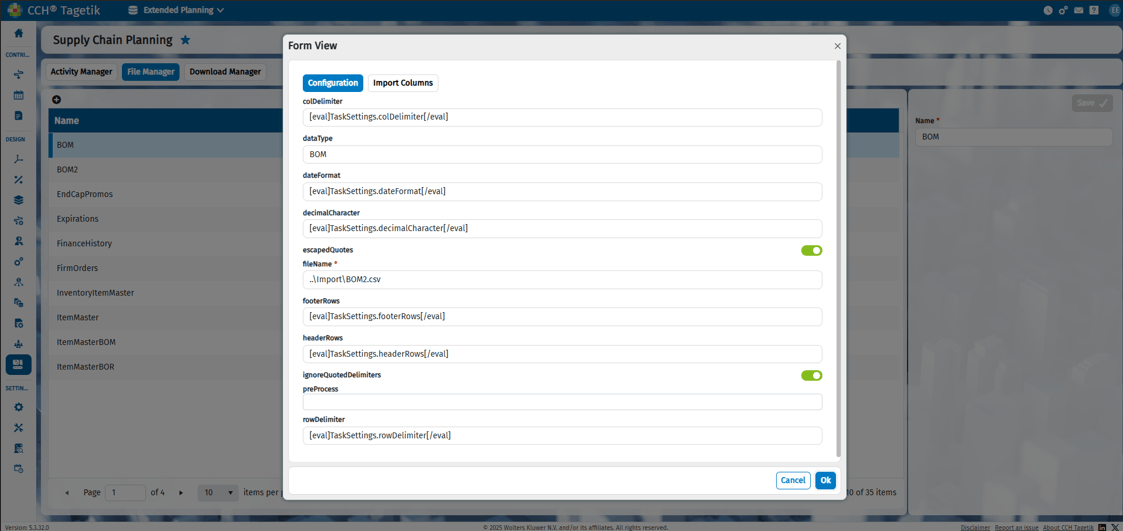
By selecting Switch to form view you can access the configuration modification of individual File:
- Form View: allows you to configure individual operations via a user-friendly interface. In which, based on the type of task, you can change the configuration using drop-down menus and toolbars and adding/removing elements via buttons. This allows you to use a no-code logic in modifying individual operations.
- Script View: allows you to directly modify the code underlying individual operations for more complex configurations.
It is possible to switch between the two configuration modes using the dedicated button. Once the changes are complete, it is necessary to save the new configuration for it to be applied to the module.
Download Manager
The Download Manager page has the main purpose of allowing the manage input/ouput files for the CCH Tagetik Supply Chain Planning. The technical managing of the file follows the standard characteristics of the CCH Tagetik Supply Chain Planning module and are not the subject of the following manual. The manual is intended to explain how to access the functionality from the new interface. Below is a detailed comparison between the mapping of the classic interface and the new interface. The Supply Chain Planning classic interface gives the possibility to configure the solution through the path System Status -> Import Files / Export Files. In which you can Export Import and Export files from CCH Tagetik Supply Chain Planning. For more details you need to consult the manual dedicated to the CCH Tagetik Supply Chain Planning solution.
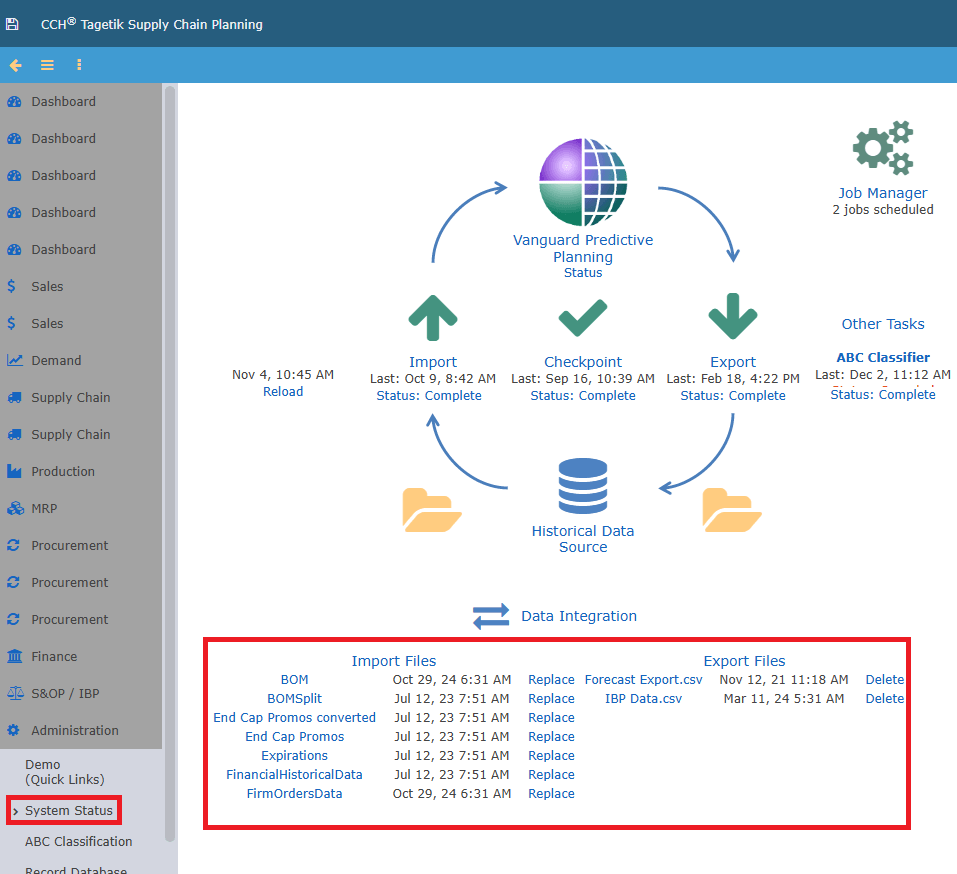
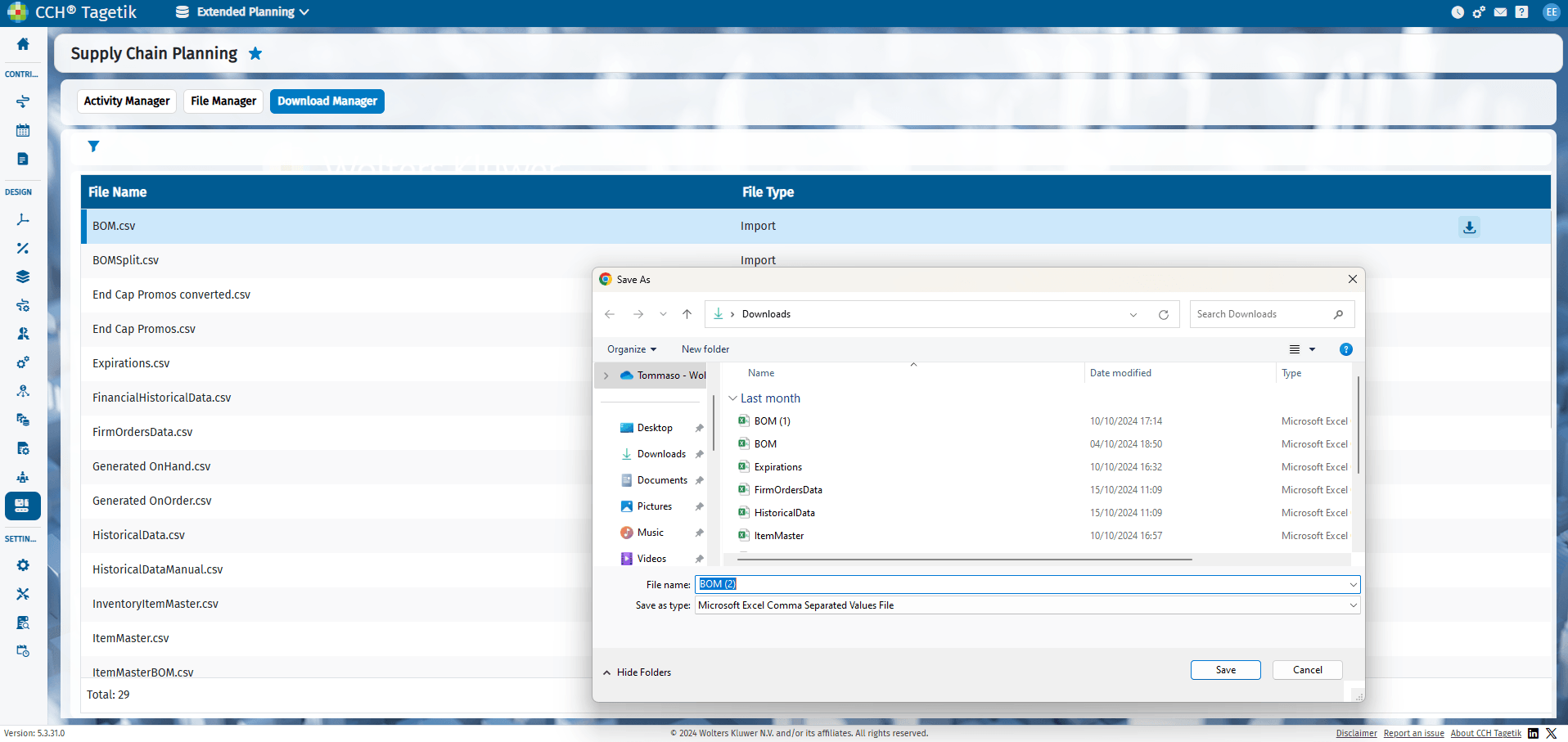
The configuration features of the CCH Tagetik Supply Chain Planning solution can be reached via the path Data Integration -> Download Manager in the new interface. The page displays the list of exportable files. The name is indicated in the "File Name" column and the file type is indicated in the "File Type" column. The supported file types are Import or Export
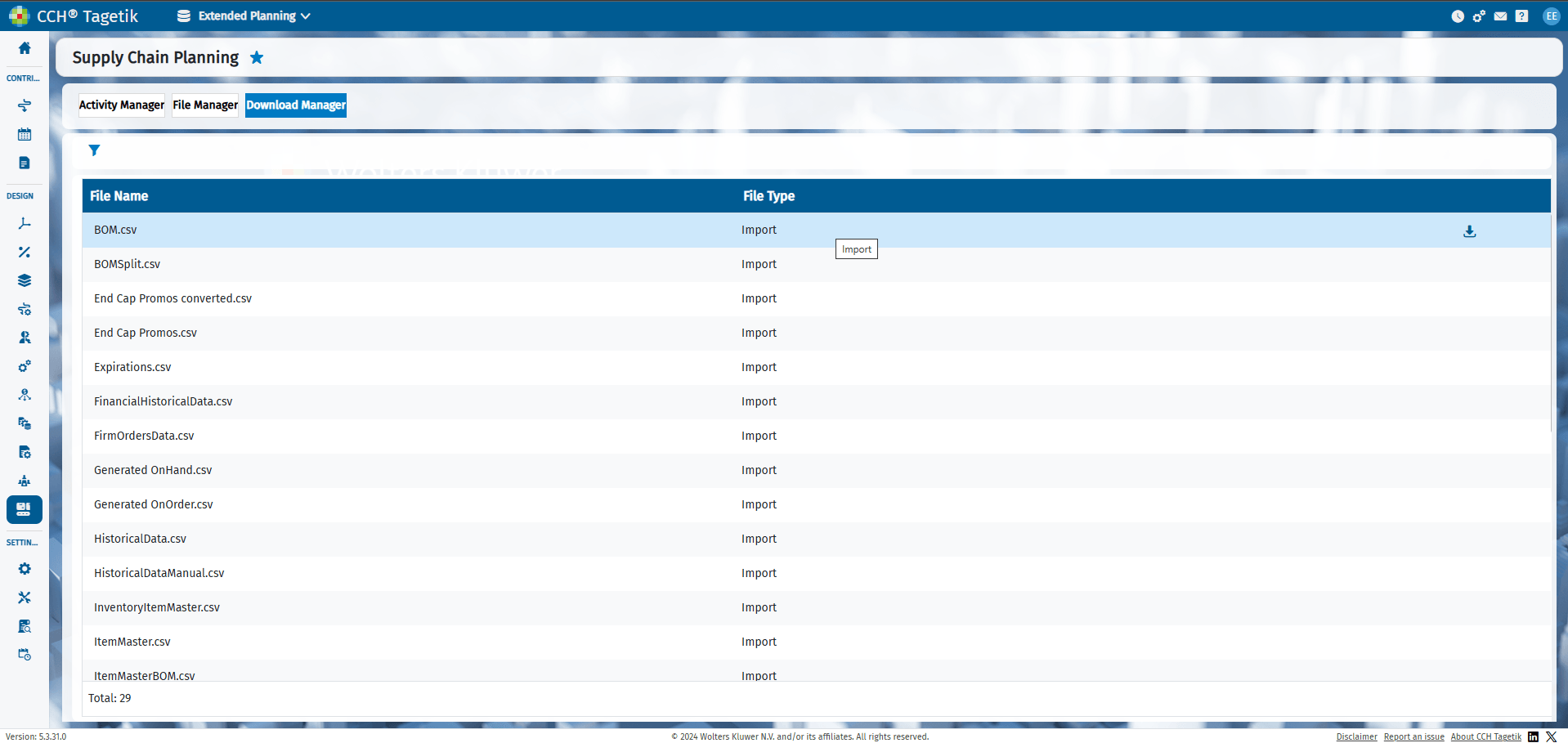
By selecting the dedicated button  for each file, you can download the selected file locally. By selecting the dedicated button for each file, you can download the selected file locally. Files are saved based on the format loaded on the CCH Tagetik Supply Chain Planning module and the related settings.