Diagnostic between Documents (only for Word client)
When, for example, a same document is written in more languages, there may be some differences among the various versions. In order to rapidly check the consistency among the documents, the Collaborative Office module uses the Diagnostic between Documents utility.
This utility allows you to verify if there are differences between two documents in terms of structure and data. The documents can be at any level of the documents tree but they must belong to the same Document type. The possible differences concern:
- Document activity (position and number)
- Objects (position and number). In case of Table objects (both from Attachment and from Matrix), the diagnostic checks also the number of rows and columns
For the identical objects, namely objects having the same name and the same position in both documents, the diagnostic checks also the structure of the tables and the value. The values of the table objects are checked only if no errors were detected when checking the structure.
In order to run the diagnostic, it is necessary to select the "Master document" from the documents tree and then click on the  Compare documentsbutton available on the "Tagetik" ribbon bar. The system will open the window in which you can choose the "Secondary document" among those of the same document type and some diagnostic options.
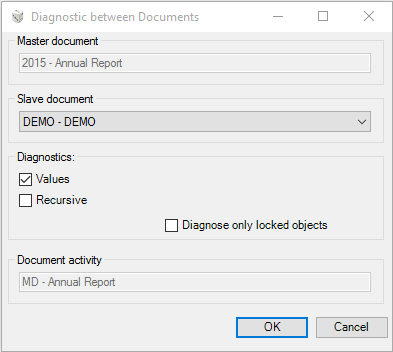
Diagnostic type:
- Value. The system checks only the fields set as numeric;
- Recursive. The system checks the selected document activity and the lower nodes;
- Diagnose only locked objects. The system checks only the objects set as locked in the object's properties.
After selecting the checks to be run by clicking on the OK button, if errors were detected in the structure and/or values when running the diagnostic, the system opens a new window showing the Structures and Value differences divided by tabs.
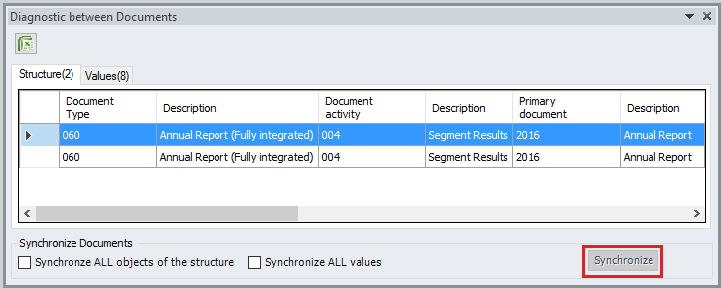
At this point, if errors were detected in the structure and / or values, it is possible to synchronize the documents (the secondary Document is synchronized with the Main Document). In order to synchronize the documents, select one or both options Synchronze ALL objects of the structure and/or Synchronize ALL values and then click on the Synchronize button. Once the synchronization is completed, it is possible to export the differences to an Excel file by using the  Export to Excel icon .