Assets
The assets represent all entries related to the management of the assets, such as the initial purchase, the transfer from “asset in progress” to asset, the depreciation, the sale with the relative calculation of the capital loss or capital gain generated, etc.
The assets can be managed in several ways:
- by using the functionalities of the ETL module to load the data from any ERP system and in general from any IT system in which they are managed;
- from the end user’s web interface through the processes cockpit by selecting, from the Cash Flow Planning button, the menu itemAssets within the Activity panel;
- from a workflow model task. The task to be used in this case is Data entry & Reporting > Cash Flow Planning, subsequently indicating the OBJECTS_ASSETS - Assets data process in the parameters;
- from a transactional data entry form with custom ETL
Each asset is managed by process/entity.
The management of assets can be subdivided into the following steps:
- definition of the various categories of assets (asset classes) which are intended to be managed at the forecast level
- definition of the general information related to the asset, such as the account / custom dimension onto which the asset must be loaded, the asset class to which it belongs, etc.
- associating the asset with specific cash flow planning rules that the system needs to generate the variation forecasts linked to its management (purchase/sale)
- definition of the values of the asset to be purchased/sold
- deployment and visualisation of the events deriving from the asset defined
- visualisation of the events deriving from the asset defined
Definition of the general information on the asset
Once the various asset classes have been created, move on to the “real” management of the asset. In fact, it is necessary to define the general characteristics of the asset to be managed, namely the asset class to which it belongs, its identification number, the account onto which it must be loaded, any other dimension (CDC, Product, etc.) to which it is to be attributed, etc.
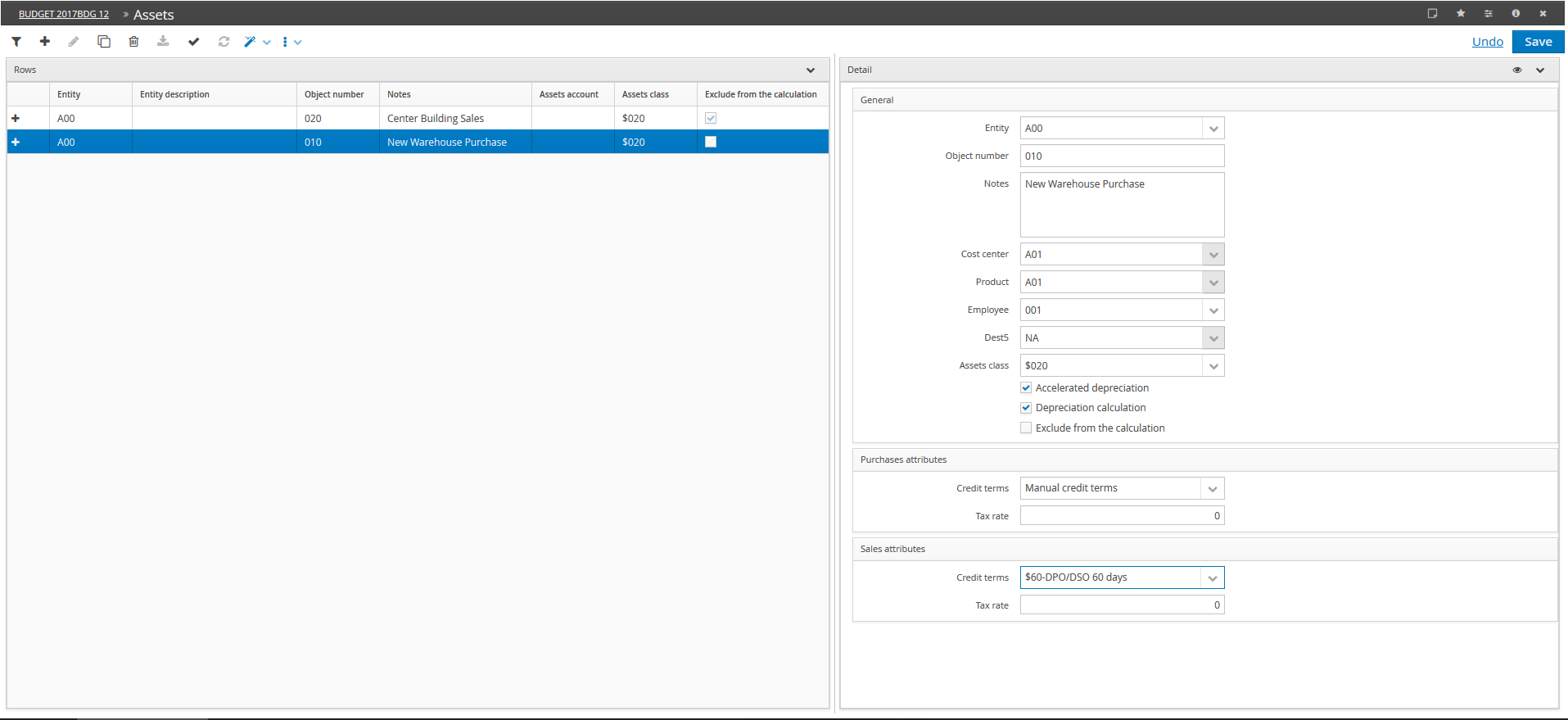
Each asset is managed by process/entity and is identified by:
- a number which constitutes the asset’s unique identifier
- a description contained in the Notes field
- an asset account of a “balance sheet” nature used by the system to generate the entries linked to the asset. It is automatically defined by the system with the “Asset account” specified in the asset class to which the asset belongs
- one or several custom dimensions (such as Products, Clients, Cost Centres, etc.), if their management is enabled
- by the asset class to which the asset being defined belongs. Based on this information, the system is told the type of depreciation to be followed and the relative rate, as well as the various accounts that must involve the entire asset cycle;
- a series of information necessary for calculating the depreciation of the asset. In detail, this information is:
- whether or not the asset is subject to accelerated depreciation. It is important to note that if the asset class associated with the asset being defined does not have values entered for the "Accelerated reduced rate” and “Accelerated depreciation years” fields, it is not possible to calculate the accelerated depreciation for that asset
- whether depreciation must be calculated for the asset. The depreciation calculation is performed according to the rate and type of depreciation defined in the asset class to which the asset being defined belongs
- The customised rates field can be viewed by clicking on
 on the detail title bar. The asset’s depreciation rates are specified in the asset class associated with it. By enabling the management of customised rates, it is possible to perform customisation directly on the asset. This customisation can be managed by double clicking on the asset and then selecting the “Customise depreciation rates” in the “Details” window
Associating the asset with specific cash flow planning rules
Having defined the general information on the asset, the next step is to associate the same asset with specific cash flow planning rules, so that the system can generate the variation forecasts linked to the purchase or sale of that asset.
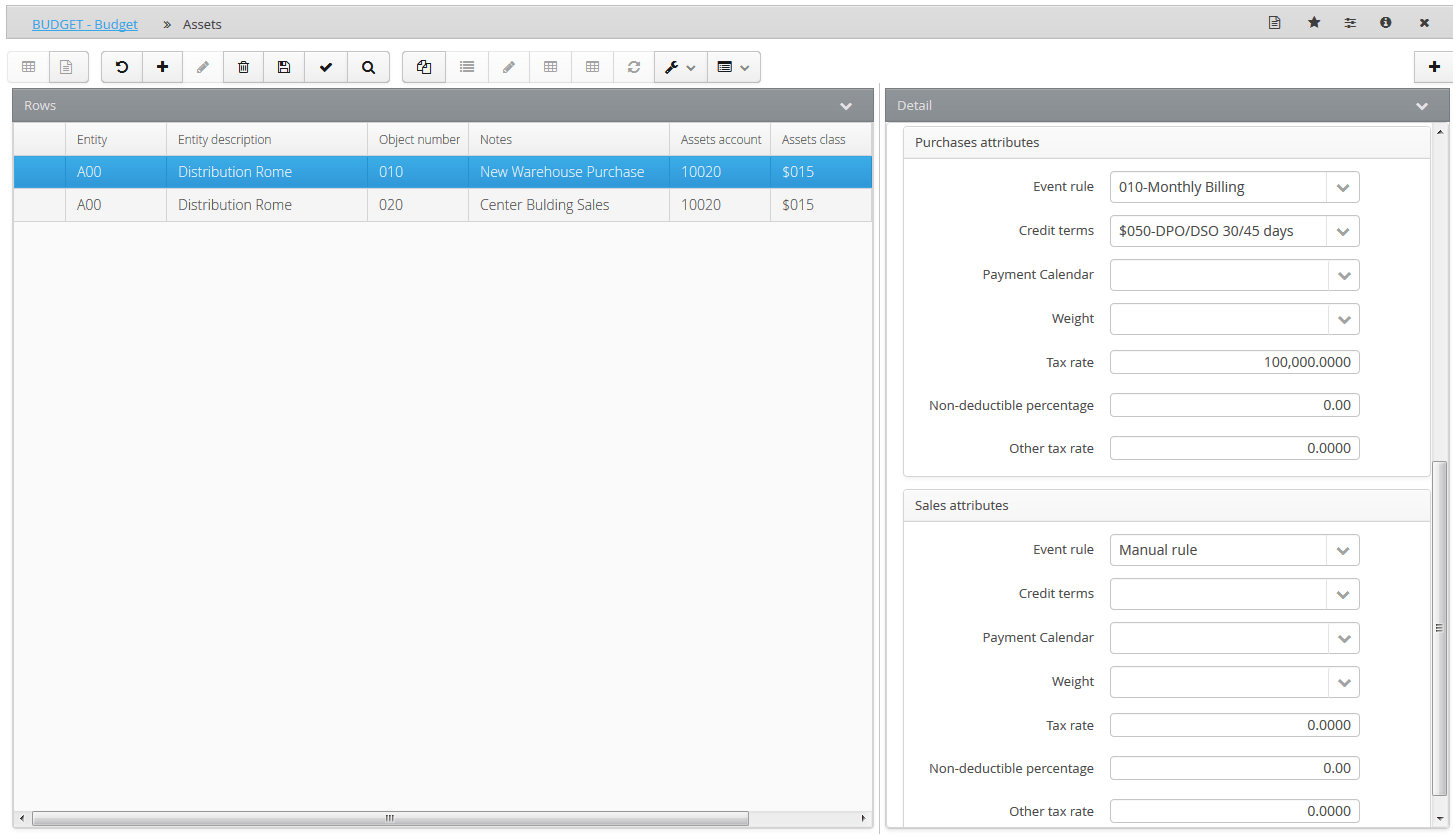
The user must specify:
- an event rule to be used for creating the “Asset purchase/sale billing” event. To manage the accounting manually, select the “Manual rule” option.
- whether the financial entry related to the purchases / sales is managed manually or with credit terms. By choosing manual credit terms, the “Asset purchase payment” / “Asset sale collection” event is entered manually from the management of the purchase/sale events, otherwise those events are created automatically by the asset events generation.
- a series of information related to the indirect taxes generated by the purchase / sale of the asset, such as the tax rate and any non-deductible percentage, the rate for any other indirect tax, apart from VAT
- a credit terms rule to be applied to the asset purchase/sale. If a credit terms rule has been defined for the asset, it is also possible to define:
- the payment calendar if the financial event related to the purchase/sale of the asset is subject to the payment calendar
- the splitting basis if the financial event related to the purchase/sale of the asset is subject to the monthly splitting recalculation by weight
The non-deductible percentage, other tax rate, payment calendar and weight fields, for both sales and purchases, can be viewed by clicking on on the detail title bar.
Definition of the values of the asset to be purchased/sold
Once the specific cash flow planning rules have been associated with the asset, the next step is the definition of the values of the asset intended to be purchased/sold, specifying all the entries to be performed on it, depending on whether it is a:
The management of this information is accessible directly from the window menu Actions ( ) > Details in the asset management window
Asset purchase
The management of the purchase of an asset, where it is in progress rather than an effective asset, and any improvements made to it, can be accessed by double clicking on the asset and then selecting the “Purchase assets” accordion.
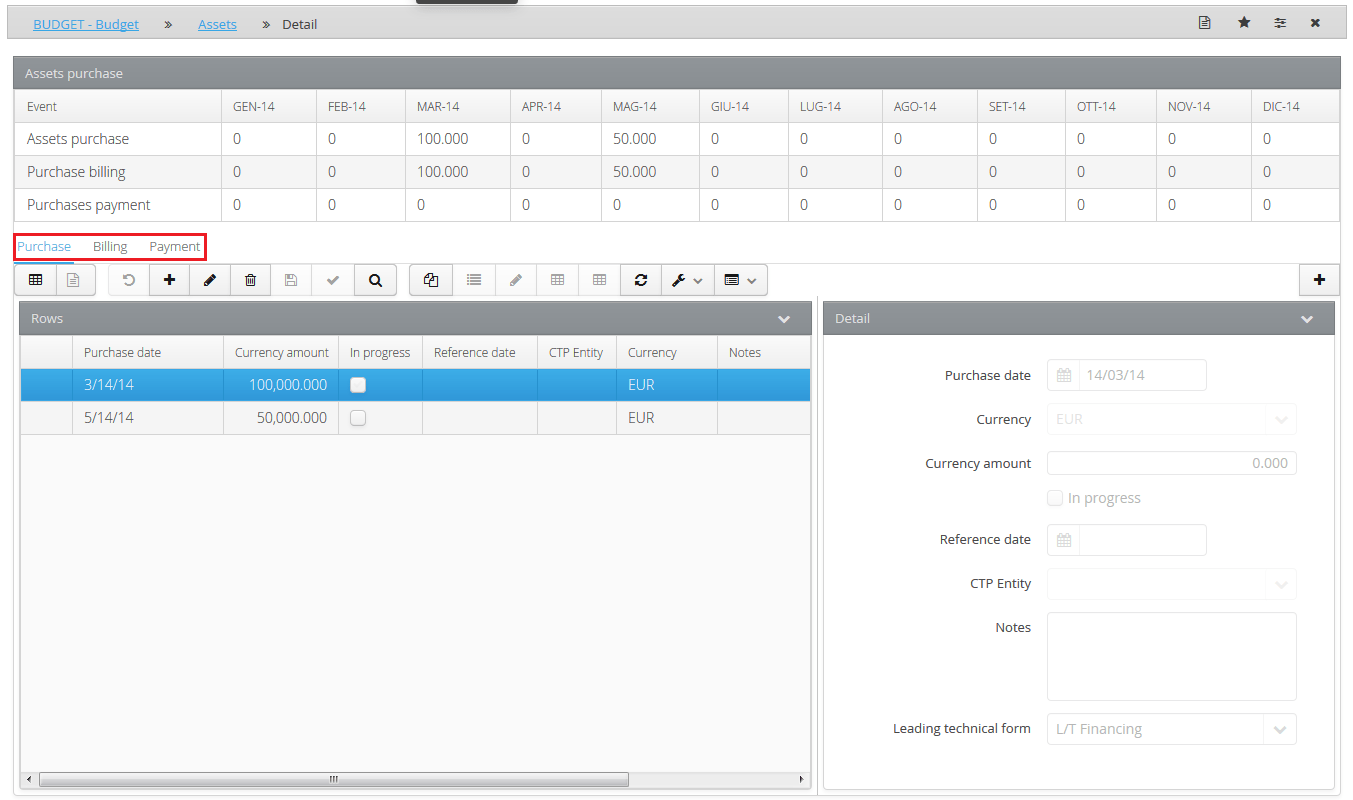
The detail window is divided into two main areas:
- one display area (a grid table which displays the total amounts over the month across all scenarios included between the simulation start and end dates of the events created). The system updates the table via the refresh key (above the table).
(1) - Assets purchase
In this section, it is necessary to define:
- the asset’s purchase date
- the currency amount or the amount for the asset to be purchased
- the currency
- whether the purchase being carried out relates to an asset in progress. In this case, it is necessary to define the date on which the transfer from an asset in progress to an effective asset will take place, in the “Transfer from in progress assets to assets” section
- the counterparty entity, for intercompany purchases. In such cases, all of the variations deriving from the management of the purchase will show the counterparty
- the custom counterparty dimension 2 for intercompany purchases and the relationship type for the process in question whether “For entity / custom dimension 2” or “For entity / Synthetic custom dimension 2”
- a reference date (only visible if the “Customise rates” option is not active for the asset) to be entered for all cases of “improvements” on assets already purchased, i.e. those cases in which an investment is made which increases the value of an asset already purchased and partially depreciated, the new depreciation of which must in any case end on the same depreciation end date as the parent asset. By specifying the reference date, the system is told the purchase date of the principal asset; based on this date; the system calculates the depreciation variation according to the specified rate, and a depreciation end date which it will respect regardless of the asset purchase/improvement date
 If the reference date is specified, the rates calculation works, for depreciation, as if the purchase had taken place on that date. That is, it calculates how many years the property would have had to depreciate if it had been purchased on the reference date, calculates the depreciation end-year and calculates an average rate from the effective purchase date to the end-year so that the asset is 100% depreciated.
Moreover, the reference date is applied by the system to generate the entries related to depreciation only if it precedes the purchase date
- the description of the purchase contained in the Notes section
- the Leading technical form i.e. or the payment method used for the purchase (credit terms, L/T financing or leasing). The details of the funding type selected are managed directly from the Actions () > Details window menu.
Moreover:
- depending on the accounting model associated with the asset account, the system could also require the tax rate, the non-deductible percentage and the other tax rate to be specified;
- if the asset has “Manual credit terms”, and if the accounting model associated with the asset account allows, the user must indicate a credit terms rule to be applied to the purchase of the asset and any payment calendar and weight (if the financial event related to the purchase of the asset is subject to the monthly splitting calculation by weight)
The following buttons are worthy of particular attention:
• Open End of period. Opens all periods of the first simulation year with date being the end of the month;
• Split per month. Allows the user to split a total amount by month for a certain scenario. The system requires the original scenario and the total to be set, and in cases of:
- budgets for all the period-ends of the specified scenario, it enters the “currency amounts” with an amount equal to the total to be set / 12
- forecasts for all the period-ends included between the budget start date and the end date of the specified scenario, it defines the “currency amounts” with an amount equal to the total to be set / number of periods to be defined
(2) - Purchase billing
The “Purchase billing” section can only be viewed if the asset class associated with the asset object provides for the billing of purchases and represents the accounting curve generated by the Billing event (using the “Create calculated events” button) based on the event rule associated with the asset. If an Event rule has not been specified, the fields in this section can be edited in order to manually define the accounting
(3) - Assets purchase payment
The “Assets purchase payment” section represents the financial curve generated (using the “Create calculated events” button) based on the credit terms rule associated with the asset.
Transfer from asset “under construction” to “effective”
The management of the asset value transfer from an asset in progress to an effective asset can be accessed by double clicking on the asset and then selecting the “Transfer from in progress assets to assets” accordion.
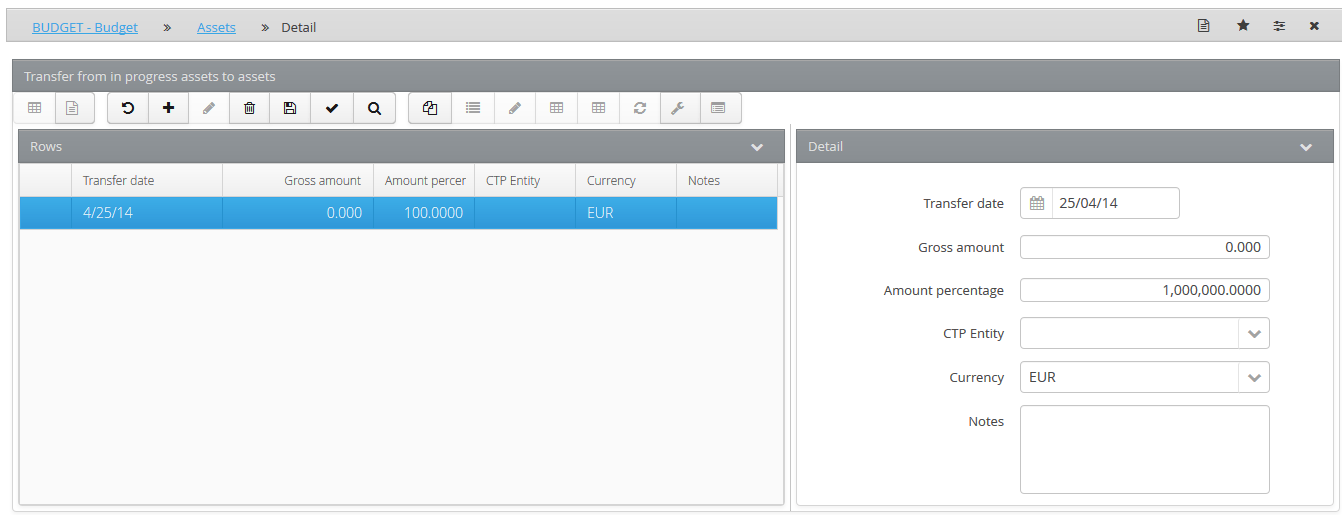
The following are entered in this window:
- the transfer date on which the asset is transferred from in progress to effective;
- gross amount of assets in progress subject to transfer to assets. As an alternative to the gross amount, the user can specify the “percentage amount”, or the percentage to be applied to the value of the assets at the transfer date in order to determine the gross amount
- the description of the event contained in the Notes field
- the counterparty entity
- the custom counterparty dimension 2 if the relationship type for the process in question is either “For entity / custom dimension 2” or “For entity / Synthetic custom dimension 2”
- the currency
The asset starts its depreciation process, as defined in the associated asset class, from the date on which the asset in progress is transferred to an effective asset.
Asset Sale
The management of the sale of an asset, where it is either in progress or an effective asset can be accessed by double clicking on the asset and then selecting the “Sales” accordion.
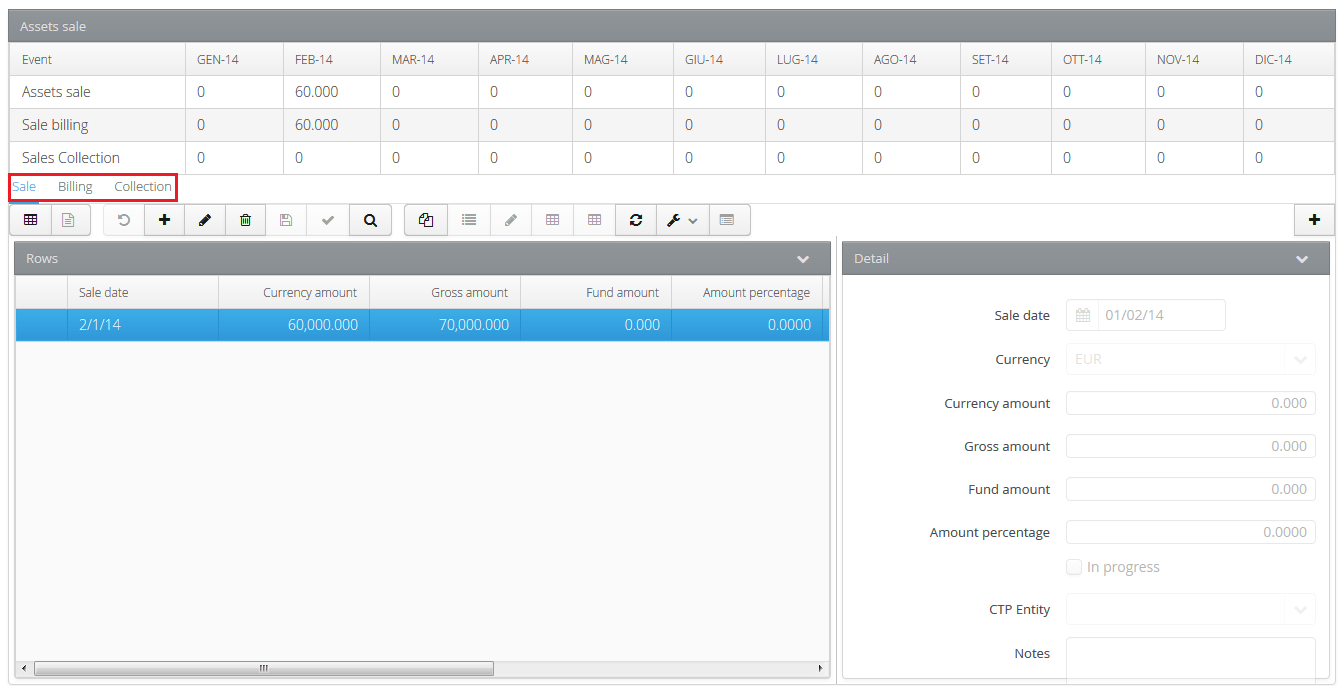
The detail window is divided into two main areas:
- one display area (a grid table which displays the total amounts over the month across all scenarios included between the simulation start and end dates of the events created). The system updates the table via the refresh key (above the table).
- one data management area, subdivided into three tabs
(1) - Asset sale
In this section, it is necessary to define:
- the asset sale date
- the currency amount i.e. the net amount of the sale
- Gross amount / Provision. As an alternative to the net sale amount, it is possible to specify the gross amount of the asset and the related depreciation fund. As al alternative to the gross amount, the user can specify the Amount percentage, or the percentage to be applied to the value of the asset and the related depreciation fund at the sale date, in order to determine the gross amount and fund of the asset subject to sale
- the currency
- whether the sale being carried out relates to an asset in progress. In this case, it is necessary to define the date on which the transfer from an asset in progress to an effective asset will take place, in the “Transfer from in progress assets to assets” section
- the counterparty entity, for intercompany sales. In such cases, all of the variations deriving from the management of the sale will show the counterparty
-
the custom counterparty dimension 2 for intercompany sales and the relationship type for the process in question whether “For entity / custom dimension 2” or “For entity / Synthetic custom dimension 2”
-
the description of the sale contained in the Notes field
Moreover:
- depending on the accounting model associated with the asset account, the system could also require the tax rate, the non-deductible percentage and the other tax rate to be specified;
- if the asset has “Manual credit terms”, and if the accounting model associated with the asset account allows, the user must indicate a credit terms rule to be applied to the sale of the asset and any payment calendar and weight (if the financial event related to the purchase of the asset is subject to the monthly splitting calculation by weight)
The following buttons are worthy of particular attention:
• Open End of period. Opens all periods of the first simulation year with date being the end of the month;
• Split per Month. Allows the user to split a total amount by month for a given scenario. The system requires the original scenario and the total to be set, and in cases of:
- budgets for all the period-ends of the specified scenario, it enters the “currency amounts” with an amount equal to the total to be set / 12
- forecasts for all the period-ends included between the budget start date and the end date of the specified scenario, it defines the “currency amounts” with an amount equal to the total to be set / number of periods to be defined
(2) - Sale billing
The “Sale billing” section can only be viewed if the asset class associated with the asset object provides for the billing of sales and represents the accounting curve generated by the Billing event (using the “Create calculated events” button) based on the event rule associated with the asset. If an Event rule has not been specified, the fields in this section can be edited in order to manually define the accounting
(3) - Asset sale collection
The “Asset sale collection” section represents the financial curve generated (using the “Create calculated events” button) based on the credit terms rule associated with the asset.
The system allows the user to manage down payments received for the sale of the asset directly within the financial curve. The user must simply specify:
- that the entered event is a down payment (by enabling the Down payment field)
- the Reference date indicating the sale date to which the down payment is attributed
Entries related to the disposal of the asset, such as the write off of the depreciation fund, the interruption of the depreciation process, the calculation of the capital gain or loss and the write off of the asset itself, are generated internally by the system.
If the user wants to dispose of an actual asset, whether effective or in progress (with a transfer to effective scheduled in the planning period), it is necessary to reconstruct its “accounting status”. The management of the accounting status of an actual asset can be accessed by double clicking on the asset and then selecting the “Initial situation” accordion.
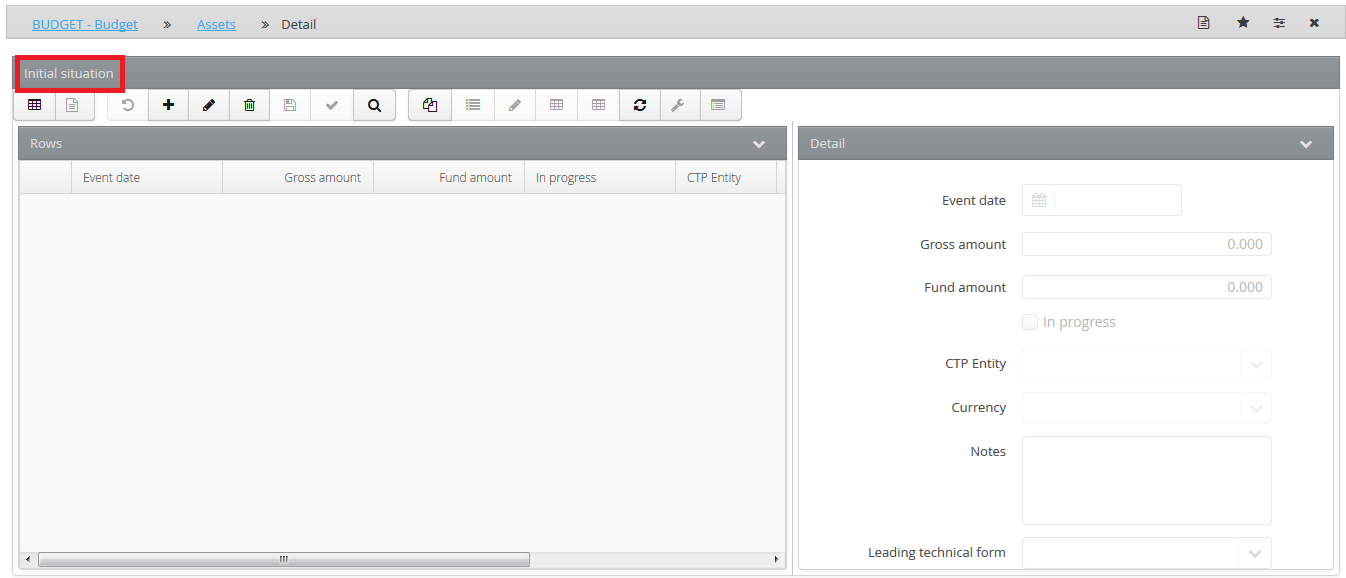
The initial situation of an actual asset is identified by:
- an event date, or the asset purchase date. In order to be able to depreciate the asset correctly, it is necessary to enter any day of the year in which the assets were purchased
- the Leading technical form i.e. or the payment method used for the purchase (credit terms, L/T financing or leasing). The details of the selected funding type are managed directly from the Actions () > Details window menu.
- the currency of the asset’s initial situation
- a gross amount / fund which indicate the gross amount of the asset, expressed in the currency in which the entity operates, and the value of the relative depreciation fund, respectively. For assets in progress, no value must be entered for the amount of the fund
- the description of the initial situation contained in the Notes field
- the counterparty entity. Indicates the counterparty entity in the asset’s initial situation
- the custom counterparty dimension 2 for intercompany sales and the relationship type for the process in question whether “For entity / custom dimension 2” or “For entity / Synthetic custom dimension 2”
- whether the sale being carried out relates to an asset in progress. In this case, it is necessary to define the date on which the transfer from an asset in progress to an effective asset will take place, in the “Transfer from in progress assets to assets” section
It is possible to reconstruct the initial situation of an asset based on the entries of another process using the Re-calculation initial situation utility, which can be accessed from the Utility menu in the asset management window.
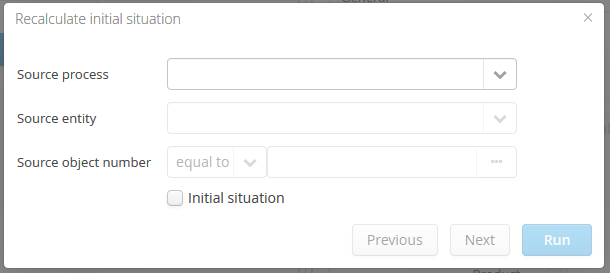
The user must indicate:
- the process from which to recalculate the initial situation
- the object number which identifies the objects the initial situation of which is to be recalculated
- if the recalculation only needs to be performed on the objects which have their previous initial situation defined (Active initial situation option).
Having finished the setup, it is possible to view all of the events deriving from the management of the asset via Actions ( ) > Detail, by selecting the View Entries accordion at the bottom right, which launches the Data processing utility.
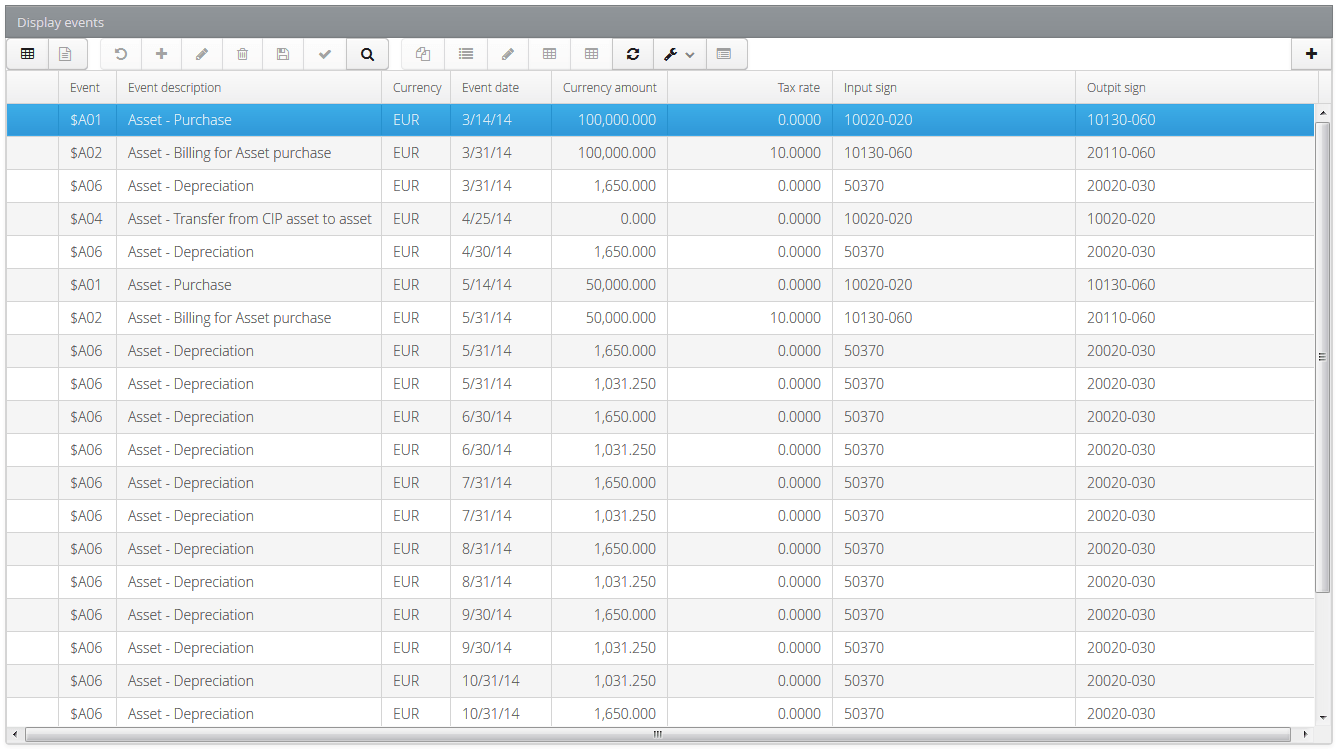
The system displays (based on the event date) all the events related to the defined investment plan, and reports a series of information for each of them, such as:
- the currency
- the currency amount
- the reference account (Input sign) for that particular type of accounting (asset sale, sale of asset under construction, depreciation fund write off, etc.)
- the account used as the contra-entry (Opposite sign)
- the credit terms
- the tax rate