Initial Actual Balance Sheet
The initial balance sheet is the most recent balanced actual balance sheet available, which is used as the starting basis for the planning process.
For quarterly forecasts, for example, the initial balance sheet can be that which relates to a quarterly closing (e.g. March, June, September).
Based on the initial balance sheet, the financial planning data process generates the balance sheet entries arising from the P&L entries, the collection/payment of receivables and payables, any accounting entries, L/T financing, fixed assets, etc.
The company manager’s activities on the Initial Balance Sheet consist of:
- loading dataLoading data
- changing the financial rules provided by the administrator (any overriding of the credit terms/insertion of a cash schedule) related to the actual data loadedChange Financial Rules: override Attributes and insert Schedule (CFP Rules Window)
Loading data
Data can be loaded from the initial balance sheet in several ways:
- by using the functionalities of the ETL module to load the data from any ERP system and in general from any IT system in which they are managed;
- by using a web form/data entry Excel spreadsheet
- through the copy data utility
- by using the special web window Initial Balance Sheet Web Windowaccessed from the end user’s web interface through the processes cockpit.
Initial Balance Sheet Web Window
To access the initial Actual Balance Sheet web window it is necessary to click on the “Processes” button (available on the end user’s home page) and select the desired process
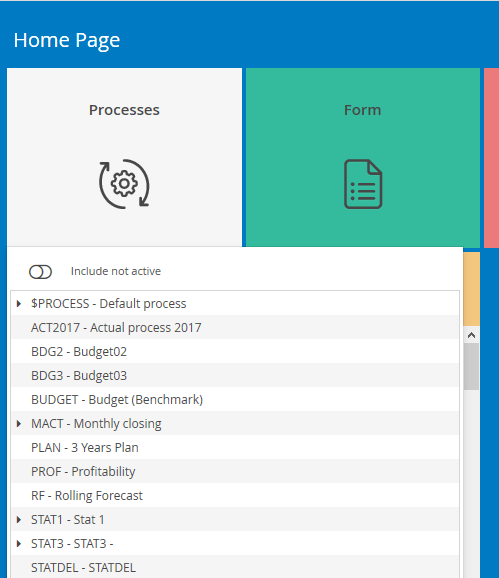
When opening the cockpit it is necessary to select one of the phases of the process at the top of the screen and one of the entities for which the user has editability rights
It is possible to view/enter and change Initial Balance Sheet data by accessing the web window (which is a view in the Balance Sheet) using the following methods:
- from the
 Cash Flow Planning button, selecting the Actual Balance Sheet option
By clicking on the Cash Flow Planning > Actual Balance Sheet button from the end user’s web interface through the processes cockpit, the system pre-sets the information related to the process and entity and shows the (gross and intercompany) balances of the initial balance sheet accounts as the starting data for financial planning.
Each initial balance sheet amount, whether gross or intercompany, is identified:
- by a standard account of a “balance sheet” or “other stocks” nature
- by any custom dimensions being managed;
- by the currency;
- in cases of intercompany data, by the counterparty entity and any custom counterparty dimension 2 if the relationship type for the process is “By entity / custom dimension 2” or “By entity / Synthetic custom dimension 2”
- an amount expressed in the original currency and an amount expressed in the currency in which the entity operates.
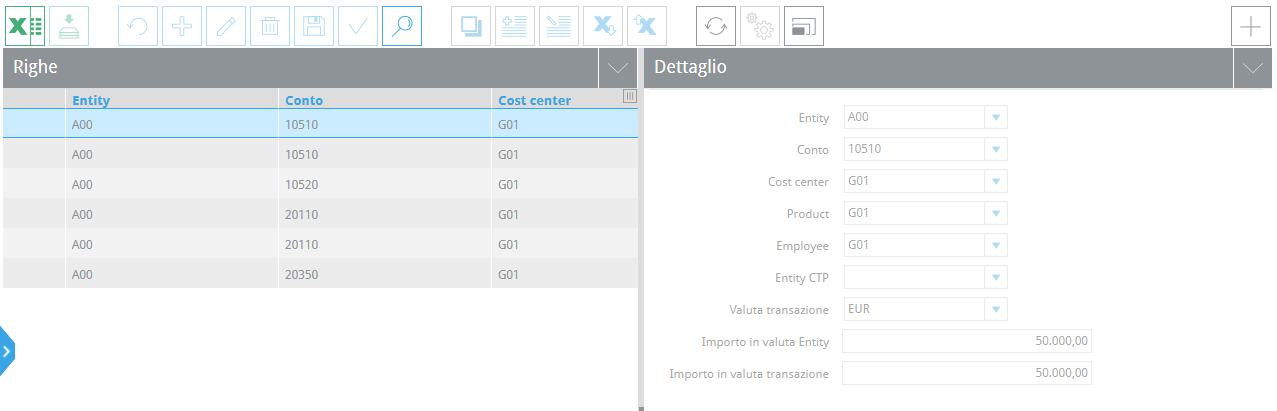
 In the window opening phase, the system displays the gross balances and intercompany balances originating from one of the origins configured as inputs. For more details, see Input origins configuration
Change Financial Rules: override Attributes and insert Schedule (CFP Rules Window)
Once the initial Balance Sheet data has been inserted/displayed, the user can:
- decide whether to accept the financial rules established for recording collections/payments in the balance sheet by the administrator or override the “Balance Sheet attributes” if those present in the accounting model do not meet his needs;
- insert the cash schedule, if the model linked to the account allows this
In fact, recording collections/payments can take place either through a credit terms rule or a cash schedule. The use of one method over another will depend on the accounting model associated with the account. If the account has an accounting model that permits the event:
- “$DCP” (Collection/ Payment) - then recording collections/payments takes place through a credit terms rule.
- “$GSCP” (Collection/Payment Schedule) - then recording collections/payments takes place through a cash schedule.
The user can access the financial rules (CFP rules) override window in two ways:
- from the Initial Balance Sheet window, by clicking on the details button after having selected the row (or rows) to be overridden;
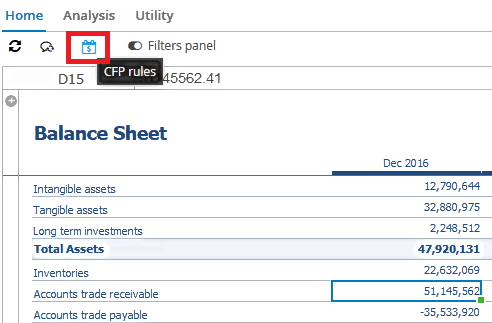
- from a web form, through the CFP Rules button on the ribbon bar, after having selected one or more cells (elements, totals, nodes) of a balance sheet web form (prepared by the administrator) in data entry or browse mode
The financial rules (CFP Rules) detail window is divided into two areas:
- a display area: Financial Impact
- a rule and data management area through the two sections: Attributes and Events
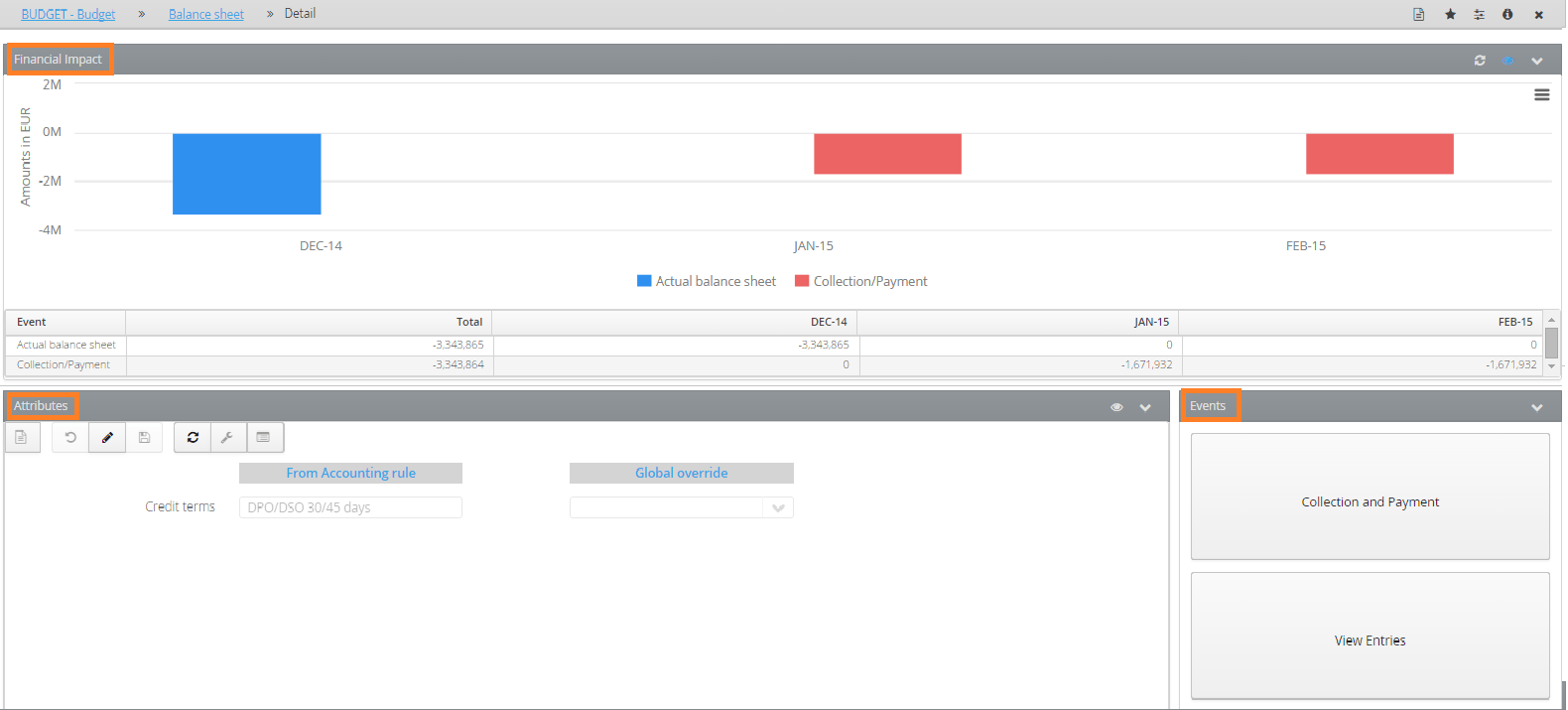
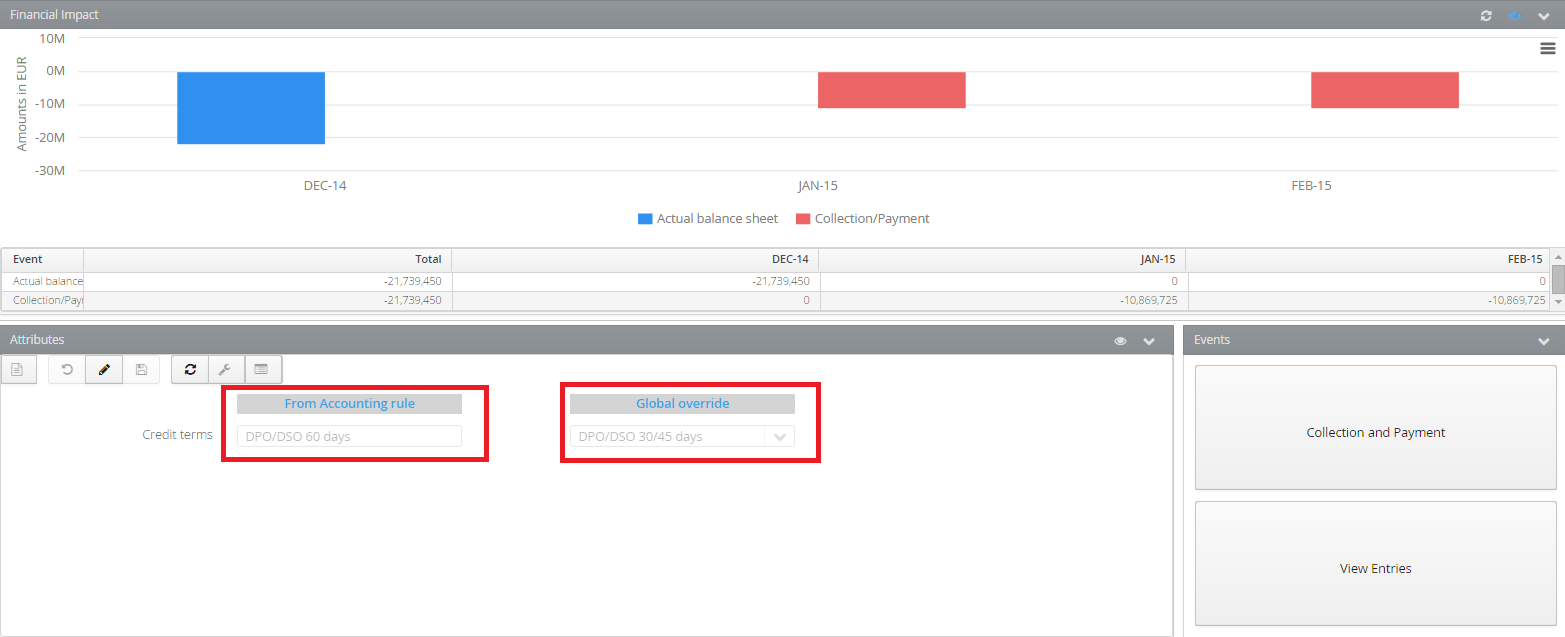
The Financial Impact section displays the total amounts over the month, graphically and in table format (by clicking on the  icon), of the initial balance sheet (e.g. initial payables) and cash flows adjusted by the financial rule set (credit terms or cash schedule). In the above image, the entries relate to the “payment at 30/45 days” rule.
Note that the amounts relate to the selection made in the previous window, and so if a multi-selection has been made, the data display would relate to the selected records (visible in the details section at the bottom of the window and by clicking the  button)
In the Attributes section
The left-hand side of the window displays the “Attributes from the Accounting model rule” set at the group level or customised for the individual entity during the setup check phase (e.g. payment at 30/45 days);
On the right-hand side it is possible to override all of the accounting model rules. Only the attributes provided for in the accounting rule linked to the selection made can be modified/managed.
It is also possible to manage overrides for individual rows, from the menu Actions > Credit terms and taxes detail.
In “Credit terms and taxes detail”, the user can give different credit terms and tax rates for each individual balance sheet row (belonging to the node/selection made).
In “Credit terms and taxes detail”, it is also possible to view the associated financial information (accounting model, credit terms, rates) for each individual balance sheet row; this information is very useful if the details window is opened after having selected more than one balance sheet row with different attributes.
In the third section, Events, using the “Collections and Payments” button, the entity manager is able to view the collections and payments that were generated by the data process with information specifying the date on which the entries are generated, and enter them in case the system provides a cash schedule.
Once a rule has been overridden or a schedule row has been entered manually, it is possible to obtain a preview of the impact of these changes on the cash flows:
- using the refresh key (above the chart), the data from the chart and table below, summed by month, are updated according to the overridden rule;
- the View Entries button displays the double entries to date, which will then be generated when the cash flow planning data process is launched.
A schedule is generally used when the amount of the payment/collection and the date on which to record it are known. Credit term rules, on the other hand, are typically used when neither the date nor the amount to be collected/paid are known; hence the use of a generic rule – the credit terms – which can record the amount collected/paid according to a certain percentage and with a certain due date
Example 1. Collection/payment recorded by means of a credit terms rule
A. Let us suppose there is a Trade payables account with amounts entered on the generic product/cdc/employee with which an accounting model $032 - Payables is associated: payment with credit terms which has, among its events, $DCP - Collection/Payment. The image below shows how the group administrator has specified credit terms of 60 days (credit terms from accounting rule field) which, however, the company manager can override (in the override all field). In this case, the user overrides the credit terms of 30/45 days where, in the rule, he has specified that he wants to pay 50% of the balance sheet payables at 1 month and the remaining 50% at 1 month and 15 days. Clicking on the refresh key will display the impact that the change made to the rule has on the cash flows.
B. Now let us assume that the user wants to select all trade payables (through multi-selection on the account) and wants to override only the 90 day credit terms all at once. When opening the window, the data displayed relates to the total trade payables account.
In the “attributes” section of the accounting rules field, the rule is only displayed if all the rows below have the same rule. The overriding of the rule has an effect on all the rows below which have the same accounting model.
The fields:
- Payment Calendar
- Splitting basis
are used if the user wants to perform more complex operations, such as a split by day or a distribution of the amount according to a certain weight and can be viewed by clicking on on the attributes title bar (see image below)

It should be noted that the accounting model typically associated with collection/payment entries through credit terms is a model which has the events “GIB - Initial BS” and “$DCP - Collection/Payment”. Tagetik loads the initial actual balance onto the $GIB event and records collections/payments on the bank account according to the specified credit terms.
Example 2. Collections/payments using a cash schedule
Let us suppose that we have the Trade receivables account associated with an accounting model $023 - Receivables: Collection/payment with a cash schedule which has, among its events, the event $GSCP-Collection/Payment Schedule. By opening the CFP rules detail window, clicking on the “Cash schedule” button on the “Events” panel, the system opens a new window in which the amounts entered by month are displayed in the upper part and the amounts that will be collected at a certain date can be entered in the lower part.
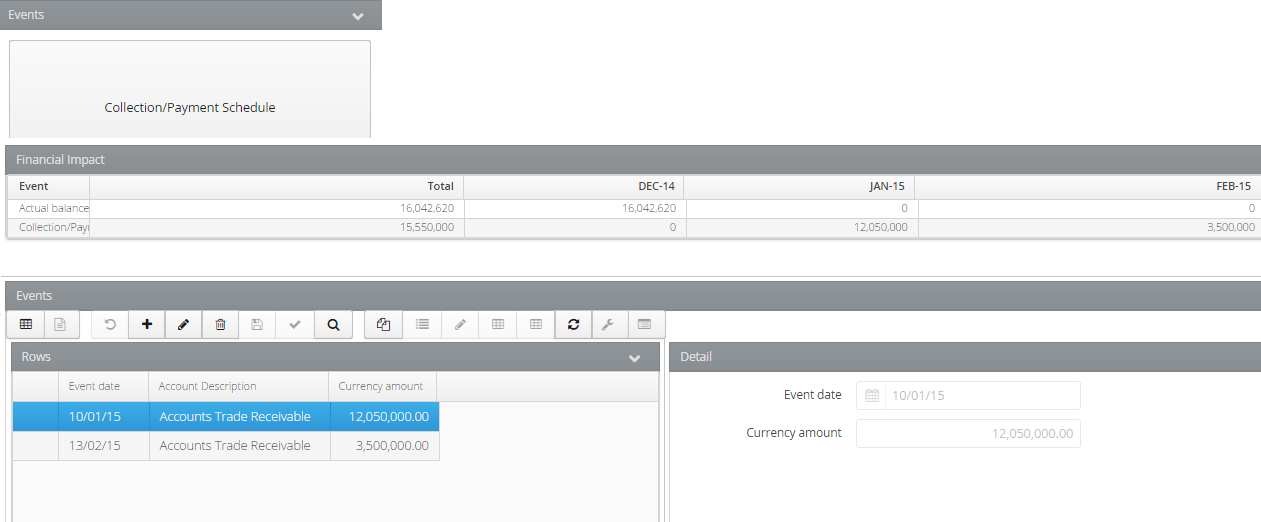
In our example, we have an actual receivable which is collected in two tranches: the first in January for an amount of 12,050,000 and the second in February for an amount of 3,500,000.
It should be noted that the accounting model typically associated with a recording collections/payments through a cash schedule is a model which has the events “GIB - Initial BS” and “$GSCP - Collection/Payment Schedule”. Tagetik loads the initial actual balance onto the $GIB event and records collections/payments on the $GSCP event.