Examples of predefined filter settings
Using predefined filters
Suppose you have the following predefined filters available:
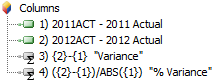
- Fixed_Var: allows you to compare scenarios 2012ACT and 2011ACT and to calculate the relative variance
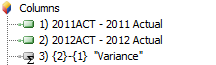
- Fixed_Var_%: allows you to compare scenarios 2012ACT and 2011ACT, and calculate the relative variance and percentage variance
Tagetik allows the user to decide which predefined filter to use when the form is run, by inserting (in this case in the columns) the Predefined filter parameter "$FLT_P - Filters".
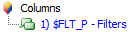
 The Predefined filter parameter must be inserted as Dynamic, by activating the "Dynamic" option at the top-left of the Matrix Wizard.
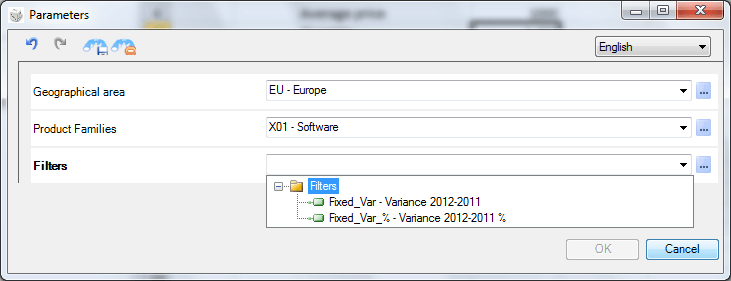
When the form is run, the user selects the predefined filter to be used (in addition to the other available parameters).
Using predefined filters with parametric elements
In the previous example, the predefined filter did not contain any parametric elements. Now let's look at an example in which the predefined filter contains a parametric scenario "$SCE_P". Suppose you have the following predefined filters:
- Param_Var: allows you to compare the current and previous scenarios and calculate the relative variance
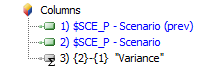
- Param_Var_%: allows you to compare the current and previous scenarios and calculate the relative variance and percentage variance
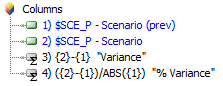
If the Predefined filter parameter "$FLT_P - Filters" is inserted in the columns, in the run step the system will ask the user to indicate which predefined filter to use, but will not require the scenario. This is because the form structure is only known after it has been run. It is therefore necessary to override the scenario parameter in the form. To do this, the user must click the  Manage parameters button in the Design bar ribbon.
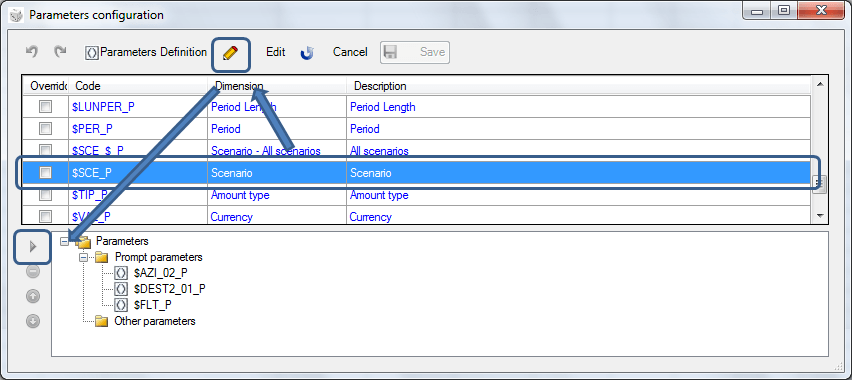
In the parameters configuration window, the user must
- click the
 Edit button;
 - select parameter $SCE_P from the "Other parameters" folder and move it to the definition area using the
 button.
This means that the user will be asked for the scenario when the form is run.