CDT: Transfer page
Repository > Configuration Deployment Tool > Run
Page purpose
This detail window, available during the execution of the transfer, allows you to monitor the status and progress of the process.
What it looks like
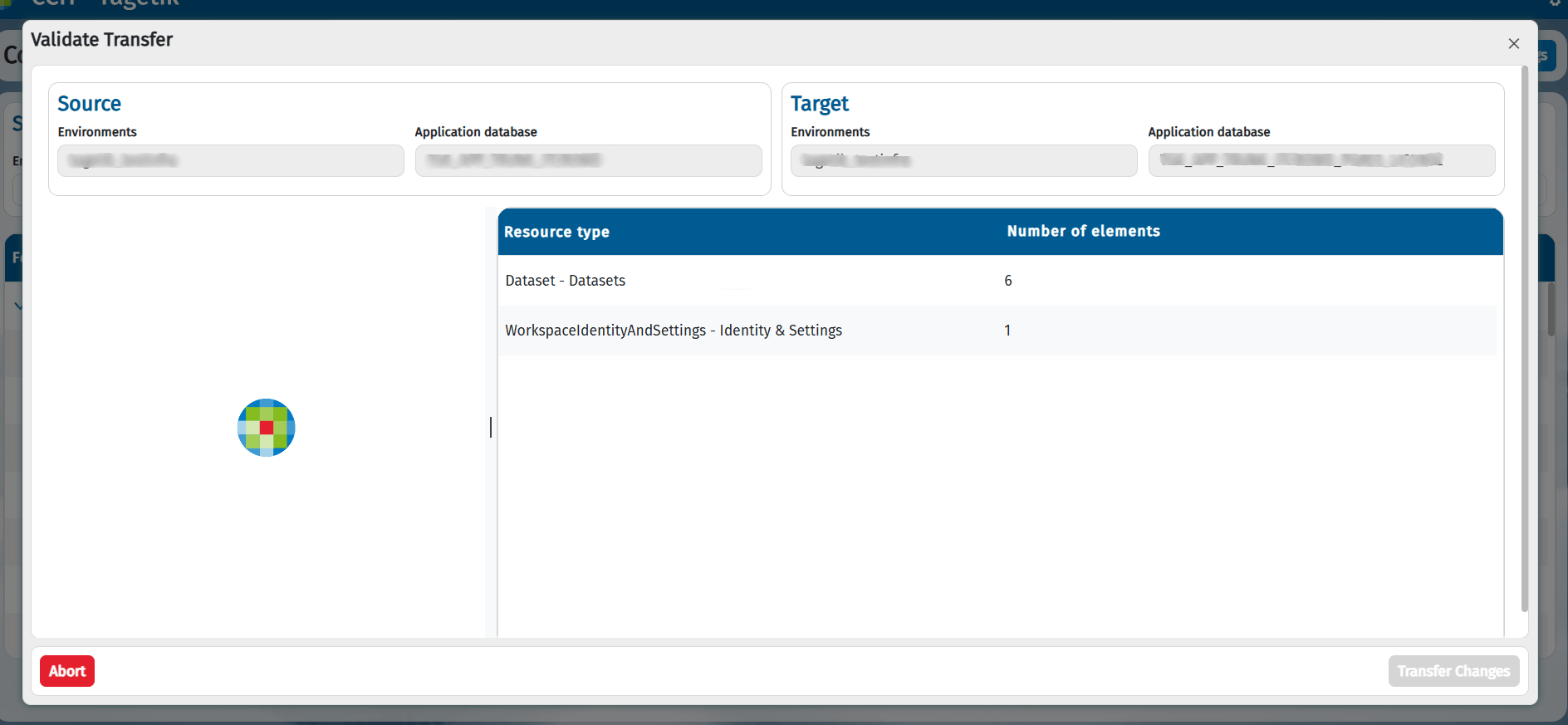
At the end of pre-processing, the window changes as shown:
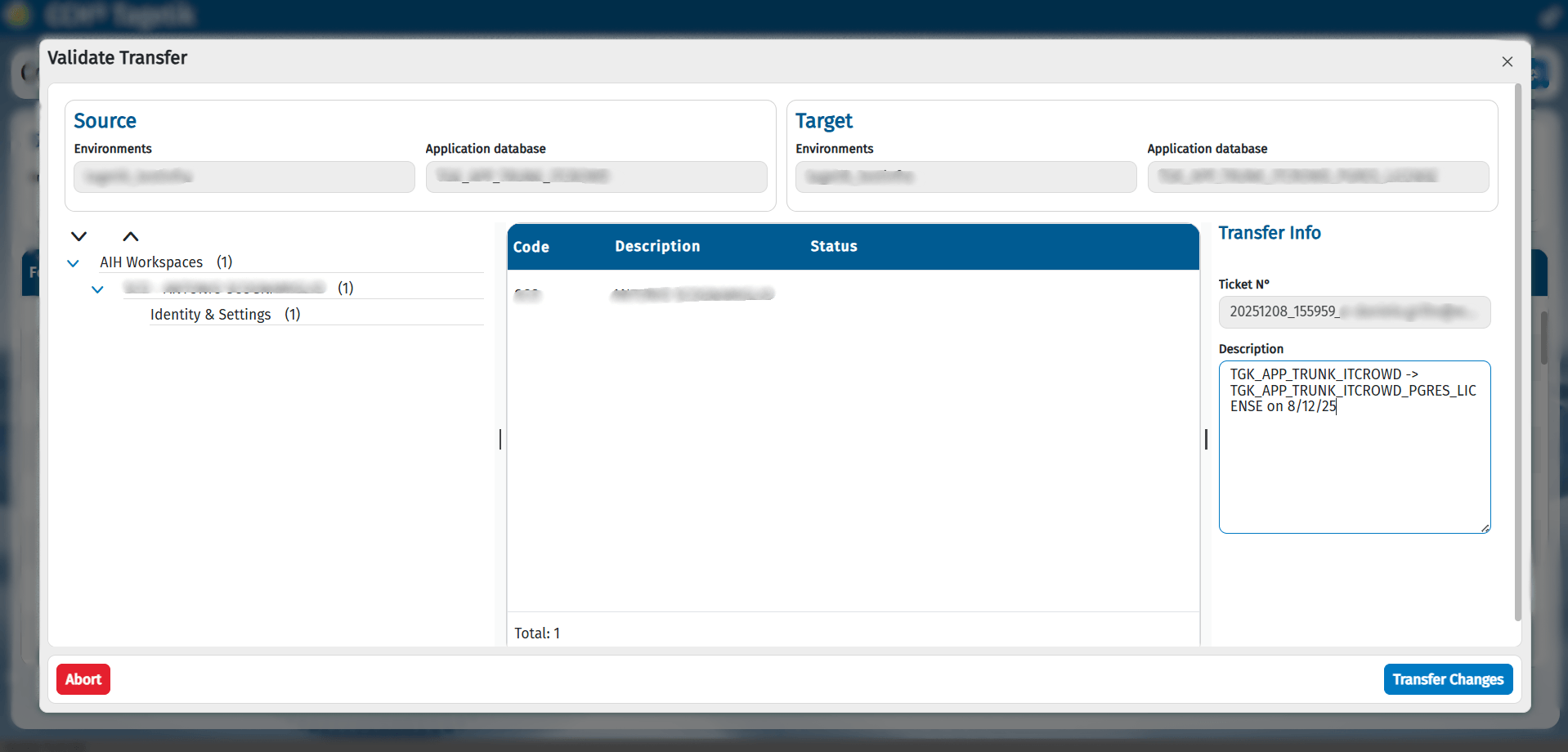

IMPORTANT: Within the window, it is possible to request an abort via the Abort button.
For further details, see Abort.
Once validation is complete, the user can run a transfer operation and start the data processing.
When the transfer is complete, the window will update automatically.
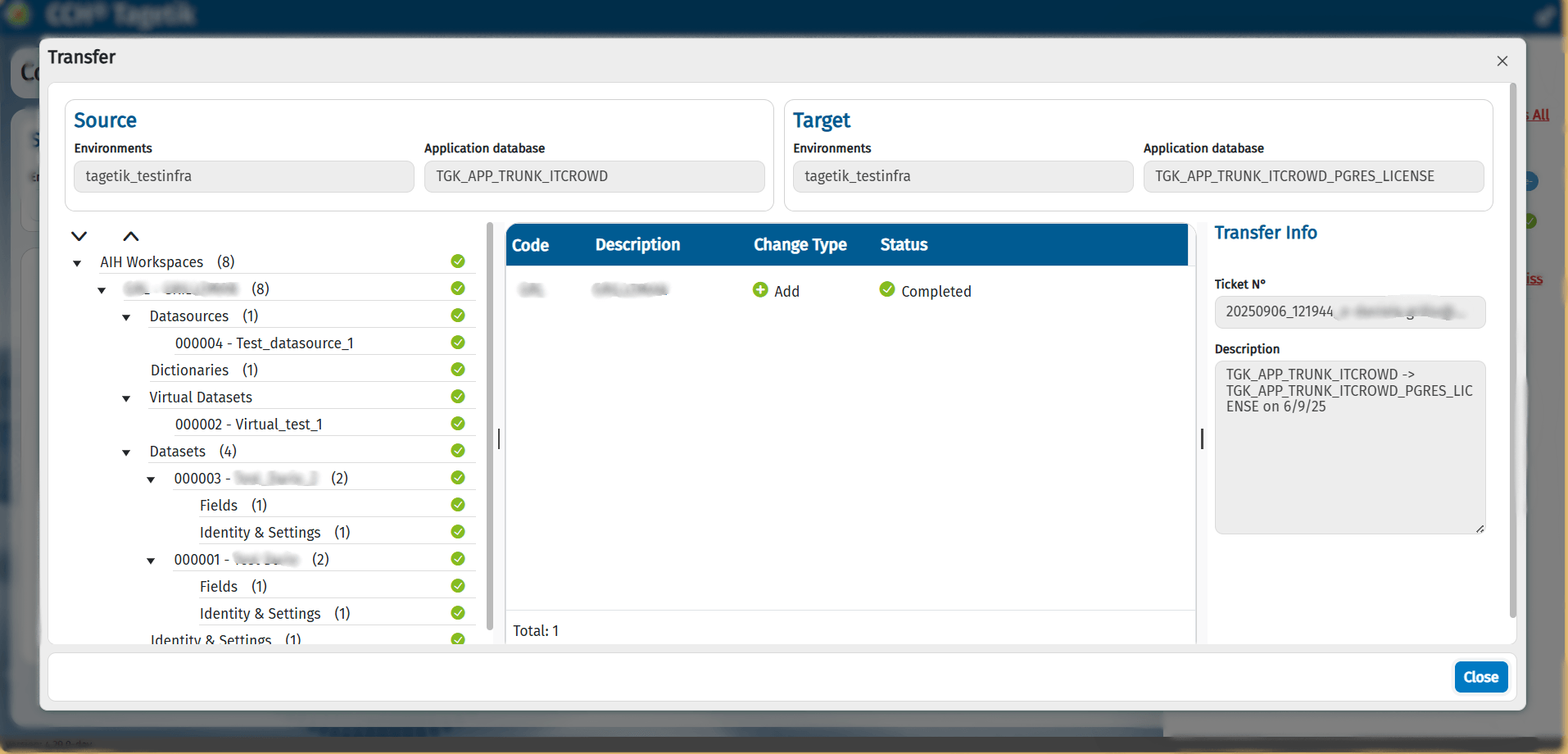
The system shows three main sections:
- Elements tree section:
Displays the list of objects involved in the transfer, organised in a tree. The list updates in real time during data processing, dynamically displaying the elements that are progressively handled. - IMPORTANT:
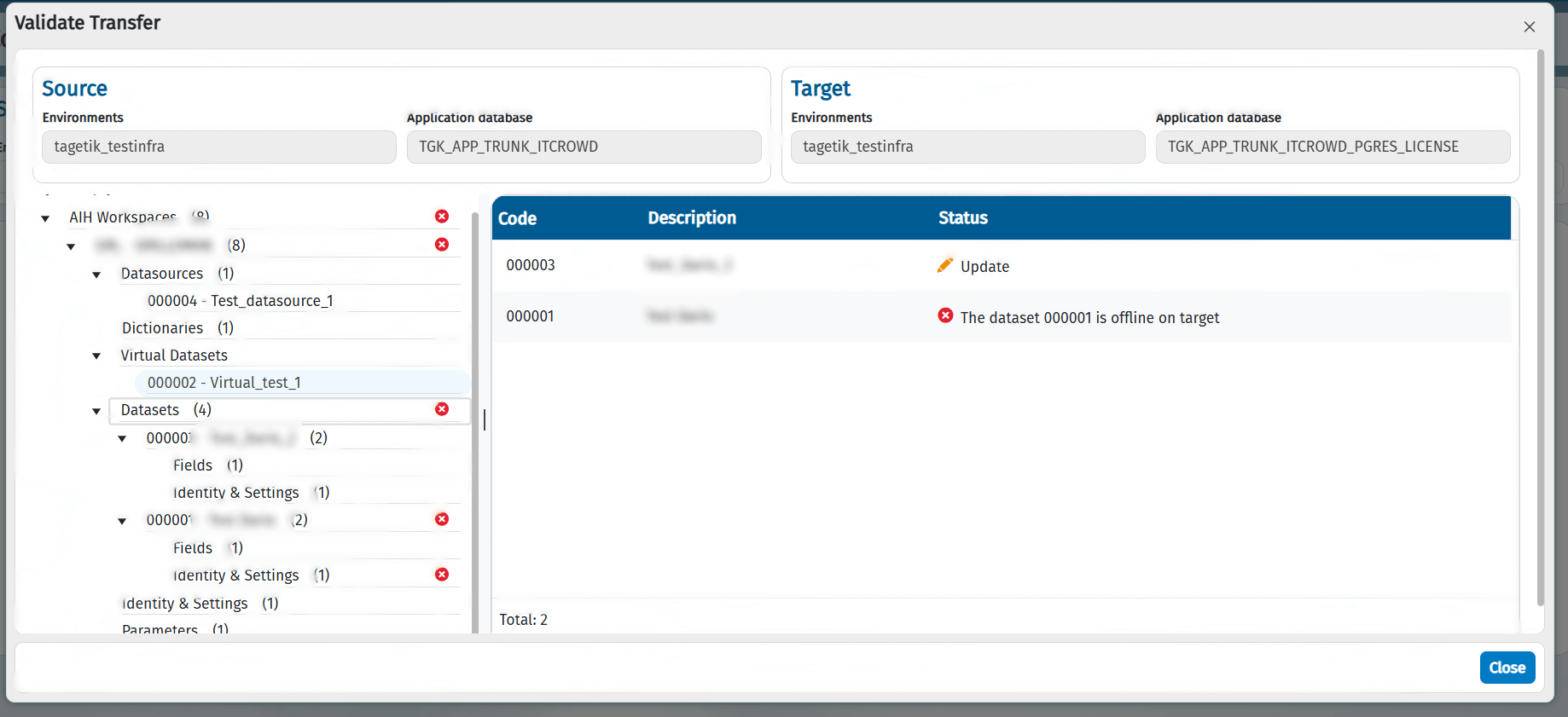
This section also features an export function, accessible via the dedicated button, which allows you to export the displayed tree structure to an XLSX file. - Detail Table section: - It shows a table with information on each item processed, including: - Code - Description - Type of change made to the target database - Data Processing Status
This section is useful for detecting errors and understanding their causes, as in the example below:
- Transfer Info section: It includes two areas:
- Ticket Number: is a unique code identifying the transfer in progress.
- Description: is a customisable field where the user can enter a short description of the transfer before starting it. The field is automatically pre-filled with a value in a predefined format: ambienteSource - ambienteTarget on data.