Workflow Task
In order to create a workflow, it is necessary to define the internal structure through the task chart. A task represents an activity to run.
Assume that we want to insert two preliminary generic activities in parallel, "Data collection and check" and "financial accounts audit", and then proceed with the data entry, submission and approval of data. For this purpose, it is necessary to access the workflow window and:
- click on the Default tile on the left panel. The design area shows the default workflow with two tasks: Data entry and Submission
- click on the Edit button on the top right corner, in order to set the window to data entry mode. The design area shows the objects library containing all the available task types for the creation of the graph
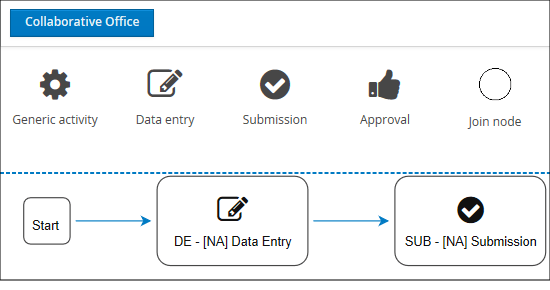 - edit the default workflow by inserting the Generic activities tasks by dragging them from the objects library into design area. A window containing all the attributes to define will pop up:
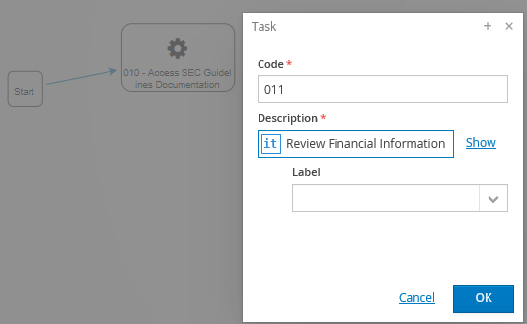
| Field | Description |
|---|---|
| Code* | Insert a valid code containing the accepted characters |
| Description * | Insert the description in the application language If several languages are available, further descriptions can be inserted in the Show link |
| Label | Select the label to associate to the task |
- link the various nodes by dragging the arrow from the centre of the previous node to the centre of the following node
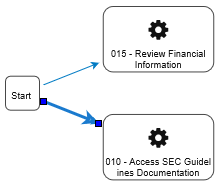
- insert a join node to link the parallel tasks to the next one
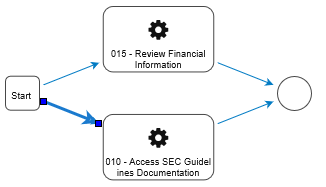 - insert the approval task to complete the drawing and then save. The final output will be the following:
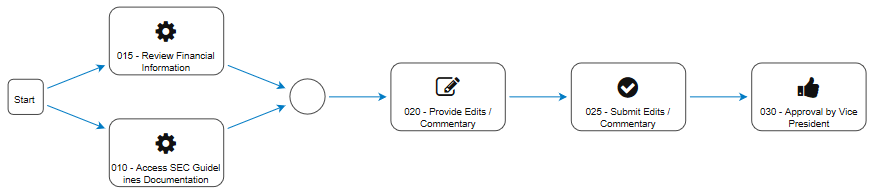
 Each task is run individually and the connection with the others determines their execution order. For example, it is not possible to run the approval task until the submission is successfully completed.
Task type
The families of tasks that can be used when defining a workflow are:
| Task type | Description |
|---|---|
| Generic activity | The administrator can guide the users through the realization of the document or of a document part. These guidelines / steps are customizable (e.g. "Access the Website X " or "Before proceeding, see Report Y"). - Optional Task - Can be included more than once - Can be run either in series or in parallel |
| Data Entry | The user can insert data into the various document activities. The data entry must be run from word client. - Mandatory task - Can be included only once - Can be run only in series |
| Submission | The user can submit / send the document activity he has prepared, for revision / approval. - Mandatory Task - Can be included only once - Can be run only in series |
| Approval | - The administrator can approve a document activity submitted to him. In general, it represents the approval task of the workflow. - Optional task - Can be included more than once - Can be run either in series or in parallel |
Operations on tasks
After selecting a task from the graph, the following operations can be run:
- click on the Edit button in the right panel and:
- modify the description of the task
- assign a label to the task
- format the layout of the graph for an optimized display; the system sorts the parallel steps by code (increasing order)
- click with the right button of the mouse and:
- Create group. Groups several tasks. The grouped tasks can be displayed as one single task and then expanded
- Delete. Deletes the created task. In this case, it is necessary to link the remaining nodes whose links have been removed after the deletion of the task