User rights
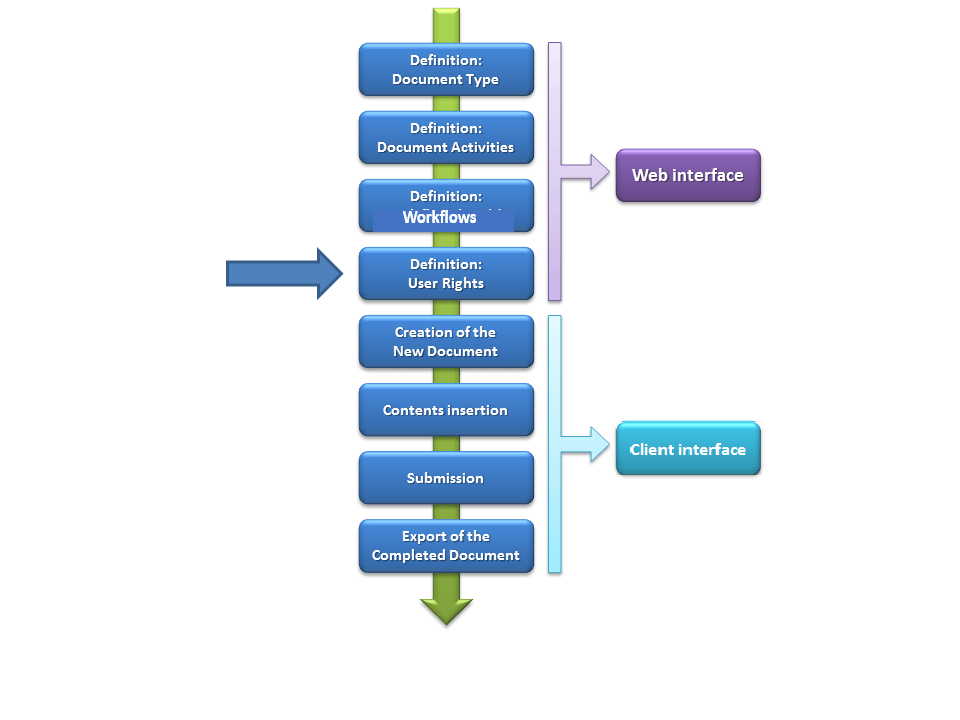
Once the structure of the document type is completed, it is necessary to define the user rights. This allows the administrator of CCH® Tagetik to specify, for all users allowed to access a specific application DB, the set of documents they can display and the set of documents they can edit / submit (the two sets can be different).
The user rights table can be accessed from the home page of the Admin user by clicking on the User rights tile.
Restriction types
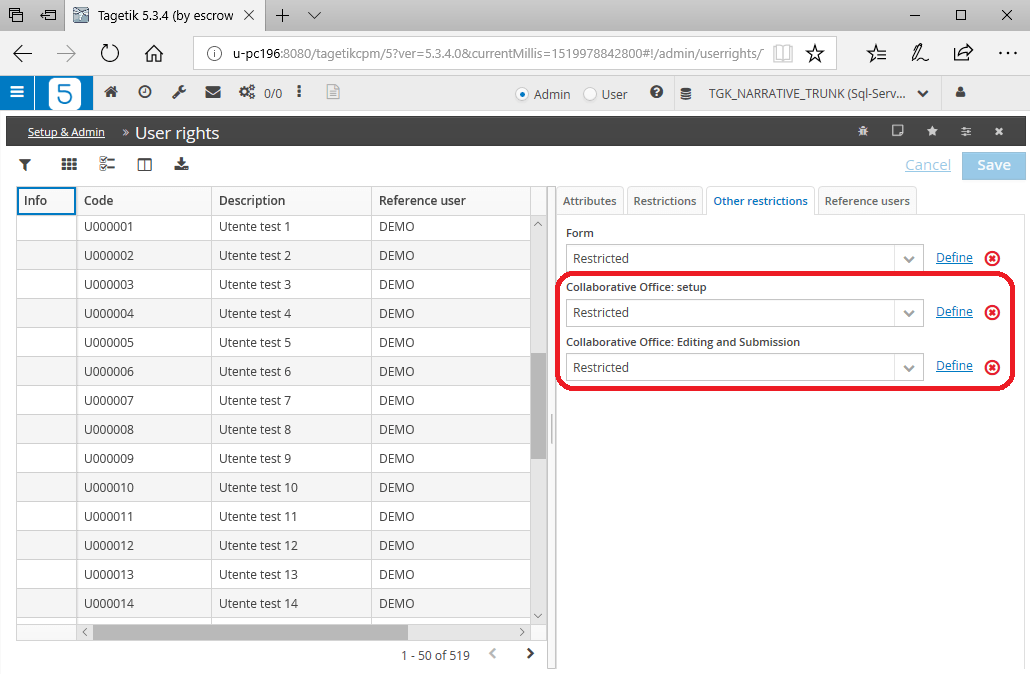
For each user, it is possible to define two types of restriction:
- Restrictions: Setup Allows defining the Admin user rights on the various documents, create new documents and define their properties
- Restrictions: Editing and Submission Allows defining the contributor user rights and edit, submit and display the content of the document types /document activities
Both restriction types can be managed in the Other restrictions tab.
 The user rights on a document are also affected by any restrictions set on the standard dimensions of CCH® Tagetik. For example, user may be enabled to edit any document activity of a given document type but may not be enabled to modify any data if the document is filtered on a dimension on which the user has no rights.
How to set up the restrictions
By default, the users in the table have setup restrictions and edit / submission restrictions. In order to set up the restrictions, the following shall be configured:
- Restrictions: Setup choose among:
- Unrestricted the user is a kind of super-administrator that can create new documents for each available document type and modify the content of any document activity
- Restricted the user can create new documents, edit and display the content of the document types explicitly declared in the definition window

- By area profile the user belongs to an area profile and inherits the restrictions of that profile
- Restrictions: Editing and Submission choose among:
- Unrestricted in insertion, submission and display the user can edit, submit and display the content of all document activities of all document types
- Restricted in insertion and submission, but not restricted in display the user can display the content of any document activity of all document types, but he can edit and submit only the document types / document activities declared in the definition window
- By area profile the user belongs to an area profile and inherits the restrictions of that profile
- Restricted the user can edit, submit and display the content of the document types /document activities explicitly declared in the definition window
Definition window
This paragraph describes how to set up the user rights when the restriction type is "Restriction: Editing and Submission" equal to "Restricted"; in the other two cases, "Restriction: Setup" equal to "Restricted" and "Restriction: Editing and Submission" equal to "Restricted in insertion and submission, but not restricted in display", the information to be managed is just a subset. To manage the user rights, follow the following steps:
- in the Other restrictions tab, on the left hand side of the Restricted value, click on the link . A definition window pops up.
- in the definition window, click on
 to add a new record in the table. A new record will be added in the table.
 - in the Attributes tab, define the following attributes for the inserted record:
| Attribute | Description |
| Action* | Action to run on the inserted record. Choose among: - Include - Exclude Greater attention should be paid to the order in which the records are inserted, since the system runs them in the order in which they are listed. Therefore, if you Excludea document activity and then Include a node containing it, the result window will contain the document activity at issue. |
| Document Type* | Code and description of the document type on which the user sets up the user rights |
| Document activity* | Code and description of the document activity on which the user sets up the user rights |
| Document | Code and description of the document on which the user sets up the user rights By specifying only the document type and not the document, the user defines the rights of all documents belonging to the selected document type. |
| Include child parts* | Includes in the definition of the user rights any sub-elements of the selected document activity |
| Access type* | Type of access to documents. Choose among: - Edit comments the user can edit only the comments of not yet submitted documents - Edit all the user can edit everything - Read-only the user can display all parts of the selected document type but cannot modify them The "Read-only" access type cannot be selected if the "Restricted in insertion and submission, but not restricted in display" restriction was configured |
| Run operational tasks* (all tasks that are not approval / submission) | Determines which operational tasks in the task flowcharts the user can run. Choose among: - List the user can run only the tasks with the labels defined in the Label field. This is useful when only specific users can run given tasks within a task flowchart - All - None |
| Run submission tasks* | Determines which submission / approval tasks present in the task flowchart the user can run. Choose among: - List the user can run only the tasks with the defined labels. This is useful when only specific users can run given tasks within a task flowchart - All - None |
| Labels | Code of Labels applied to the tasks of the Task flowchart to which the user will be restricted Mandatory field if "Run operational tasks" and /or "Run submission tasks" is set to "List" |
| Edit submitted data | Enables the user to edit those parts that are "Submitted" but not "Approved" or "Closed" |
| Edit attachments | Enables the user to manage the document's attachments |
The fields marked by * are mandatory
After completing and saving the restriction settings, it is possible to display the allowed elements for a given user by clicking on the Definition result link.
 If there are no documents for the selected document type, the allowed elements detail window will be empty.
Access levels
Users' access to the Collaborative Office tools and features is ruled by the set up restrictions. Four access levels are available:
| Setup | Editing/ Submission | Access level |
| Unrestricted | Unrestricted | Full access Administrator and contributor / Submitter user of all documents of all document types |
| Unrestricted | Restricted... | Limited access Administrator user of all document of all document types and contributor / submitter of only the documents of the defined document types |
| Restricted | Unrestricted | Limited access Contributor / submitter user of all documents of all document types and administrator of the documents of the defined document types |
| Restricted | Restricted | Limited access Administrator and contributor / submitter user of ONLY the documents of the defined document types |