Create a document activity
The internal structure of a document type is determined by the definition of a given set of elements named Document Activities. The definition of the Document Activities is the second step in the development of a Collaborative Office Document.
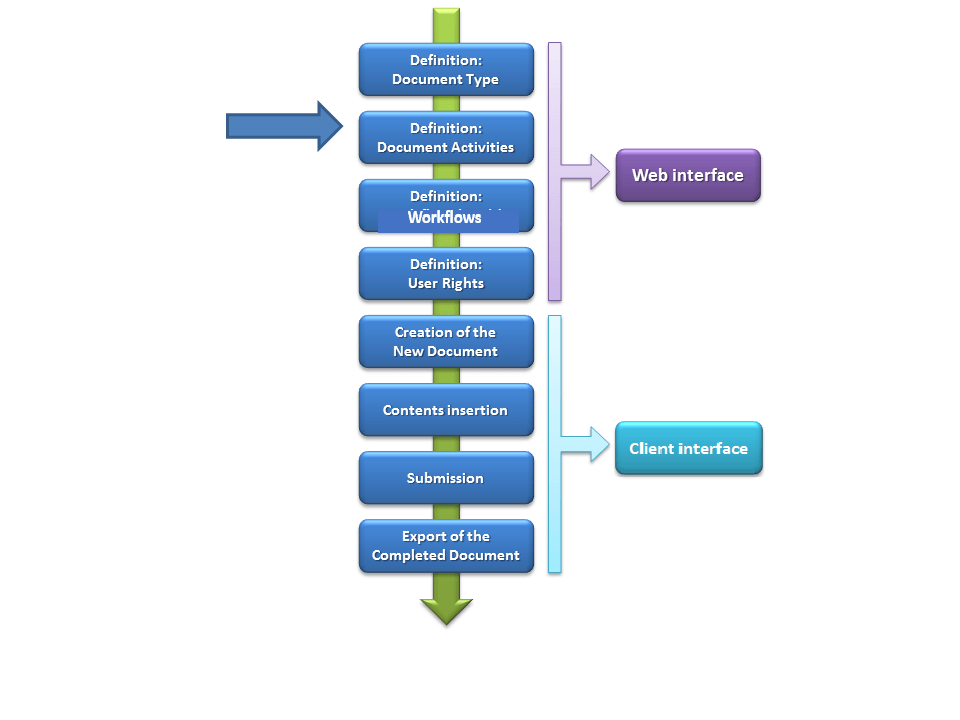
A document activity represents the single part (chapter, section, paragraph, ...) which composes the document type and it can include contents inserted by the users (tests, images, tables) or just be an organization element without any content.
Document structure
The management of the Document activities can be accessed by the Document structure link (from the Admin home page, click on Collaborative Office > Document type).
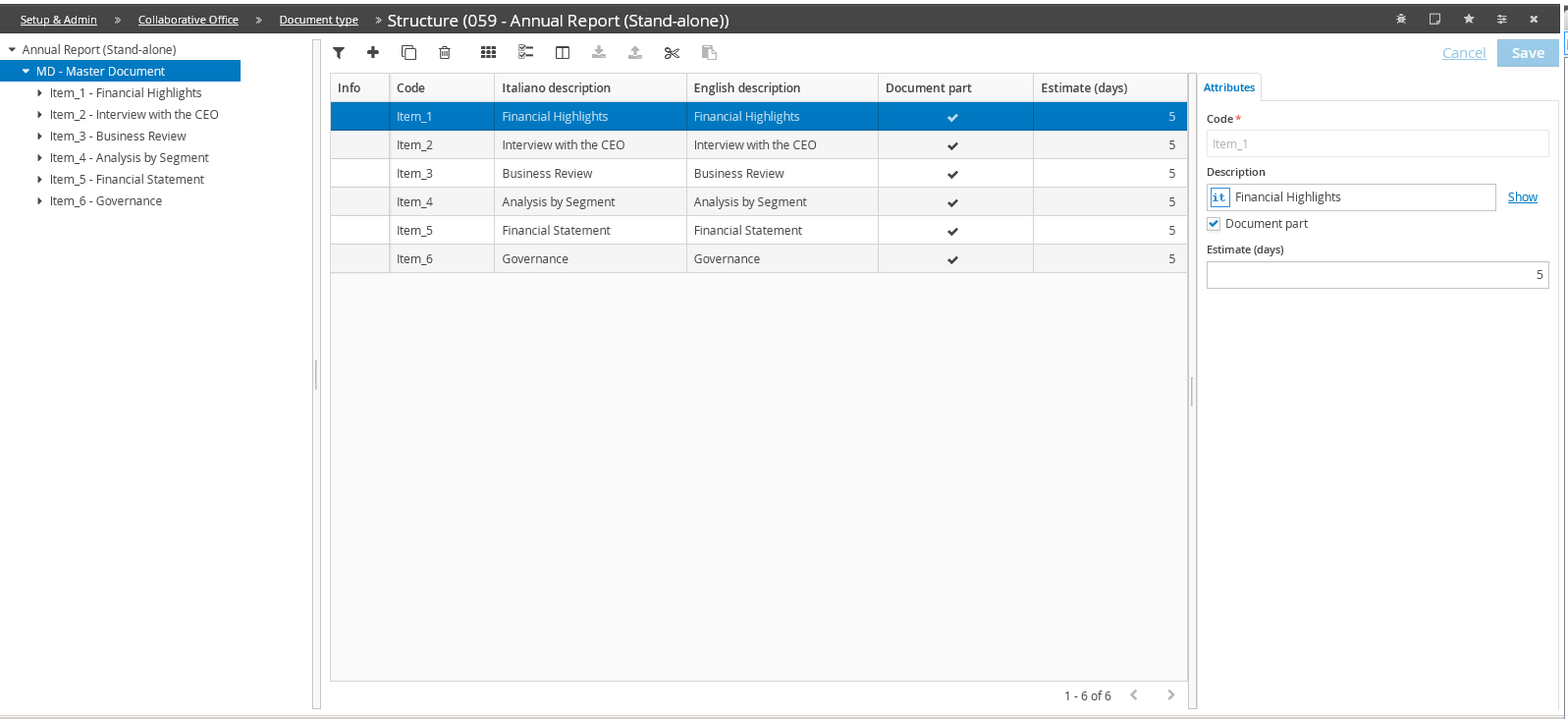
Each document activity is identified by:
- a code
- a description
-
a document parttype which distinguishes a document activity for the collection of contents from a document activity which represents an organization element without contents (reading of a document, of a report, etc...). When creating a new document activity this default option is active since usually the generic document activities in a document are fewer in number than those used for the collection of contents. The document activities which are not labelled as "Document part" are identified in the Word client by the icon
 .
. -
the Estimate days to complete the document activity
The document activities can be divided into several levels (hierarchy) or grouped into one single level (flat). The highest level of the structure is the system document activity named “Master Document” which contains the result of the consolidation of all its sub-parts (document activities). Normally the “Master Document” corresponds to the final document and only in some particular cases the “Master Document” does not correspond to the final document but it represents only a node for the management of the documents.
The higher level document activities containing other document activities can be considered as chapters of the final document while the lower level document activities can be considered as paragraphs.
 Please note that:
- All the document activities children of the node selected on the left tree structure are displayed and can be managed in the grid (entry, modification and deletion).
-
The document activities are displayed according to a sorting automatically created during the entry phase. This sorting can be modified by dragging a node to any position inside the document activities tree structure. Otherwise, if the element has to be moved inside the parent node, it is possible to use the standard tools of CCH® Tagetik (
 cut and
  paste) on the grid's row.
 -
a Document activity can be deleted from the system by using the Delete
 button.
Before making the deletion effective, the system verifies that:
button.
Before making the deletion effective, the system verifies that: - there are not submitted, approved or closed documents or document parts
- there are not documents in the distribution rules of the "Report Bursting" module
In those cases, the system sends a message saying that the deletion cannot be run and shows the blocking element. Therefore, before running the deletion, it is necessary to discard the blocking error or remove it from the rule that uses it.
Document activity - Deadline dates management
Tagetik allows the administrator user to define a deadline for each document activity. The document type is a model which can be used more than one time, so the deadlines are not defined as out-and-out dates but as the maximum number of days by which the document activity is expected to be completed and certified. The date at which each document activity must be actually submitted by the contributor user is calculated by the system on the Word interface according to the "deadline date" set when creating the new document.
The estimated number of days for the insertion of the whole content of a document activity is set in the "Estimate (days)" field in the "Document activity" table. When creating the document, in the Word interface, the system asks the user to specify the deadline date of the document and goes back to define the specific deadline of each document activity according to the estimated number of days.
To calculate the deadline date of a specific document activity, the system considers the settings of the high-level elements and not the estimated days of the selected element; the estimated days of the selected element are used to define the deadline date of the low-lever elements. In the case of the lowest level elements, this field is used to calculate the date by which the activity must begin.
Example. Les us assume that a document type has three document activities on different levels: Master Document, Section A and Paragraph 1 and that the deadline date in the document is 30th of April.
- Master document (Estimated number of days: 5)
- Section A (Estimated number of days: 3)
- Paragraph 1 (Estimated number of days: 1)
The deadline 30th of April is the date by which the Master Document must be completed. Section A, as a part of the Master Document, has deadline 25th of April namely 5 days before the number of days planned to complete the Master Document. Considering that it takes 3 days to complete the Section A activity, the user must begin on the 22nd of April.
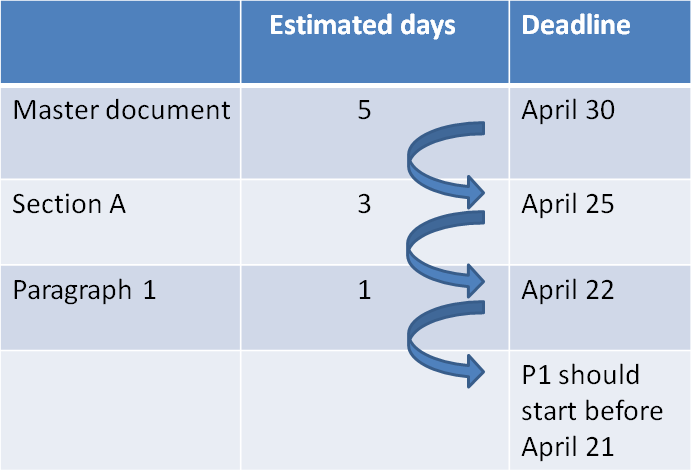
Finally, as regards Paragraph 1 (lower level element), it must be the first part to be completed. Its deadline is the 22nd of April, namely 3 days before the deadline of Section A. Considering that it takes 1 day to complete the Paragraph 1 activity, the user must begin by the 21st.
 If it is necessary to set a longer period of time, for example 5 days, to complete Section A, its deadline date does not change as this activity must be completed by the 25th of April in order to complete the Master Document by the 30th of April. The modified deadline date will be that of Paragraph 1 and it will be 20th of April, namely 5 days before the deadline of Section A. So in this case, considering that it takes 1 day to complete the Paragraph 1 activity, the user shall begin not later than the 19th.