Update document
Whenever a change is made to data or to the files attached to the document, in order to guarantee the correctness of information, it is necessary to update all the objects present in the document. Generally, this update is run from the client but it can be run from the Documents window as well.
After selecting the document to update from the documents tree, it is possible to access the objects update window by clicking on theUpdate document button displayed in the Actions box.
 It is not possible to update a document developed / managed with the Powerpoint.NET client and the documents of "Group" type.
Window
The window is composed of three areas:
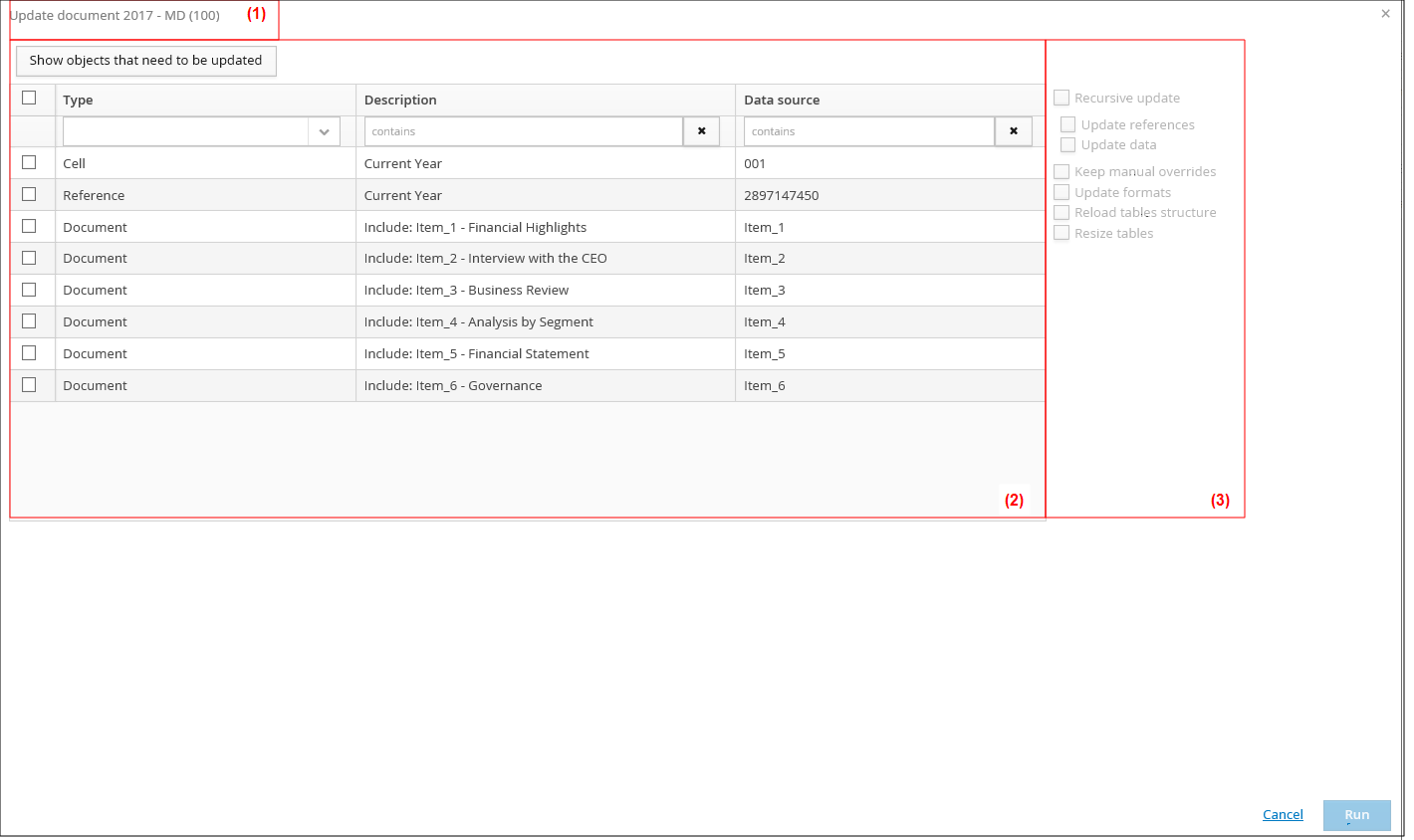
Let us examine in detail the characteristics and the functioning of each area.
(1) Title bar
On the top left corner, you can see the path followed by the user to access the view (Document code - Document part code (document type code). In this way, while selecting the objects to update, the user identifies the document to which they belong without having to close the window to display the information on the documents tree.
(2) Table
This area shows the list of all objects that can be updated for the selected document and allows you to specify for each one the options described in the table below:
| Option | Description |
|---|---|
| Multiple selection | Enables the multiple selection of the objects to update |
| To update | Identifies the objects that have been modified by the user and therefore have to be updated. The table can be filtered by using the column in order to display only the objects "To update" or "To recursively update". By default the To update column is hidden; click on Show objects that need to be updated to display it. |
| Type | Identifies the object type (Cells, References, Images, etc.) |
| Description | Description of the object defined when creating the object from client |
| Data source | Displays the data source by: - the file code, in case of objects from attachment - anID code, in case of objects whose information comes straight from the database or from other parts of the document or from other documents - the code of the form, in case of objects from form |
(3) Update options
This area shows the update options available for the objects selected in the table. In detail:
| Option | Description |
|---|---|
| Recursive update | Allows running the update from the lowest level element up to the selected document part. This option is enables only if an Include object type has been selected. |
| Update references | Allows updating only the objects of Reference type by reading data from the bookmark object. This option is enables only if the Recursive update option has been selected |
| Update data | Updates only the data of all objects by reading them from the data source without applying any modification tot the formatting of the updated object. This option is enabled only if the Recursive update option has been selected |
| Keep manual overrides | Allows keeping the read value on the document even if the data source's data are different. |
| Update formats | Allows updating the format (generic, numeric, data and type "#,###") of all cells and tables objects. The numbers inside the cells can be synchronised b yenabling the Enable Decimals tab option within the properties of the object from client. This option does not allow the update of the a cell's layout in terms of colour, font and size. |
| Reload tables structure | Updates the structure of the table objects in terms of values, format and cell layout. This procedure saves any tags linked to the table's cells. |
| Resize tables | Resizes the width of the columns and the height of the rows of the table objects according to the associated style in the objects properties. |
Tun and preliminary checks
To proceed with the update of the document, click on the Run button. The system will close the window and run the update data processing verifying that:
- the document is not submitted, approved or closed, otherwise it will display the message "Document wasn't updated because it's a document that has already been submitted, approved or closed."
- the document is not being used by another user, otherwise it will display the message "The document wasn't updated because it is being used by another user"
- the "Tagetik" object (Matrix as Word table, Cell from matrix, etc.) is not a web form, otherwise it will display the message "Opening the ... report from the web isn't allowed"
If one of these conditions is not verified, in order to proceed with the update, in case of:
- Document not updated because submitted, approved or closed, it is necessary to reject the part to update
- Document not updated because it is being used by another user, it is necessary to close the document
- Opening of the ... report from web not allowed, it is necessary to turn the original form into a "web form"
Once the update data processing is completed, the system displays the Log details in the Information box of the Documents window.